The address bar is often the fastest route to a quick answer, so an unexpected search provider is immediately noticeable. Firefox change search engine is a simple settings task once you distinguish the default provider from optional shortcuts. If the choice keeps changing, an installed extension may deserve attention before you repeat the same dropdown selection.
Quick Answer
Open Firefox Settings, select Search and choose your preferred available option under Default Search Engine. Test an ordinary address-bar query without a shortcut. Review search extensions if the setting changes unexpectedly. Checking and changing these controls costs R0; available engines can vary by version and region.
🔎 Set the ordinary search provider
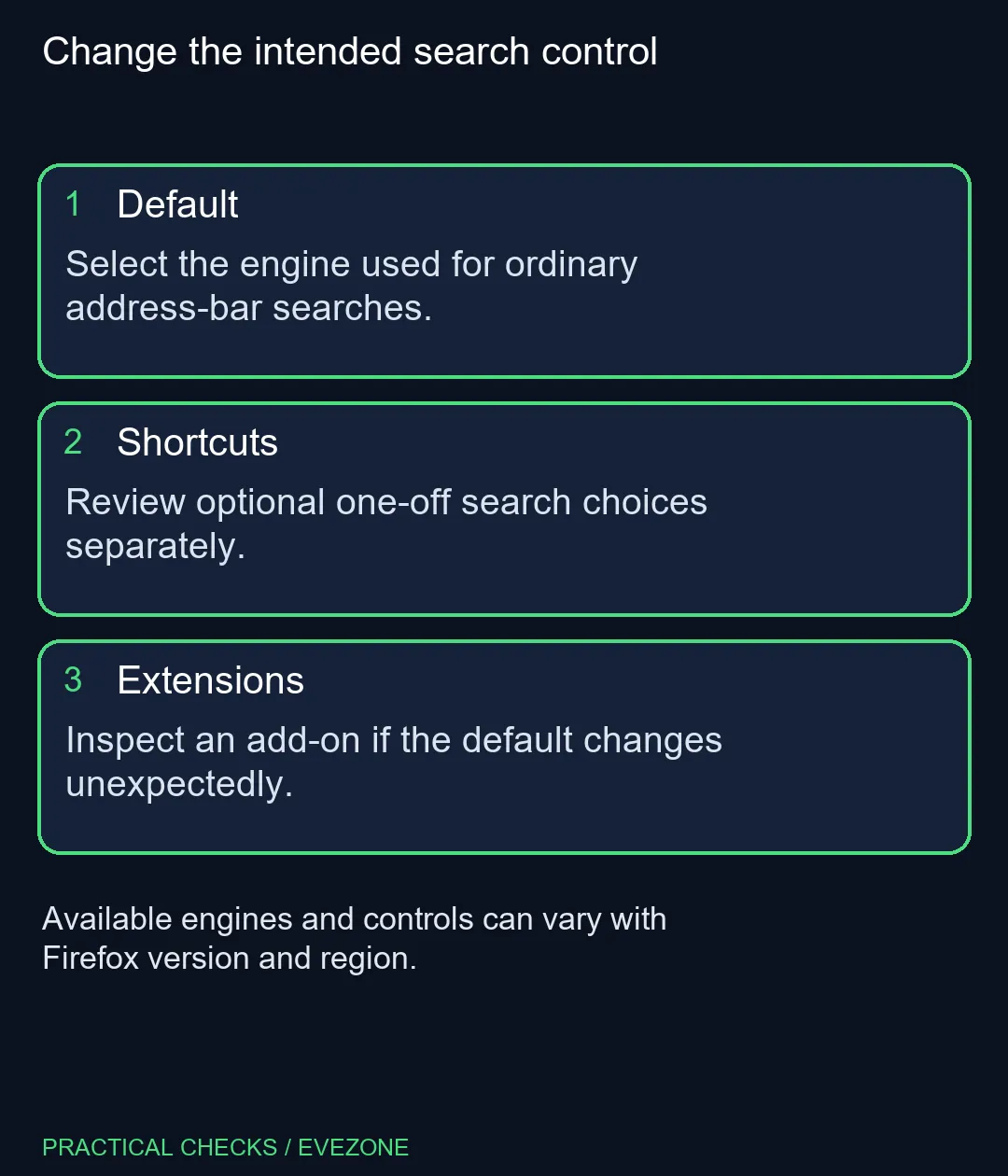
Find the Default Search Engine control in the Search settings page. Choose from the options actually offered by your installation. The presence of a provider on another person's PC does not establish that it will appear in the same place on yours.
After making the choice, open a fresh tab and type a harmless search phrase into the address bar. Do not explicitly choose another provider or use a saved search shortcut during this first test. The aim is to observe what happens when Firefox uses its ordinary default path.
Check which service displays the results. A site's search box and the Firefox address bar are different entry points, so typing into an open shopping website does not test the browser default. Keep the test aligned with the setting you changed.
🧭 Keep shortcuts available when useful
Firefox also supports search shortcuts and additional search options. These can be useful when you want one deliberate query sent somewhere other than your everyday provider. They do not need to be confused with an unwanted default change.
Mozilla distinguishes adding or removing search engines from hiding their shortcuts. Read the label before clearing a selection or removing an entry. Hiding a one-off choice can simplify the interface without being the same operation as removing its underlying search option.
🧩 Inspect an extension that changes the setting
If the default returns to an unexpected provider, review Firefox's installed extensions. Search-related add-ons can influence the available search behaviour. Identify what is installed and whether you intended to use it before downloading another utility to change the browser again.
Avoid guessing that every unfamiliar result page means the same cause. First repeat the ordinary address-bar test, then compare it with an explicitly chosen shortcut. That separates a configured alternative from a default that has genuinely changed.
If you need an engine that is not listed, follow Mozilla's supported adding instructions for your Firefox version. Do not install an unknown extension merely because its name resembles the provider you want. Availability and installation methods can differ across versions and regions.
💻 Keep the purchase decision grounded
An unexpected search provider is a browser configuration issue to investigate before replacing hardware. When comparing mini pcs and all laptops on special, focus instead on your application workload, workspace and connectivity needs.
On a new machine, take a moment to review the default and shortcuts after setting up the browser. A small, deliberate test query is enough to confirm the everyday route, while a separate shortcut test shows how your optional search choices behave.
Frequently Asked Questions
Where is the default search setting?
Open Firefox Settings and choose Search. Select an available option under Default Search Engine.
Is a search shortcut the same as the default?
No. A shortcut offers another search choice; the default controls ordinary searches that do not explicitly select an alternative.
Can an extension change search behaviour?
Yes. Mozilla documents search-related extensions. Inspect installed extensions when a default changes unexpectedly.
Why is my preferred engine missing?
The list depends on version, region and installed options. Follow Mozilla guidance for adding an engine; every service is not necessarily preinstalled.
Does hiding a shortcut remove an engine?
Hiding a shortcut and removing an engine are separate actions. Read the control label before changing it.
How should I verify the new default?
Enter an ordinary test query in the address bar without selecting a shortcut. Check the resulting provider, then test a deliberate shortcut separately if you use one.
Choosing a computer for daily work?
Compare Evetech systems for the tasks that need hardware, then tune Firefox to your search preferences.