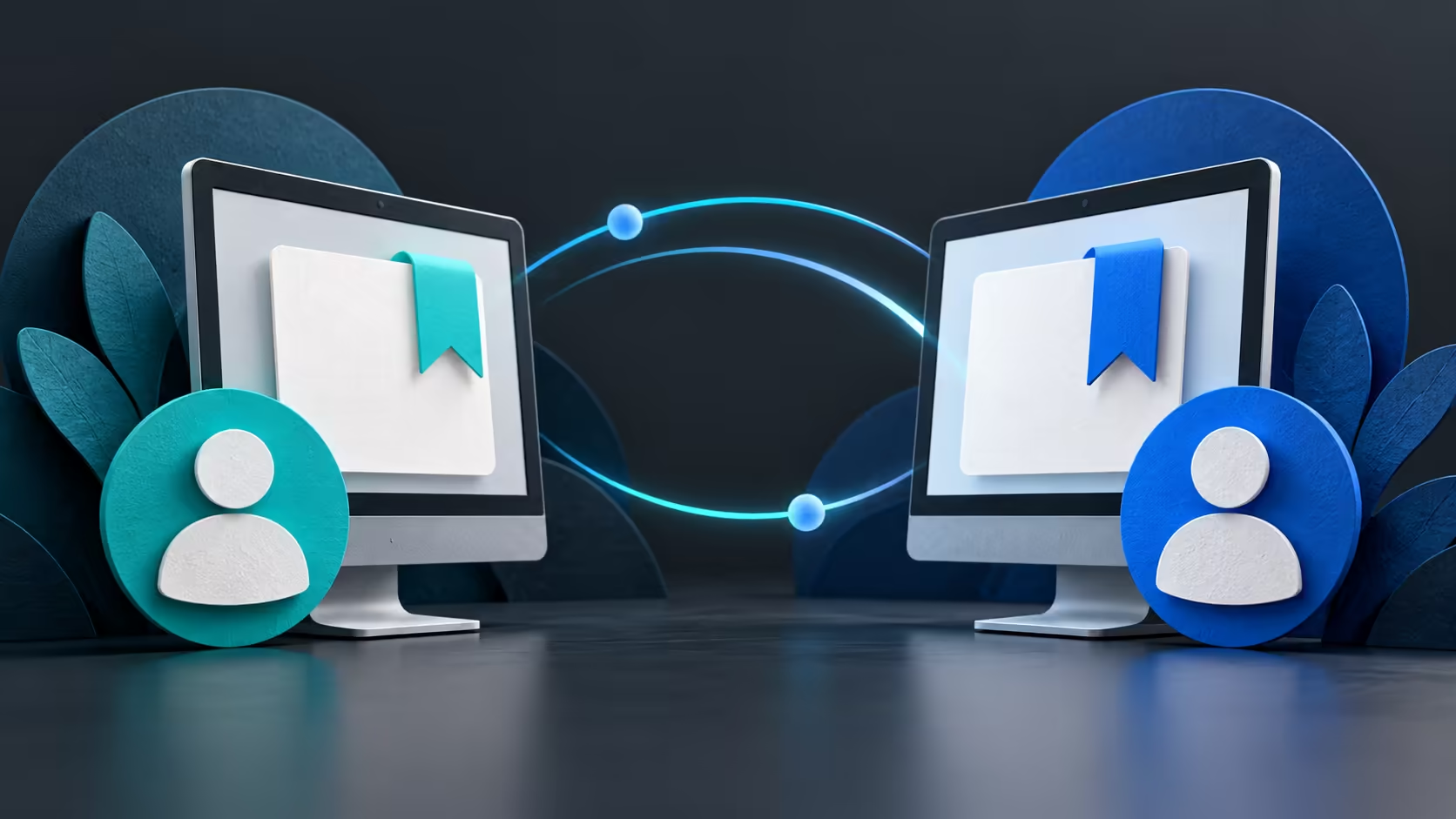
Moving between a home desktop and a work laptop is easier when the browser has the information you expect. Firefox Sync settings control that sharing, but signing in is only the start. The account and the categories selected on each device determine whether a missing bookmark is a setup issue or something that needs further investigation.
Quick Answer
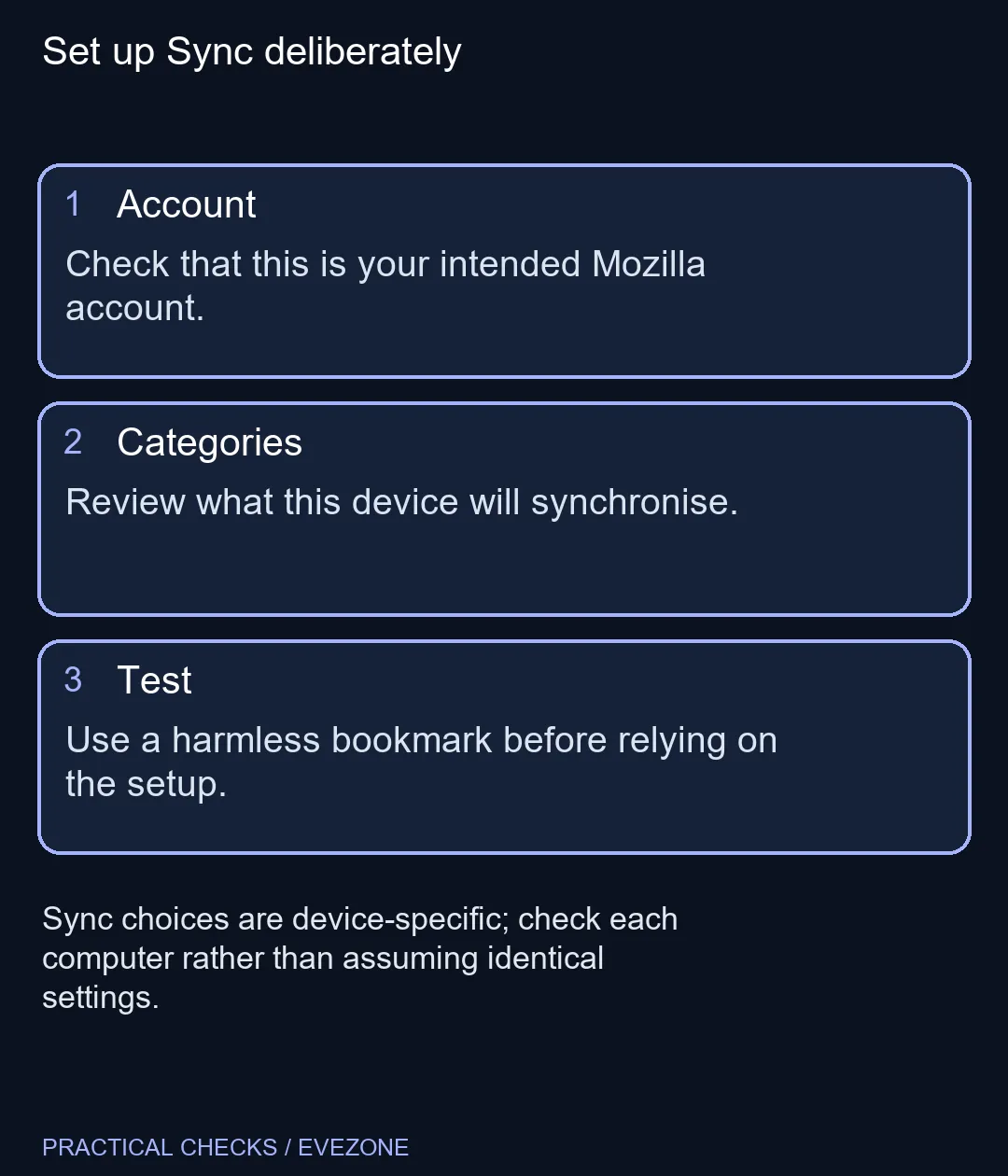
Sign in to the intended Mozilla account in Firefox, open Sync settings and review the supported information selected for that device. Repeat the check on the other computer, then use a harmless bookmark to test the connection. These settings cost R0 to check; they do not replace a backup of your PC files.
👤 Verify the browser account
Open Firefox's account controls and read the account identity. A person can have a website open under one address while the browser itself uses another Mozilla account. That difference can explain why the expected bookmarks never arrive even though both windows appear signed in.
Use your own account on a device you are authorised to use. A shared machine needs a deliberate decision about which profile and account belong there. Do not connect a colleague's browser profile to your personal account simply to make a page available for a meeting.
Complete the normal sign-in flow through Firefox and Mozilla. This guide does not require a third-party synchronisation utility or copying browser database files between computers. Those shortcuts introduce separate questions about credentials and data integrity that a standard account setup avoids.
🗃 Choose the information to share
Mozilla provides controls for choosing the types of information that Sync handles. Read the category list on the device in front of you rather than assuming another computer's choices apply here. Only enable the supported categories you actually want associated with this setup.
If bookmarks are the immediate need, check that category explicitly on both sides. A successful account sign-in cannot compensate for the relevant information being excluded by the device's settings. Keep the first troubleshooting pass focused on the category that appears to be missing.
🔖 Test without removing anything
Make an easily recognisable test bookmark to an ordinary page. Let both devices connect, then look for that bookmark on the other one. This gives you a small observation without deleting a folder or changing a valuable saved item to see what happens.
If it does not appear, compare the account identities and selected categories again. Check that each device has a working connection. Do not turn a slow or incomplete first test into an account reset before these basic differences have been ruled out.
💾 Keep a separate backup plan
Synchronising browser information is useful when comparing mini pcs and all laptops on special for a second workspace. It can make the transition more convenient, but it does not move every application, document or device setting to the new machine.
Plan those files and applications separately. Keep important work backed up through an appropriate method, and verify it before retiring an old computer. Sync is a convenience for supported Firefox information; treating it as a complete machine image leaves gaps that only become visible when the original PC is unavailable.
Frequently Asked Questions
Where do I start Sync on a computer?
Open the Firefox account or menu controls and sign in to your Mozilla account. Mozilla then lets you review the information selected for synchronisation.
Must every device share the same categories?
No. Check the Sync settings on each device and select the information you want it to synchronise.
Does signing into a website enable Firefox Sync?
No. A website session and the Mozilla account used by Firefox are different sign-ins. Inspect the browser account controls.
How can I check the setup safely?
Create a harmless test bookmark and look for it on the intended second device. Avoid using a deletion as your first test.
Should I reset an account to fix one missing item?
Do not start with a destructive reset. Confirm the account, connection and selected data category on both devices first.
Is Sync a complete PC backup?
It synchronises supported Firefox information, rather than all computer files and applications. Keep a separate backup plan for important work.
Building a second workspace?
Compare Evetech PCs for the applications and files you need on that machine.