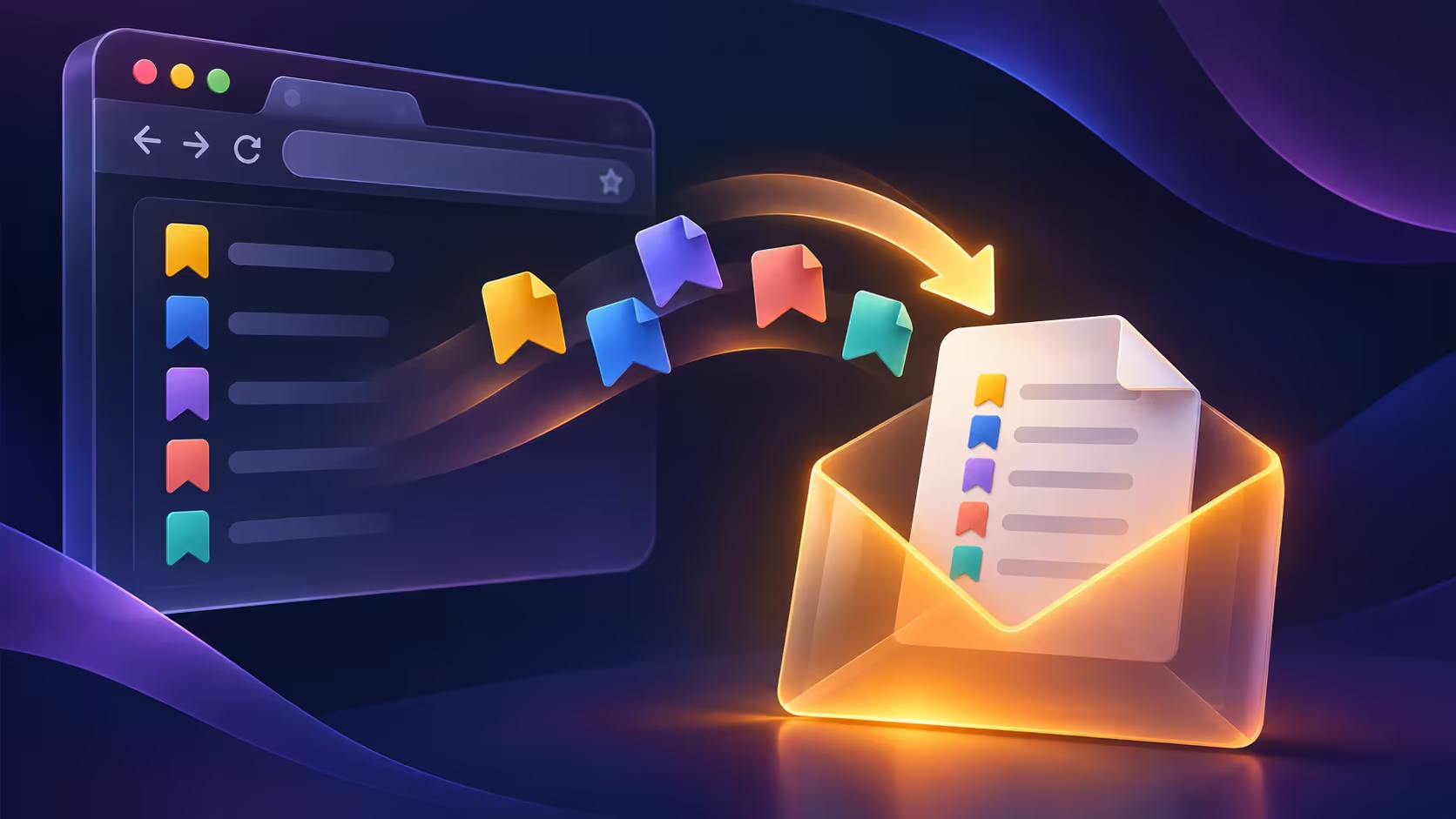
Moving to a different computer should not mean rebuilding years of saved pages by hand. Firefox export bookmarks provides a portable HTML route, but the nearby Backup and Restore commands do different jobs. Choosing the right operation protects the collection you already have while you prepare the new browser.
Quick Answer
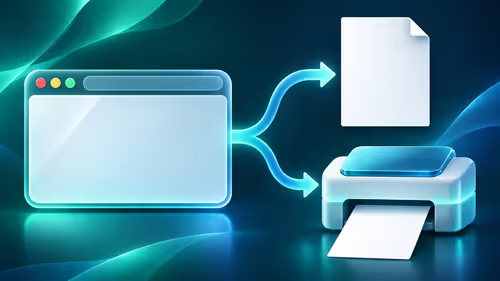
Open Bookmarks, choose Manage bookmarks and use Import and Backup in the Library window. Select Export Bookmarks to HTML, then save the file somewhere you can find. The export costs R0. Use an HTML import at the destination; do not choose a replacement restore unless that is what you intend.
📚 Decide whether you are transferring or restoring
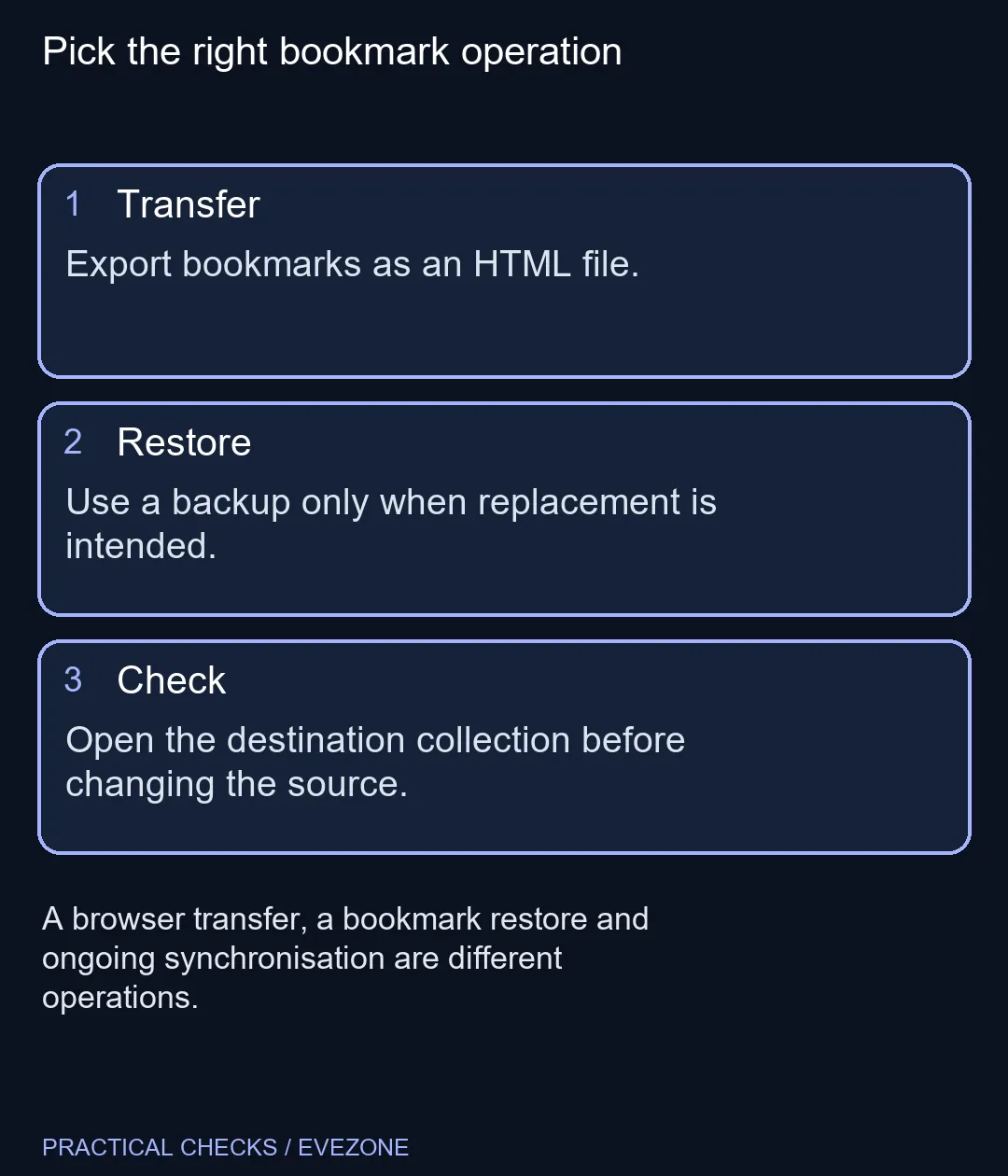
An HTML export is the appropriate starting point for moving bookmarks to another browser. A Firefox backup is intended for restoring a Firefox collection. The similar names can make the wrong command look reasonable when you are trying to move quickly.
Before using Restore, note that it can replace the destination's current bookmarks. If the new browser already contains useful saved pages, preserve those first. A transfer should not quietly become a decision to throw away the destination collection.
💾 Save a file you can identify later
Give the export a clear filename and keep track of the folder. Copying the wrong file to the new machine is easier than it sounds when Downloads contains several old exports. Include a date in your own filename if that helps you distinguish versions.
Treat the file as a record of saved addresses. It can reveal personal interests, account entry pages or private project names, even though it is not a password export. Store it with the same care you give other personal working documents rather than placing it on a public share.
🔍 Inspect the destination before changing the source
After importing, look through several folders and open a few familiar entries. Check an older folder as well as the newest items. A successful file-selection dialog is less useful evidence than a collection you can actually navigate.
Keep the original browser available while you check. If the folder arrangement differs, you can compare both views calmly instead of trying to reconstruct the old layout from memory. Do not delete the source collection just because the import command completed without an obvious error.
🔄 Keep a fixed copy separate from Sync
Sync is useful for continuing to share bookmarks between computers, but changes keep flowing. It is not a substitute for a dated file you can return to when an accidental edit has already spread. Choose continuous sharing and a saved checkpoint for the different problems they solve.
A new desk computer from mini pcs and a travel machine from all laptops on special may need the same bookmarks, but they do not need to be migrated in a hurry. Export first, transfer carefully and confirm the result on each destination.
Bookmark transfer also does not move every browser preference or account. Finish this one task, then address other data categories deliberately. That makes the change easier to verify and avoids mistaking a familiar bookmark list for a complete copy of the old profile.
Frequently Asked Questions
Which file suits another browser?
Export Bookmarks to HTML creates the portable bookmark file described by Mozilla for browser transfers.
Where is the export command?
Open Bookmarks, then Manage bookmarks. In the Library window, use Import and Backup and select Export Bookmarks to HTML.
Does the file include my passwords?
This operation exports bookmarks. Treat password transfer as a different task with its own supported process.
Can restoring a backup replace bookmarks?
Yes. Mozilla warns that restoring a bookmark backup overwrites the current collection. Keep a copy before replacement.
Is Sync the same as a dated backup?
No. Sync follows ongoing changes across devices. A saved file preserves a particular export or backup point.
When can I remove the source copy?
First inspect the imported bookmarks on the destination and keep a separate safe copy. Do not remove the only working collection prematurely.
Moving your everyday setup?
Compare Evetech computers for the way you work, and keep a checked bookmark export before retiring the old browser profile.