A web receipt can look fine on the screen and still lose a column on paper. Firefox print preview is the place to catch that mismatch before wasting sheets. Start with the page layout and destination, then move to the printer only when you know which part of the output is wrong.
Quick Answer
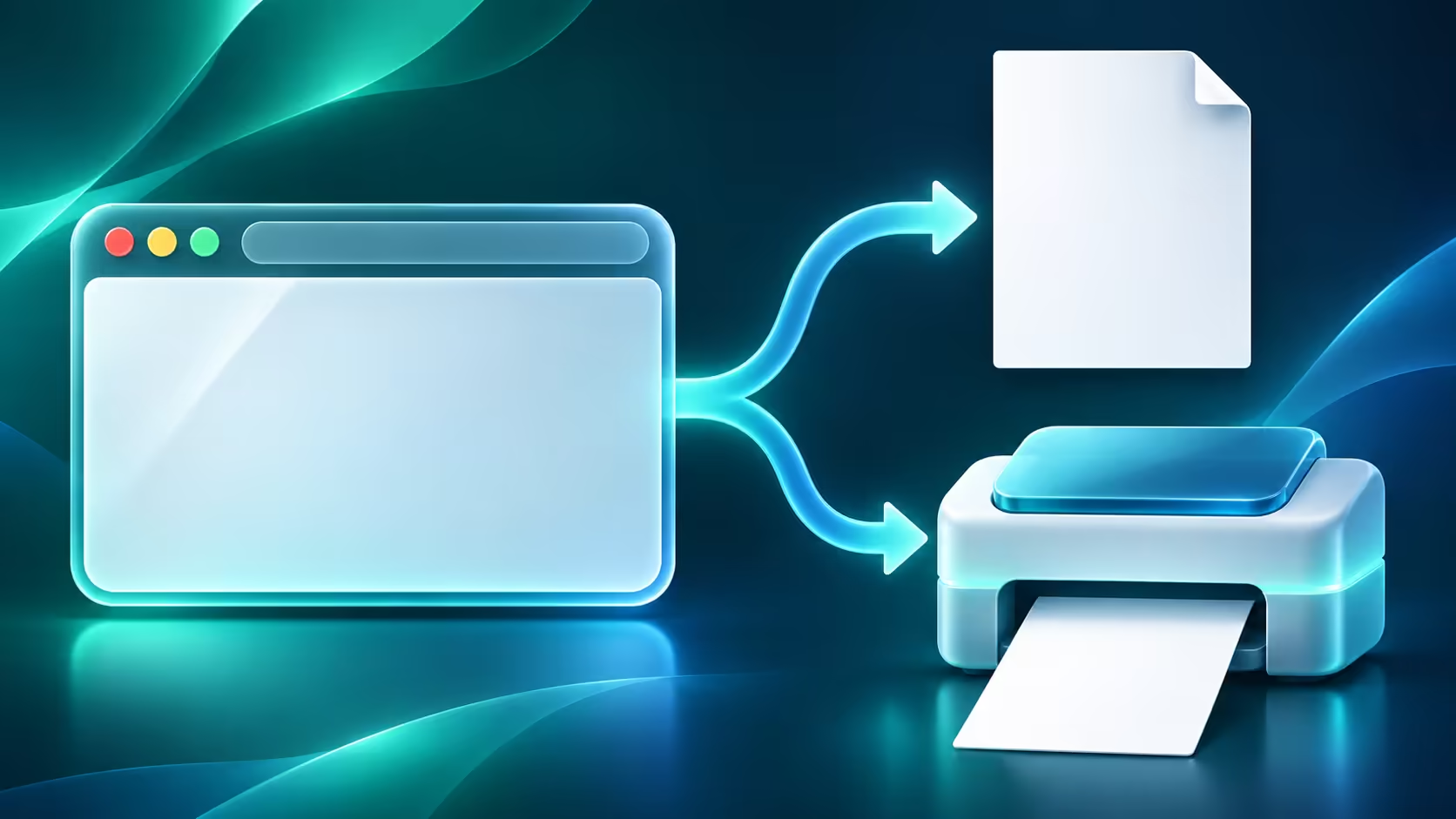
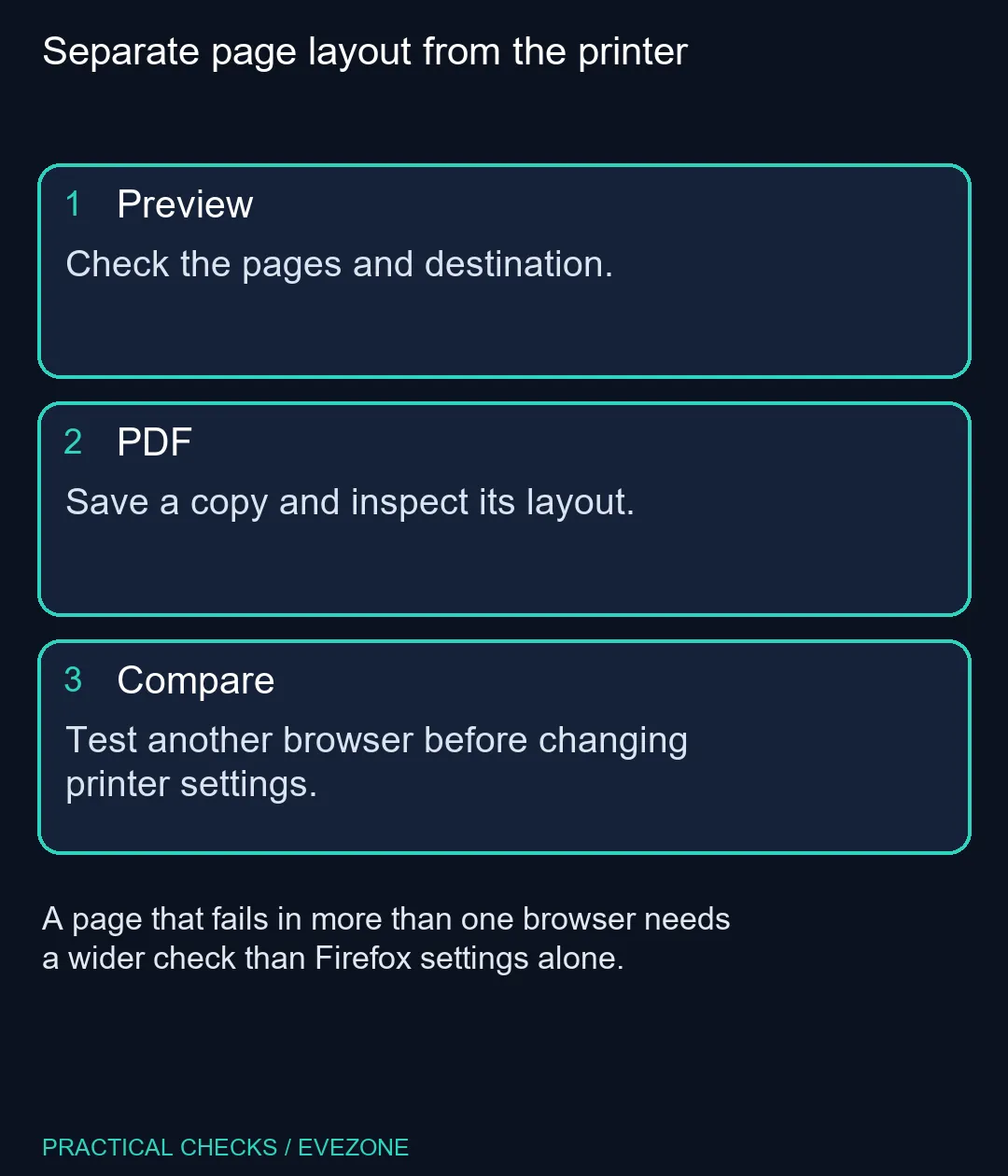
Choose Print from the Firefox menu and inspect the preview. Confirm the destination, page range and orientation; expand More settings for scale and margins. Save to PDF for an R0 layout check. If the page still looks wrong, compare it in another browser before clearing Firefox's saved print settings.
🧾 Read the preview before sending the job
Look at the first and last page, not just the centre of the preview. A missing right-hand column, an unwanted blank page or a tiny table can often be spotted there. Select the pages you need rather than printing a long page of comments with a short document at the top.
The website can define a print layout that differs from its screen appearance. That alone is not a Firefox failure. Decide whether the document contains the information you need in a readable form before spending time trying to reproduce every decorative element.
📄 Use a PDF as a separate output check
Select Save to PDF and open the resulting file. This gives you something concrete to inspect without sending another physical job. Check the headings, table edges and page breaks in the saved document rather than assuming that clicking Save proved the layout was correct.
If that file looks acceptable while the paper copy does not, focus next on the physical printing path. A PDF test narrows the question; it does not certify the printer, its driver or its paper setup. Keep the two observations separate in your troubleshooting notes.
🛠 Compare before resetting preferences
Try the same page in another browser. If both render it badly, the website or printing environment deserves attention. If the other browser succeeds, you have a more specific reason to inspect Firefox's saved settings.
Firefox provides Clear saved print settings in the Printing section of its troubleshooting information page. Use that deliberately because it removes modified print settings. Write down any special margins or scaling you rely on before using a reset, and retest the same page afterwards.
💻 Keep a browser problem out of the shopping basket
An awkward preview is not evidence that a laptop is too old or that a new desktop is required. Work through the layout checks with the hardware you have. If you were already replacing a computer for wider reasons, compare all laptops on special or mini pcs on those needs rather than a single print failure.
For an urgent document, save an inspected PDF and make sure the recipient can read it. That preserves a usable copy while you investigate the printer separately. Avoid repeatedly submitting the same failing job and losing track of which settings produced each result.
Frequently Asked Questions
How do I open the preview?
Open the Firefox menu and choose Print. The browser shows a preview and printing options.
Can I create a PDF instead?
Yes. Choose Save to PDF as the destination and save the file. Open the saved copy to inspect it.
Why does the printed page look different?
Websites can use a separate print layout. Check the preview instead of assuming the screen layout will be reproduced exactly.
Where are margins and scale?
Expand More settings in the print panel. The available options also depend on the selected destination.
Should I reset settings immediately?
First compare the page in another browser and check the destination. A reset removes modified Firefox print settings.
Does a good PDF prove the printer works?
No. It helps separate page output from the physical printing path. The device, driver and paper settings still need their own test.
Need a dependable everyday computer?
Solve the print layout first, then compare Evetech laptop and mini-PC configurations for your wider daily workload.