



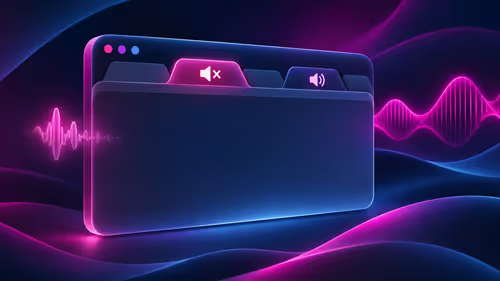
Firefox mute tab: silence one page while keeping other audio
Firefox can mute one noisy tab using its speaker button or context menu. Check the tab control before changing Windows volume or replacing a working headset.
Read moreFirefox can add bookmarks from an HTML file through its Library import menu. Back up the current collection first and distinguish an additive import from restoring a Firefox backup.

The Firefox import bookmarks HTML route is useful when you already have an exported file and want those saved sites in this browser. It should be a deliberate addition, not a guessing game between Import and Restore. Start by protecting the bookmarks already on the destination computer, then inspect the result before repeating anything.
Open the Bookmarks Library, choose Import and Backup, then Import Bookmarks from HTML and select your file. This R0 operation adds links to the existing collection. Restoring a Firefox backup is different and can replace current bookmarks; back up first and read the operation name before confirming it.
Find the exported HTML file in a location you recognise. Check its name and date so you do not import an older collection by mistake. If you have several browser profiles, open the one which should receive the links before starting.
Create a backup of the current Firefox bookmarks through the Library's backup option. Keep that file separate from the incoming HTML export. Different names make it easier to understand which file represents the destination before the change and which represents the links you want to add.
An HTML bookmark file is not a complete copy of a browser. Plan saved-password access and any other information separately. It is better to discover that distinction while the old computer is still available than after expecting one file to recreate every setting.
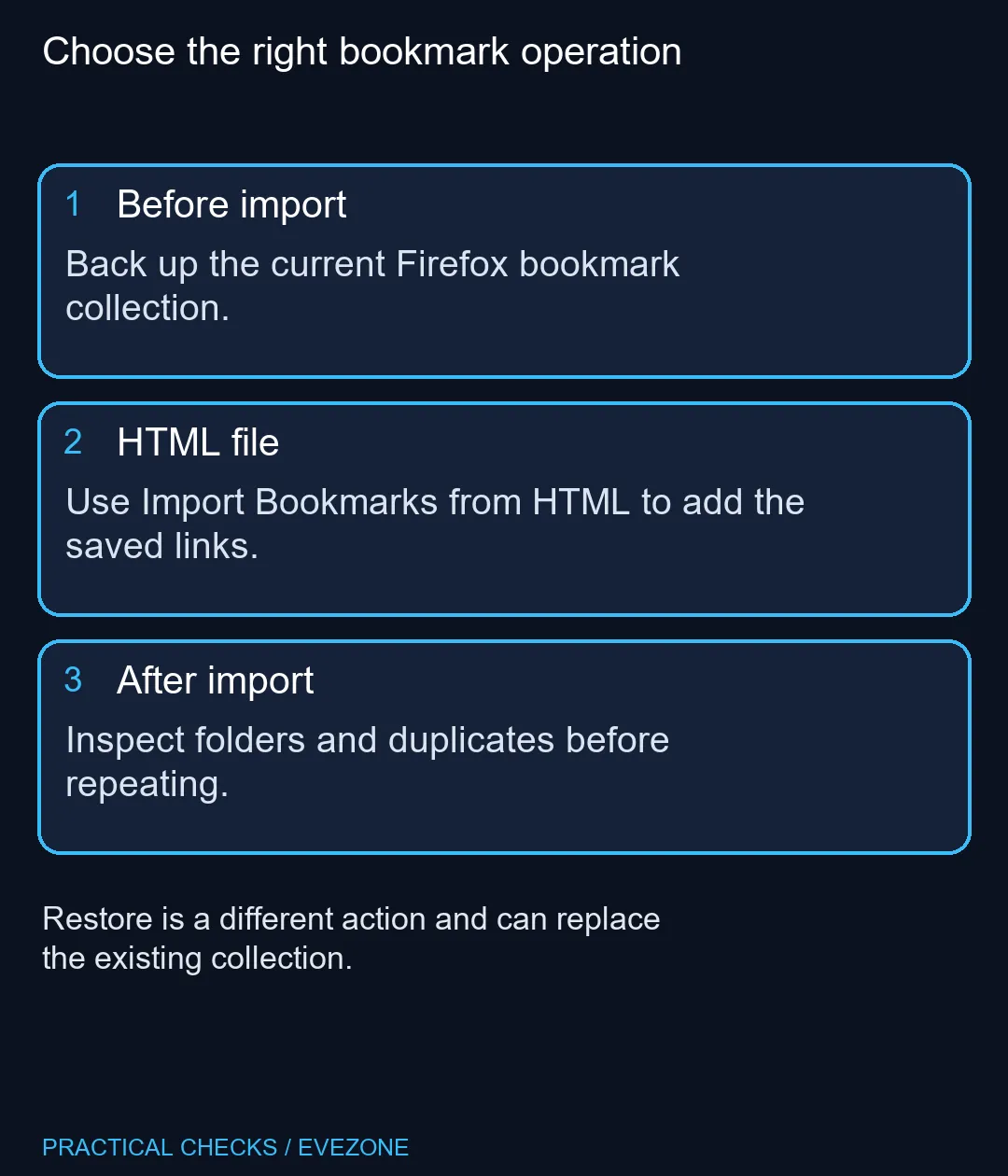
After selecting the HTML import command and opening the file, inspect the Bookmarks Menu in the Library. Expand folders and search for a familiar site. Do not judge success only by whether a toolbar appeared at the top of the window.
An additive import can produce duplicates, particularly if it is repeated. When the first result looks empty, check the destination folders before trying the same file again. A careful inspection is faster than cleaning up several copies of every saved link.
For a move to all laptops on special, retain the source export until you have tested the links you rely on. Open a small selection from different folders and confirm their addresses, especially where several saved pages have similar names.
A Firefox bookmark backup serves another purpose: restoring a previous collection. That operation replaces the current bookmarks rather than simply adding a file's links. Read its warning and decide whether replacement is actually what you want.
If you are assembling a fixed workstation from mini pcs, choose one clean destination profile for the transfer. Importing into several temporary profiles can make it harder to know which collection is the working copy when setup is complete.
Once the links are checked, organise them at a pace which suits you. Keep the original export and backup while you decide which duplicates to remove. There is no need to delete the source file immediately or turn a straightforward transfer into a wholesale browser reset.
Open Bookmarks, Manage bookmarks, then Import and Backup in the Library. Choose Import Bookmarks from HTML and select the file.
It adds the file contents to the current collection. Repeating the import may create duplicates, so inspect the result before trying again.
No. Restoring a Firefox bookmark backup replaces the current collection. Make a backup and read the confirmation before using that route.
Inspect the Bookmarks Menu in the Library and expand its folders. A hidden toolbar does not establish that the import failed.
A bookmark HTML file transfers saved links. Do not expect it to carry all browser data, account sign-ins or locally stored passwords.
The built-in HTML import costs R0. Keep the original file until you have checked the important folders and opened a few links.
Moving saved research to a new workspace? Compare Evetech laptop and mini-PC configurations once your bookmark export and destination backup are safely organised.
Open Bookmarks, Manage bookmarks, then Import and Backup in the Library. Choose Import Bookmarks from HTML and select the file.
It adds the file contents to the current collection. Repeating the import may create duplicates, so inspect the result before trying again.
No. Restoring a Firefox bookmark backup replaces the current collection. Make a backup and read the confirmation before using that route.
Inspect the Bookmarks Menu in the Library and expand its folders. A hidden toolbar does not establish that the import failed.
A bookmark HTML file transfers saved links. Do not expect it to carry all browser data, account sign-ins or locally stored passwords.
The built-in HTML import costs R0. Keep the original file until you have checked the important folders and opened a few links.
Firefox can mute one noisy tab using its speaker button or context menu. Check the tab control before changing Windows volume or replacing a working headset.
Read more
Firefox has a startup-cache control on its Troubleshooting Information page. Use it for a focused interface test and keep it separate from clearing website data or refreshing the profile.
Read more
Firefox Primary Password protects access to locally saved logins. It is separate from a website or Mozilla account password, and forgetting it can put saved credentials at risk during reset.
Read more
Firefox offline mode can stop pages loading even when the computer has a connection. Check the browser setting, compare another browser and record the exact error before changing network hardware.
Read more
Firefox can reopen a recently closed tab or restore a previous session. Choose the recovery route for what disappeared, then check startup settings without clearing useful history.
Read more
Firefox private browsing separates a temporary session from normal browsing history. It does not make you anonymous online, and files or bookmarks you deliberately save can remain after the last private window closes.
Read more Firefox private browsing separates a temporary session from normal browsing history. It does not make you anonymous online, and files or bookmarks you deliberately save can remain after the last private window closes.
Where bryanston gamers buy a webcam that's needs careful context before choosing parts. Use this guide to compare options, trade-offs, platform fit, and upgrade timing for a South African gaming PC without relying on live stock, price, or benchmark promises.
RTX 5080 build low FPS after a GPU driver update needs a careful rollback path. Check drivers, firmware, cables, USB ports, overlays, and recent settings before replacing hardware in an SA gaming setup.
Cheapest 180Hz 1440p build for cinematic story games in SA helps SA readers plan hardware, settings, compatibility, and upgrade trade-offs. Check GPU, CPU, RAM, storage, monitor, and stability needs without risky performance claims.
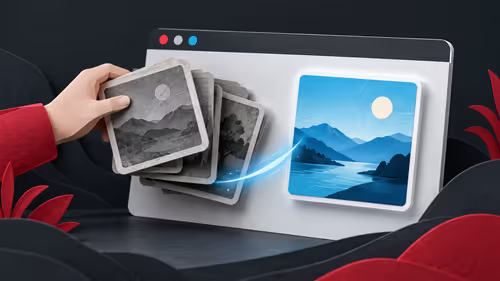
Firefox can clear temporary page files without clearing cookies. Select the cached-files option carefully, then reload the affected page before changing unrelated browser settings.
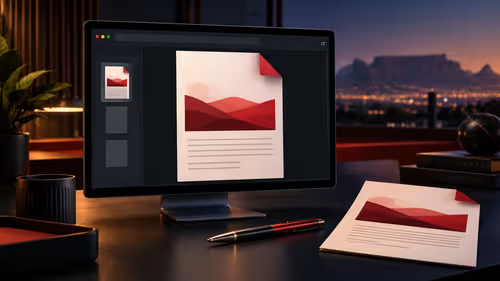
Firefox PDF viewer opens documents in the browser and provides annotation and form tools. Check the PDF action, work on a saved copy and reopen the final file to confirm the information you entered survived before submitting an application or assignment.
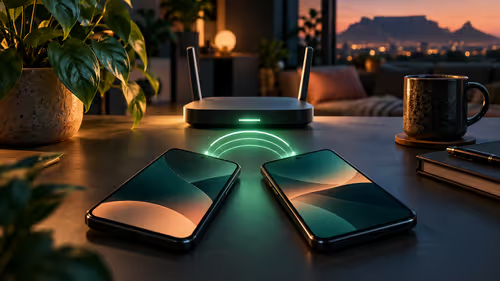
Learn how to share WiFi password on iPhone using nearby Apple devices. Keep Wi-Fi and Bluetooth on, check contacts and the connected phone, then use Share Password; separate this process from sharing a mobile-data hotspot or changing a router password.
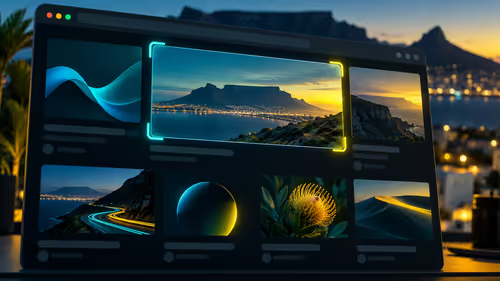
Firefox screenshot offers a selected region, visible-page capture and full-page capture. Choose the smallest useful area, copy or download the result, and inspect the saved image before sharing account details or assuming every part of a page was captured.
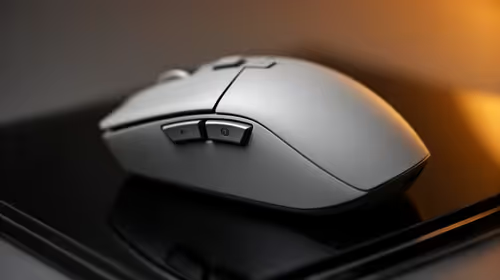
8000Hz and 1000Hz polling differ in competitive esports through input timing, CPU load, and consistency. SA players should test whether the higher rate improves aim feel without hurting frame pacing.
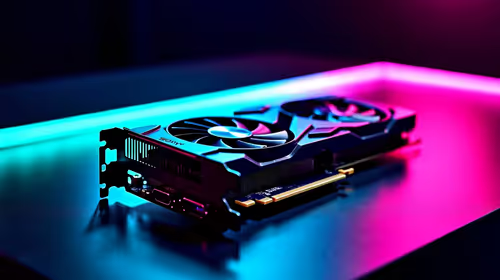
Better value alternatives to the RTX 4080 help SA esports buyers focus spend on frames, latency, and system balance. Weigh GPU tiers against your monitor, CPU, case cooling, and upgrade path before paying for unused power.

Hollow Knight R40,000 PC build planning starts with balanced parts. For SA gamers, compare CPU and GPU fit, RAM needs, SSD space, PSU headroom and cooling before buying.
iRacing R80,000 builds should target smooth sim racing, not vanity specs. This recommended build for iRacing at R80 000 SA buyer's guide should weigh CPU strength, GPU headroom, triples or VR plans, cooling, and reliable peripherals.