A Firefox mute tab change can stop a noisy page without silencing the rest of your desk. That matters when a video starts beside a voice call, or when a background stream keeps playing after you move to another site. Reach for the page's own audio control before changing the volume of every application.
Quick Answer
Click the speaker button on the noisy tab to mute it, and click again to restore sound. The tab context menu offers the same control; Windows users can also try Ctrl + M on the active tab. This R0 check helps isolate a browser problem before you blame the headset or computer output.
🔈 Identify the noisy tab
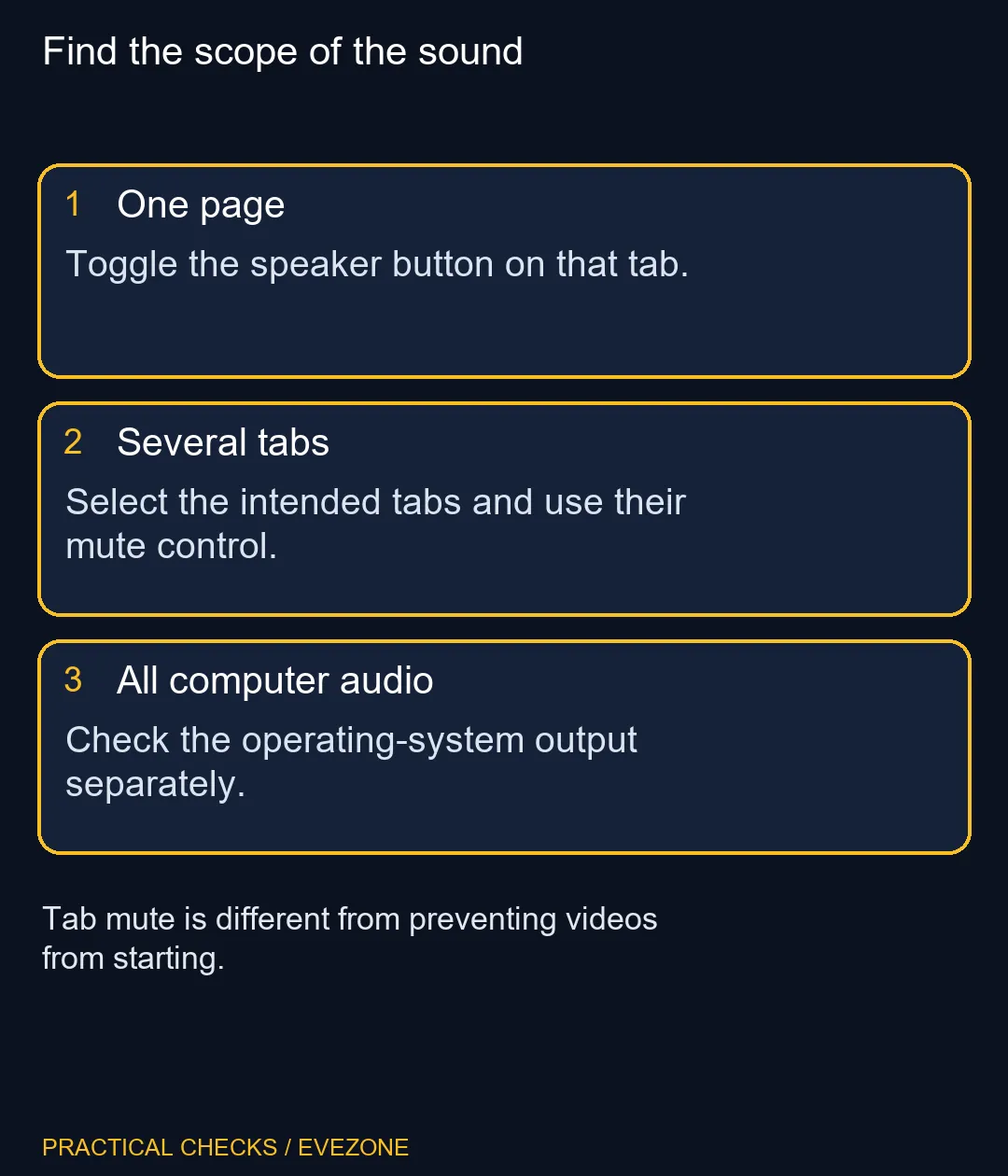
Look along the tab strip for the audio indicator and check the page title. A sound from an unexpected tab is easy to confuse with the video you are watching. Mute the identified page, then listen for whether the unwanted sound actually stops.
If several tabs belong to the same task, select the intended group and use its context menu. Avoid including a meeting or music tab by accident. The benefit of a targeted mute is keeping useful audio while removing the distraction.
Remember that the tab action applies to browser sound from that page. It cannot change audio coming from a separate desktop application. If the sound continues, find the real source before repeating the same browser action.
🎧 Keep player and system volume separate
A video player can have its own mute control, Firefox can mute the tab and Windows can change the output volume. Check these in order when a page remains silent. Raising the final volume slider does not necessarily undo an earlier mute.
Keep levels modest while testing. Restoring several muted layers at once can produce a sudden jump in loudness. Use a familiar short clip so you can tell whether the change worked without guessing from a silent passage.
Compare gaming headsets only after the software checks show a hardware need. A working headset should not be replaced because one browser tab was silenced. If another application plays correctly, that is a useful reason to continue checking the affected page.
▶️ Choose whether silence or prevention is the goal
Mute is convenient when you want a page to stay open while its sound is quiet. Autoplay settings address another question: whether media should begin by itself. Closing a tab is a third choice when you no longer need the page at all.
On all laptops on special, these distinctions are especially helpful during study or shared-room use. You can keep a reference page available while allowing a meeting to remain audible, without turning the whole laptop down and missing the next speaker.
When reporting a recurring problem, note whether the speaker indicator changed, whether the player was muted and whether other programs still had sound. That short test record is much clearer than saying the laptop audio is broken. Return the controls to your preferred state when the test is over.
Frequently Asked Questions
How do I mute one Firefox tab?
Click the speaker button on the noisy tab, or use its tab context menu. The action targets that page rather than every program on the PC.
What is the Windows keyboard shortcut?
Ctrl + M toggles mute for the current tab. Check which tab is active before using it during a call or stream.
Can several tabs be muted together?
Firefox supports selecting multiple tabs and using Mute Tabs from the context menu. Confirm the selected group before applying the action.
Is mute the same as blocking autoplay?
No. Muting silences tab audio; autoplay controls whether media starts automatically. Choose the setting which matches the behaviour you want.
Why is a video still silent after Windows volume rises?
Inspect the tab speaker state and the player volume. Either can remain muted even when the system output is turned up.
Do I need a new headset for one noisy page?
Not on that evidence. The browser control costs R0 and should be checked before spending on hardware.
Need audio equipment for more than one browser tab?
Explore Evetech headsets by comfort and connection after checking the page, browser and computer volume controls.