A curved fast-refresh panel is not a shortcut to better aim. Choosing a curved 280Hz monitor for competitive gaming is a decision about viewing position, game performance and dark-scene response, with the curve acting as one comfort tool rather than the main performance feature.
Quick Answer
Judge a curved 280Hz monitor by PC frame times, dark transitions, desk distance and connection support. At 27 inches, Full HD favours speed; a 1500R curve favours a centred seat rather than sharper detail. The R4,599 Lenovo Legion 27-2c combines that curve with 280Hz, 0.5ms MPRT, a VA panel and a fully adjustable stand, so it suits a player whose setup matches those trade-offs.
🧭 Decide whether a curve suits the seat
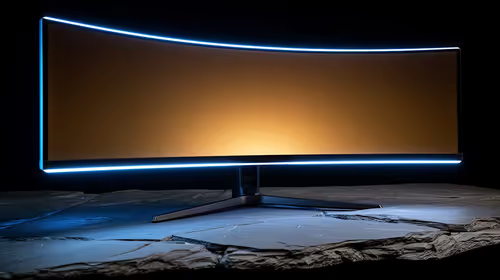
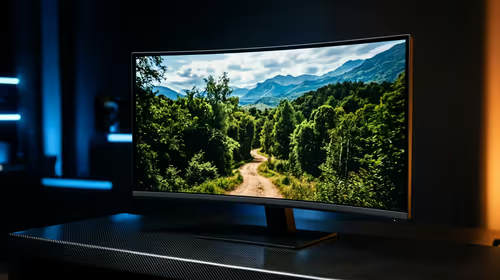
The number before the R describes the radius of the circle a curved panel approximates. A 1500R screen wraps more tightly than a 1800R panel. At a normal desk distance, its left and right edges can feel closer to the viewer's eyes when the player sits centred. That can make one-person play feel more enclosed without changing the image resolution or the game's field of view.
It is less useful for a screen frequently shared with someone sitting to the side, for a multi-monitor row that needs straight alignment, or for a desk where the chair is never centred. Put a tape marker on the desk, sit in the real playing position, and check a spreadsheet, a dark game scene and a game HUD. If the curve makes the far edge feel uneven because the seat is off-centre, a flat panel may be the more practical choice.
The Legion's height, tilt, swivel and pivot adjustment lets you test the geometry before committing to a fixed arm. Start 70 to 90cm from the 27-inch panel, set the top edge roughly near eye level and use only enough tilt to face the screen squarely. The curve helps when the panel is aligned; it cannot repair poor desk placement.
⚙️ Calculate the speed path end to end
At 280Hz, a refresh interval is about 3.57ms. At 240Hz it is roughly 4.17ms, so the step is real but much smaller than moving from 60Hz to 144Hz. It rewards a game PC that can sustain high frame rates, not one that reaches 280 only in an empty menu.
Run a ten-minute benchmark or demanding match with the planned graphics settings. Log average fps, 1% low and GPU utilisation. An average above 280 alongside a 1% low near 140 tells a different story from an average near 240 with a narrow range. In the first case, lower the setting causing spikes; in the second, a sensible cap near the stable rate can produce more consistent pacing than chasing a number that is rarely held.
Full HD is important to that calculation. The 1920x1080 Legion asks far less rendering work per frame than QHD, leaving more GPU headroom for a high refresh target. The trade-off is pixel density: fine text and desktop work appear softer at 27 inches than on a similarly sized QHD display. Do not pretend the curve solves that; it is a separate resolution choice.
🌑 Test VA behaviour where it matters
VA panels are valued for contrast. The Legion's 3000:1 figure can give dark scenes deeper blacks than many IPS alternatives, which is useful in games with bright UI elements against shadows. Contrast alone does not describe moving dark detail. Some VA transitions can leave dark smearing, especially when a target crosses a nearly black background.
Use a dark training map or slow camera pan to evaluate the actual setting. Test each overdrive mode with the same refresh rate and adaptive-sync state. Look first for a dark trail behind moving objects, then for bright halos that appear when overdrive is too aggressive. The best setting is a compromise: less trailing without inverse ghosting. A menu's fastest label is not automatically the best competitive choice.
The stated 0.5ms MPRT refers to motion-picture response time, which is not interchangeable with a grey-to-grey transition. That distinction matters because a single response figure cannot promise identical motion in bright, mid-grey and near-black scenes. Test the scenes you play, not only a bright demo loop.
🔌 Treat ports and sync as setup work
The Legion offers DP 1.4 and two HDMI 2.1 connections. Before comparing motion, select the desired refresh mode in Windows and in the graphics driver, then verify it with a frame-rate test. A wrong cable, input mode or operating-system setting can leave a new panel running lower than expected.
FreeSync Premium and VESA Adaptive Sync can match refresh timing to completed GPU frames, reducing tearing when the frame rate moves around. They cannot overcome CPU stutters or a badly paced game engine. Pair sync with a measured fps cap, and retest after every driver change rather than assuming a stored profile stayed intact.
Use gaming monitor category listings to compare broader screen choices, browse curved monitors when geometry is the priority, and review high-refresh options after the PC target is known.
🧾 Make the purchase decision with a trade-off table
Choose this shape of monitor if three statements are true: the seat stays centred, the PC has enough Full HD headroom for high and stable fps, and deeper VA contrast matters more than QHD desktop sharpness. Choose a flat option if the screen is shared or must sit in a straight multi-monitor line. Choose more resolution if your work and games benefit more from detail than the extra frame-rate ceiling.
The obvious answer is to buy the highest refresh figure inside a budget. The more useful answer is to buy the display whose panel behaviour, resolution and stand position you can use every day. A 280Hz mode is valuable only when the rest of the chain gives it good frames to show.
Frequently Asked Questions
Does a 1500R curve improve reaction time
No. It can make a centred viewing position feel more natural, while reaction performance still depends on the player, frame delivery and display response.
Is 1080p enough for a 27-inch competitive screen
It can be for speed-focused play, especially where the GPU benefits from fewer pixels. It is less ideal for people who prioritise fine text and desktop clarity.
Can adaptive sync remove every stutter
No. It helps with tearing and variable frame timing within its range, but CPU spikes and game-engine hitches still show.
Should a curved monitor be used in portrait mode
Pivot is available on the Legion stand, but portrait use is normally a workflow choice; test it before planning a curved screen as a vertical side display.
Ready to match a monitor to the way you play?
Browse curved and high-refresh displays after checking your desk position and your PC's stable frame-rate range.