



How to Use a Nano SIM 4G Router for Reliable Home Internet
Master using a Nano SIM 4G router as your primary internet solution. Get stable speeds and seamless connectivity for gaming and streaming at home! 🌐🚀
Read moreDeep dive into PWM intelligent speed control in case fans. RPM ranges, thermal response behaviour, and noise management strategies explained.
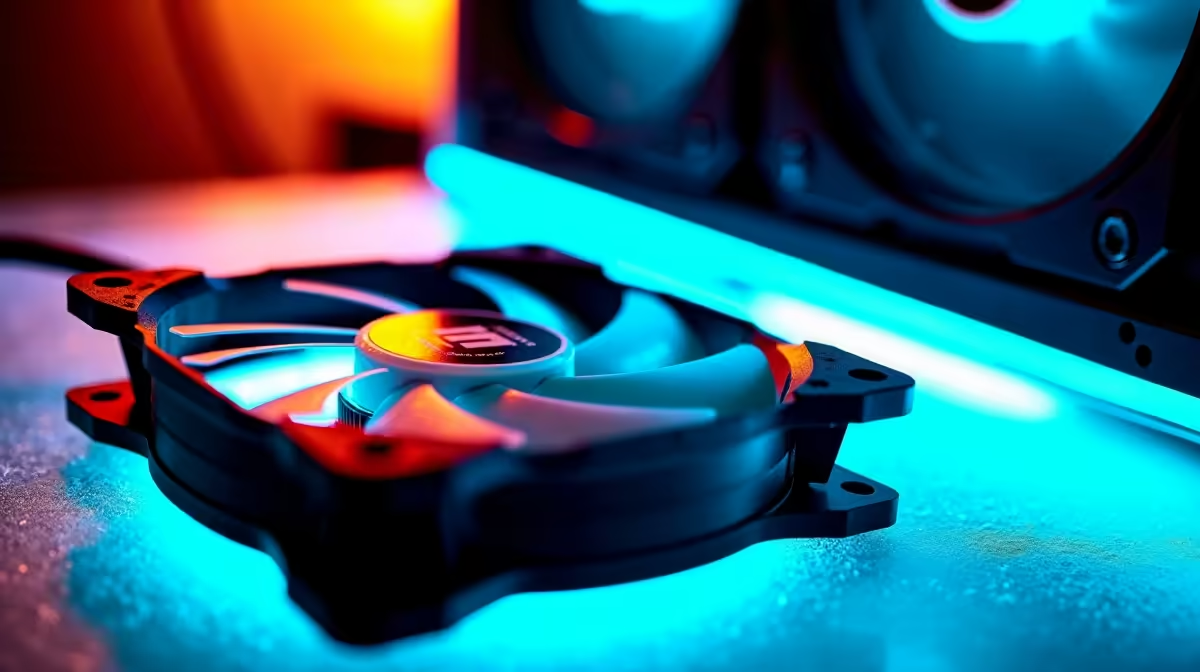
PWM (Pulse Width Modulation) intelligent speed control automatically adjusts your case fan RPM based on real-time system temperature, eliminating the need for manual fan curves and ensuring your PC runs as quietly as possible while staying cool.
PWM fans operate by rapidly switching power on and off to the fan motor. When the CPU or system reaches a certain temperature threshold, your motherboard detects this and tells the PWM fan controller to increase the power percentage. A 50% PWM signal means the fan receives power 50% of the time, running at half speed. At 100% PWM, the fan runs at maximum speed. This happens continuously—sometimes multiple times per second—creating a dynamic, responsive cooling system that adapts to your workload.
The beauty of PWM is that it's more efficient than older DC voltage regulation. Instead of reducing voltage (which can stress the motor), PWM maintains full voltage but modulates it. This means your fans work reliably across their entire speed range without degradation.
Most 120mm case fans operate between 800 and 3000 RPM when properly controlled. Here's what you'll actually experience:
Idle and Light Work (800–1200 RPM): During web browsing, document work, or light gaming, good PWM fans stay in this range. You'll barely hear them—typically under 25 decibels. This is where South African builders spend most of their time, especially during summer months when ambient temperatures are already warm.
Standard Gaming (1200–1800 RPM): Once you launch a moderate game or start rendering, PWM fans kick up to this mid-range. Noise is noticeable but not intrusive—around 30–35 decibels. Your PC is working harder, but cooling is effective without sounding like a jet engine.
Intensive Gaming and Rendering (1800–2400 RPM): This is where you feel the cooling effort. Heavy gaming, video encoding, or sustained CPU/GPU load pushes fans here. Noise reaches 35–45 decibels, which is quite audible in a quiet room. Most builders accept this trade-off because thermal protection is critical under peak load.
Maximum RPM (2400–3000+ RPM): Only hit in extreme circumstances—failed thermal solutions, dust clogs, or sustained server-like workloads. At max, fans are loud (45+ decibels) but provide maximum cooling. Well-designed PWM curves should rarely reach here during normal use.
Your motherboard's BIOS controls PWM behaviour through a fan curve—a temperature-to-RPM mapping. Most boards offer pre-set curves (Standard, Silent, Performance) that you can fine-tune. A well-tuned curve balances three priorities: noise, cooling capacity, and longevity.
When you browse PC cases on Evetech, note that high-end cases have better airflow design, meaning your fans don't need to spin as fast to achieve the same cooling. Budget cases often force fans to work harder to maintain safe temperatures.
The sweet spot for most South African users is a curve that keeps fans below 1500 RPM during idle and light work (so your office or dorm stays quiet), then gradually ramps up as temperature approaches 70°C. Once you hit 80°C, fans should be at 80–90% speed. This prevents thermal throttling while maintaining reasonable noise levels.
PWM doesn't respond instantly. When your CPU hits a temperature spike, there's typically a 1–3 second delay before the motherboard detects it and signals the fan to speed up. High-end boards and BIOS versions reduce this lag, but it's always present. This is why monitoring software matters—tools like HWiNFO let you see what your PWM controller is actually doing in real time.
In South Africa's hot climate, this means your fans need a slightly aggressive curve during summer months. A curve tuned for winter might let temperatures climb too high during peak summer heat before fans catch up.
When you shop for case fans on Evetech, prioritise fans with:
Check Evetech's CPU cooler selection too—good CPU coolers come with pre-tuned PWM fans that respond faster than generic case fans.
Once you've installed your fans, spend an afternoon tuning your curve. Enter BIOS, find the fan settings, and adjust points in your curve:
The goal isn't to eliminate fan noise entirely—it's to eliminate annoying noise. Continuous low-pitch hum at 1000 RPM is often less noticeable than sudden spikes to 2500 RPM.
Many builders either set their curve too aggressive (fans constantly spinning, drowning out their case) or too passive (thermals spike unexpectedly). The right approach is iterative—start conservative, test under load, then adjust.
Also avoid the temptation to disable PWM and run fans at fixed 100%. Yes, your PC will be cooler, but you're degrading your fans and wasting power. PWM exists because it solves real problems.
Use free tools like HWiNFO64 or Speedfan to monitor actual fan behaviour. You'll see real RPM readings, CPU/GPU temperature, and the PWM percentage your motherboard is sending. This data helps you validate that your curve is working as intended. If fans aren't ramping up when temperature rises, your curve might be disabled or incorrectly configured.
Ready to upgrade your case fans with intelligent PWM control? Browse Evetech's full range of premium PC components and find fans that match your thermal requirements and noise tolerance. Smart cooling starts with the right equipment.
Master using a Nano SIM 4G router as your primary internet solution. Get stable speeds and seamless connectivity for gaming and streaming at home! 🌐🚀
Read more
Confused by Cat4 vs Cat6 LTE routers? 🌐 We break down the technical differences to help you choose the right router for faster gaming and streaming. Get the speed you deserve today! 🚀
Read more
Learn how to setup a VPN server on your 4G LTE router to secure your remote access. Protect your data and browse safely from anywhere with our easy guide! 🌐🔐
Read more
Choosing the best 4G LTE router for South Africa ensures reliable internet when fibre is unavailable. Discover top connectivity tips for rural and urban areas. 🌐📶
Read more
Discover what is passive PoE and how it streamlines outdoor router installations. Eliminate messy cabling and simplify your network setup with this efficient power delivery method. ⚡🌐
Read more
Need to extend internet coverage to outbuildings or farms? 📡 An outdoor 4G router is the ultimate solution for stable, high-speed connectivity in remote locations. Discover how to boost your range and stay connected anywhere on your property. 🌐
Read more
Wondering if a TKL wireless mechanical keyboard is worth it for everyday productivity? We break down latency, battery life, comfort, and workflow gains for real work. ⚡⌨️

Maximise battery life on a fanless 15-inch laptop using efficiency core architecture. Cut idle drain, tune power profiles, and improve thermals for longer runtime. 🔋⚙️

Learn how to reduce desk clutter with a TKL wireless keyboard using fewer cables, smart placement, and tidy essentials. Get a faster, calmer workspace with better ergonomics. ✅🧼

RGB keyboard lighting too distracting? Learn how to manage backlight modes, set brightness, and reduce distraction for focus and productivity 😌🖱️

Are themed gaming keyboards worth the extra cost? Compare build quality, switch options, features, and resale value to find the best fit for your setup 🎮⌨️

Full-Size vs Tenkeyless mechanical keyboards for gaming: find out if a smaller layout truly improves aim, speed, and comfort. We break down layout, desk space, latency-feel, and keybinds 🎮⌨️

Dedicated media rollers vs function key shortcuts: learn which setup gives you better workflow control, faster media access, and fewer mistakes. 🖱️🎧

Best Mechanical Switch Type for Gaming: Clicky vs Linear vs Tactile. Find your feel, speed, and noise balance with practical guidance for FPS, MOBA, and productivity 😄🎮

Direct mouse answer: Mouse not keeping up with your work? Everything that matters about dual-mode 2.4GHz + BT 5.0: DPI behaviour, channel switching, battery curves and per-app button mapping. Covers when 2.4GHz USB wins (low-latency desk) and when BT 5.0 wins (laptop, d

Plain wireless mouse guide: Mouse not keeping up with your work? Everything that matters about wireless productivity mouse: DPI behaviour, channel switching, battery curves and per-app button mapping. Includes DPI tuning tips, channel switch shortcuts, and ZAR-aware fea

Real productivity numbers: Set up your wireless mouse in this order: everything that matters about wireless productivity mouse: DPI behaviour, channel switching, battery curves and per-app button mapping. Includes DPI tuning tips, channel switch shortcuts, and ZAR-aware

Pen not feeling like paper? Stylus lag and skipping usually trace to old drivers, dirty nibs, or display refresh mismatches, not the pen itself. Covers pressure curve tuning, tilt thresholds, nib swap timing, and SA pricing brackets.