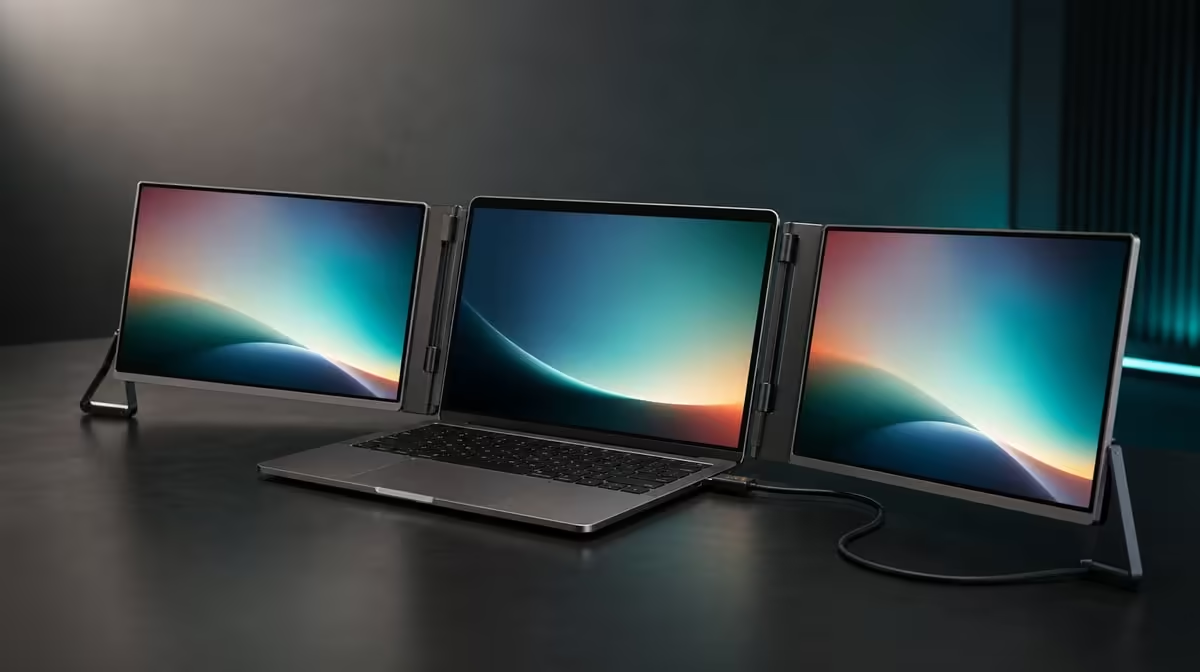
The Delta becomes a practical workstation only when its two screens, input layer and support system solve the same mobile job. A Delta Pro Touch portable workspace makes sense for people who can assign regular work to both QHD panels and use direct interaction beyond a first-day demonstration.
Quick Answer
Yes, the Delta Pro Touch can be practical for laptop users who need two detailed work surfaces, touch-aware software and sRGB-oriented creative space across locations. At R11,999, its pressure input, rotation and built-in support should be tested as one working system; passive viewing alone may leave much of the package unused.
💻 Give every display a daily role
Start with the laptop and the busiest normal project. Set both 16-inch Delta panels to 2560 x 1600, arrange them to match their physical positions and choose interface scale through the smallest controls used regularly. Do not force tiny menus simply to display more content.
Assign a stable role to each screen. One can hold the main canvas, model or document while the second carries tools, preview, communication or source material. Retain the laptop display only when it has a clear third purpose.
Evetech's portable-monitor category helps compare mobile display arrangements through the same project rather than through screen count alone.
Measure the workspace gain
Complete a representative task first on the existing laptop desktop and then across the Delta. Count window switches, repeated resizing and moments when a reference obscures working content. Keep text equally readable in both trials.
The difference shows whether dual QHD space changes the day. If the second screen holds one passive window that could be checked occasionally, the specialist system has a weaker practical case.
Check source performance
Open applications in stages and watch laptop responsiveness as visible content increases. Moving previews, browser tabs and creative tools can add workload. Preserve a quiet two-screen baseline before diagnosing a busy project.
Restart the source and confirm that native resolution, display order and window roles return. A portable workspace needs to recover as reliably as it expands.
👆 Prove touch and pressure in real software
Map taps to one panel at a time. Test the centre, corners and edge drags, then repeat on the other display. Add multi-finger actions only after ordinary placement is accurate. The Delta supports ten contacts, while the application decides which combinations have meaning.
Pressure-sensitive input needs a compatible tool and a function that visibly responds to force. Make a short set of light and firm strokes on both screens. Do not assume a particular included pen or pressure-level count.
Compare direct and conventional input
Perform the same short edit or business action through touch and through the normal laptop pointer or keyboard route. Count errors, mode changes and time. Direct interaction carries value when it improves a recurring task rather than adding another way to perform it.
Place frequently touched controls within comfortable reach. A display map that looks efficient can still create an awkward arm movement across the second panel.
Include application boundaries
Move the working window between panels and repeat its gesture or pressure test. Record where behaviour changes. Hardware support cannot force every program to recognise several contacts or pressure in the same way.
Keep this application note with the saved layout. A later software update should trigger the small reference test instead of inheriting an old conclusion.
🎨 Use colour and rotation for defined work
Full sRGB coverage supports photo, video and design delivered to that colour space. View familiar material on both Delta panels at comparable brightness and complete the intended export. Keep calibration or measured accuracy as a separate evidence requirement.
The stated 25ms response should be checked with motion representative of the buyer's work. A detailed creative workspace and a fast competitive-gaming display solve different priorities.
Evetech's PC-monitor range offers a fixed-display comparison when colour workspace matters but direct mobile interaction does not.
Rehearse the useful orientations
Move one screen into the portrait or sharing position that appears in the weekly workflow. Let gravity sensing settle, then check application placement and touch mapping. Return to the main arrangement and make sure the desktop remains understandable.
Rotation is practical when it removes manual steps and survives repeated changes. It contributes little when both panels stay fixed in one landscape position.
Test the stand during work
Use the ergonomic support at the chosen angle and apply taps, edge drags and pressure-aware strokes. Watch for movement. Set the monitor and laptop on the smallest normal work surface so the test includes real space constraints.
Keep the path around moving panels clear. The stand should support viewing and interaction without forcing the laptop into an uncomfortable location.
🧳 Validate portability through recovery
Close important work, disconnect through the normal routine and move the equipment to another regular desk. Rebuild the workstation from the saved screen map. Confirm both QHD images, touch assignments and application roles before reopening a demanding project.
Measure the complete equipment against its planned carrying method and test the full kit in the intended bag.
Use Evetech's monitor best-seller collection as current context for the R11,999 decision. Check availability when the workflow trial is complete.
Score a month of use
Create rows for dual workspace, finger touch, pressure work, sRGB, rotation and mobile recovery. Estimate how often each will be used and what happens without it. Include setup time.
The Delta is practical when several high-frequency roles converge and the laptop restores them dependably. A simpler portable screen can be the better choice when extra viewing space is the only recurring need.
Run a full workday sample
Use the saved arrangement for a representative block that includes opening files, switching apps, direct input and at least one break. Note whether the upper, lower or adjacent panel stays useful after the novelty fades. Check posture and touch reach at the end, not only at setup.
Include one ordinary interruption such as laptop sleep or moving to a meeting space. The system should return to the same task without forcing a new screen map.
Preserve an acceptance checklist
Write five pass conditions: two native QHD images, readable controls, correct touch on both panels, stable support and a successful target application. Add colour or rotation only when the job needs them.
Repeat the checklist before important remote work. Practicality comes from being able to recover the known workspace quickly, while a failed optional feature can be investigated without confusing the essentials.
Frequently Asked Questions
What makes the workspace more than two viewers?
Both screens accept mapped touch, supported multi-contact gestures and compatible pressure input.
How much visual detail is available?
Each 16-inch panel runs at 2560 x 1600.
Why does 100% sRGB matter here?
It provides a defined gamut for creative work delivered to sRGB, without proving calibration.
How does the stand support portable touch work?
It keeps the panels at a workable angle and should resist ordinary input forces.
What is the role of auto-rotation?
It changes image orientation through gravity sensing across the 180-degree range.
When is the complete feature mix practical?
It is practical when the laptop workflow uses several of its display, input, colour and movement capabilities regularly.
Ready to test the Delta as a complete travelling workstation?
Compare Evetech's portable monitors through your laptop project, touch software, desk space and relocation routine.