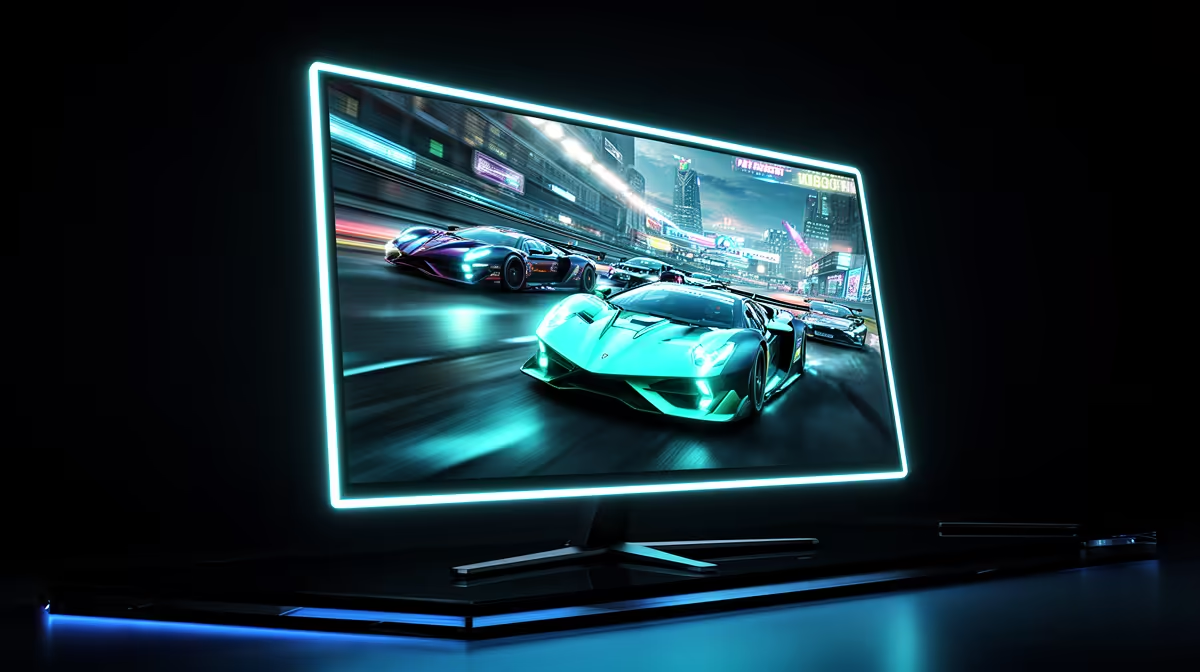
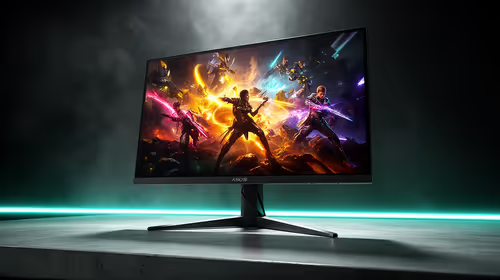
The jump from 60Hz to 165Hz changes how the PC feels before you launch a game. The cursor tracks your hand with less visible stepping, scrolling looks cleaner and camera movement becomes easier to follow. In fast games, aiming and motion gain a connection that a 60Hz panel cannot show.
Quick Answer
Yes, upgrading from 60Hz to 165Hz is worth it for most PC gamers. Competitive play gains the largest benefit, while single-player games and desktop use still feel smoother. You do not need 165fps at all times. Pair the screen with adaptive sync, use a suitable cable and choose a resolution your graphics card can drive.
Refresh rate changes the display interval
A 60Hz monitor refreshes the image 60 times each second. A 165Hz model can update 165 times. The time between displayed frames becomes shorter, which reduces the delay between a rendered frame and the screen showing it.
That does not remove every source of latency. Mouse polling, game processing, CPU performance, GPU render time and display response all contribute. The monitor removes one large ceiling and lets the rest of a responsive setup become visible.
Motion also appears more continuous. Tracking an opponent across the screen becomes easier because you see more positions along the path. Racing games feel cleaner through corners. Even a window dragged across the desktop leaves a denser trail of useful visual information.
Browse the PC display shelf, then see which models appear among popular screens. July 2026 put the named ViewSonic VA220A-H 22-inch 120Hz at R1,599. It is a step above basic refresh; price a 165Hz model on its own.
You can benefit below 165fps
Running at the full refresh ceiling gives the monitor the newest possible frame at each update. A game fluctuating between 90fps and 140fps can still feel smoother than the same game on a 60Hz screen, provided the monitor and GPU handle variable refresh well.
Adaptive sync matches display refresh to frame delivery inside a supported range. This reduces tearing and the uneven feel caused by fixed refresh when frame rate wanders. Confirm which sync technology and ports the exact model supports.
Heavy story games may never reach 165fps on your current GPU. That is fine. Tune settings for a stable rate you enjoy, then let lighter esports titles use more of the panel. A monitor can serve several upgrade cycles, so buying some refresh headroom makes sense.
At the other end, a game running far above 165fps can still reduce input latency, though the monitor cannot show every rendered frame. Competitive players may value that. For most users, a stable, tear-free range with good image quality beats chasing an unstable maximum.
Resolution determines the GPU bill
A 1080p 165Hz screen is easier to feed than a 1440p 165Hz panel. Choose 1080p for a modest GPU or a pure esports build. Choose 1440p when you also want sharper detail and the graphics card can carry the extra pixels.
Check benchmarks for the games you play at the intended resolution. Average frame rate is useful; low-frame results show whether busy scenes remain close to the target. CPU performance matters at very high rates, especially with reduced graphics settings.
Do not lower every setting by habit. Textures may have little effect on frame rate when VRAM is sufficient, while shadows, reflections and ray tracing can cost more. Build a preset that keeps the game attractive and stays inside the monitor's useful sync range.
If a GPU upgrade is planned later, you can buy the monitor first. The current card may deliver 90fps now and 150fps after the upgrade. The display still improves motion on day one.
Panel response can undermine the headline
A 165Hz badge says how often the panel accepts a new frame. Pixel response determines how quickly the image changes. Slow transitions create ghosting, while aggressive overdrive can produce bright inverse trails.
Look for measurements across the refresh range. A monitor may need one overdrive mode at 165Hz and another at 80Hz. A well-tuned single mode is convenient for variable frame rates. Marketing response times rarely tell the whole story.
Contrast, colour and viewing angles matter too. Fast motion on a washed-out panel can be a poor trade for someone who plays cinematic games. Decide whether speed or image depth leads, then choose a panel type and exact model around that preference.
Stand adjustment and ergonomics deserve budget. A high-refresh screen placed too low will annoy you every day. Check height, tilt, swivel, VESA support and desk footprint.
Set it up so 165Hz is active
Connect the monitor through a port and cable that support the intended resolution and refresh rate. Then open Windows display settings and select 165Hz. Many monitors arrive running at 60Hz because the operating system keeps a conservative default.
Switch on the supported variable-refresh option in both the display menu and graphics driver. Confirm the game uses the intended screen mode. A frame cap just under the sync ceiling can improve consistency on some setups.
Keep the old monitor as a second display if desk space allows. It can hold chat, music or monitoring tools while the 165Hz panel runs the game. Match brightness so moving your eyes between the screens stays comfortable.
The upgrade earns its value through every movement, not one benchmark. Once configured, 165Hz makes a gaming PC feel more immediate and gives future GPU upgrades a better place to show their work.
After setup, use a refresh-rate test to confirm the browser and operating system see 165Hz. The smoother cursor should be visible before any game launches.
Frequently Asked Questions
Is 165Hz much better than 60Hz?
Yes. Motion looks smoother, displayed latency falls and aiming can feel more connected.
Do I need a strong graphics card?
The required GPU depends on resolution and game. You can benefit at frame rates below 165fps through adaptive sync.
Is 165Hz useful outside competitive games?
Yes. Single-player motion, scrolling and desktop interaction all look cleaner.
Do I need a different cable?
Maybe. The port and cable must support the chosen resolution at 165Hz. Check the monitor manual and GPU outputs.
Should I buy more than 165Hz?
Higher refresh can suit serious competitive play. For mixed gaming, 165Hz offers a strong balance of speed, image quality and GPU demand.
Compare 165Hz monitors by resolution, tested pixel response and adaptive sync, then give your graphics card a screen that can show its work.