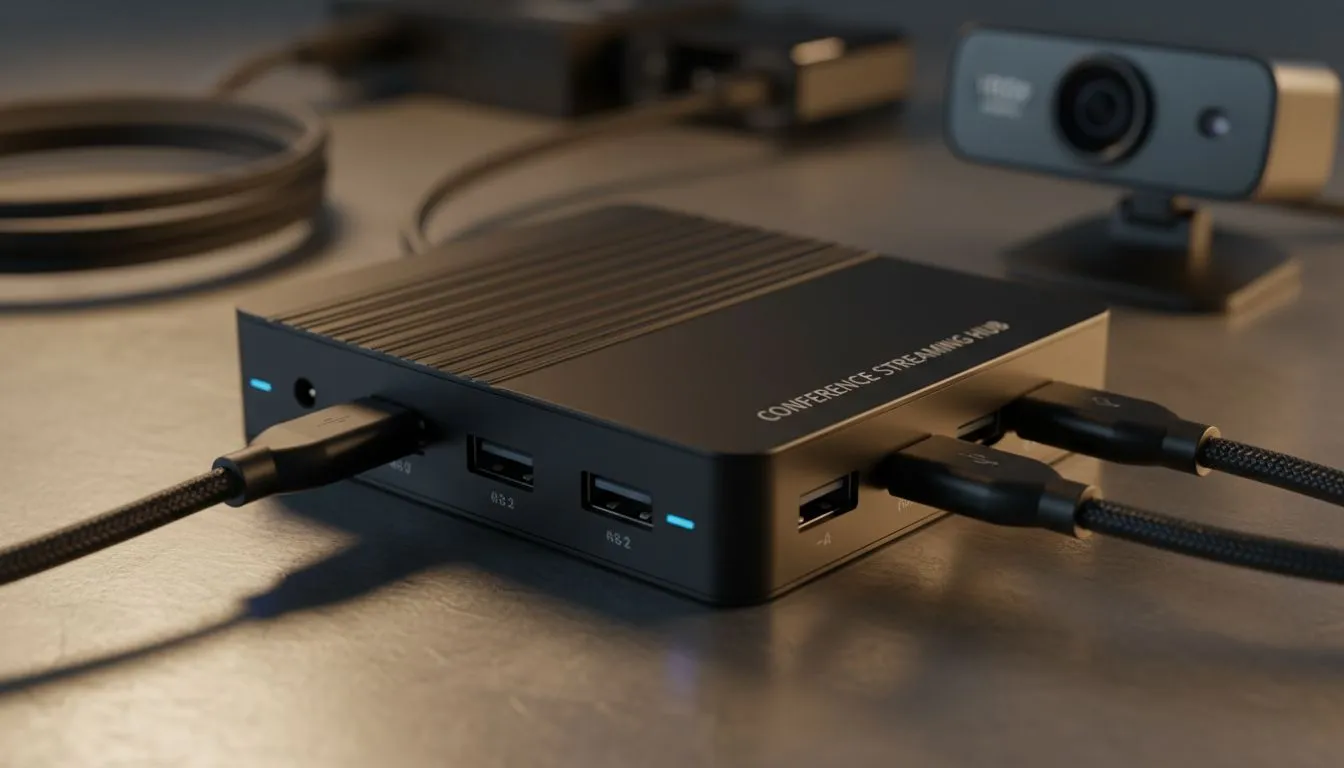
Ever had your video freeze during a Teams call while your audio keeps going? It is beyond frustrating. Most South Africans working from home blame their fibre line first... however, the real culprit is often sitting right on your desk. Understanding usb bandwidth for webcams is the key to avoid 1080p conference issues that make you look like a laggy mess during important meetings. 🔧
The Hidden Struggle of USB Bandwidth for Webcams
When you plug in a high-definition camera, you are asking your computer to move a massive amount of data every second. A standard 1080p stream at 30 frames per second generates a lot of "traffic" on your USB bus. If you are using an older USB 2.0 port, you might already be hitting the ceiling of what that connection can handle. If you want to see what options are available for your current port setup, you can browse our full collection of webcams to find a compatible match.
Most users do not realise that USB ports on a motherboard often share a single "controller." If you have a mouse, a keyboard, a headset, and a webcam all fighting for the same lane, something has to give. Usually, it is your video quality that suffers first. For those starting their remote work journey, choosing budget-friendly webcams under R1000 can help keep data requirements lower while still providing a clear image.
How to Avoid 1080p Conference Issues
To ensure your video remains fluid, you need to manage how your devices are connected. Avoid using unpowered USB hubs... these small dongles split a single port's bandwidth between multiple devices. This is the fastest way to trigger a "bandwidth exceeded" error in Windows. If you require a more robust solution, high-quality webcams under R2000 often feature better internal processing to help manage the data load more efficiently.
Bandwidth Pro Tip ⚡
Always plug your high-resolution webcam directly into the blue USB 3.0 or 3.1 ports at the back of your PC. Front-panel connectors often use internal extension cables that can degrade signal quality or share bandwidth with other slow ports... leading to frame drops during important meetings.
Optimise Your Data Flow for Professional Clarity
Another factor is the colour depth and compression used by the camera software. High-end sensors produce uncompressed video that looks stunning but eats bandwidth for breakfast. If you are professional streaming or presenting to a large board, premium webcams under R3000 typically offer advanced H.264 encoding. This compresses the video inside the camera itself before it even reaches the USB cable... saving your bandwidth for other peripherals. 🚀
Check your settings in apps like Zoom or Teams. Disabling "HD Video" in the app settings can sometimes bypass bandwidth bottlenecks if your hardware is struggling. However, the best fix is always a dedicated connection on a modern USB 3.0 bus to ensure your professional image never falters. ✨
Ready to Look Your Best?
Technical hitches should not stand between you and a professional appearance. For the best performance and value in South Africa, choosing the right hardware is essential. Explore our massive range of webcam specials and find the perfect camera to upgrade your home office.