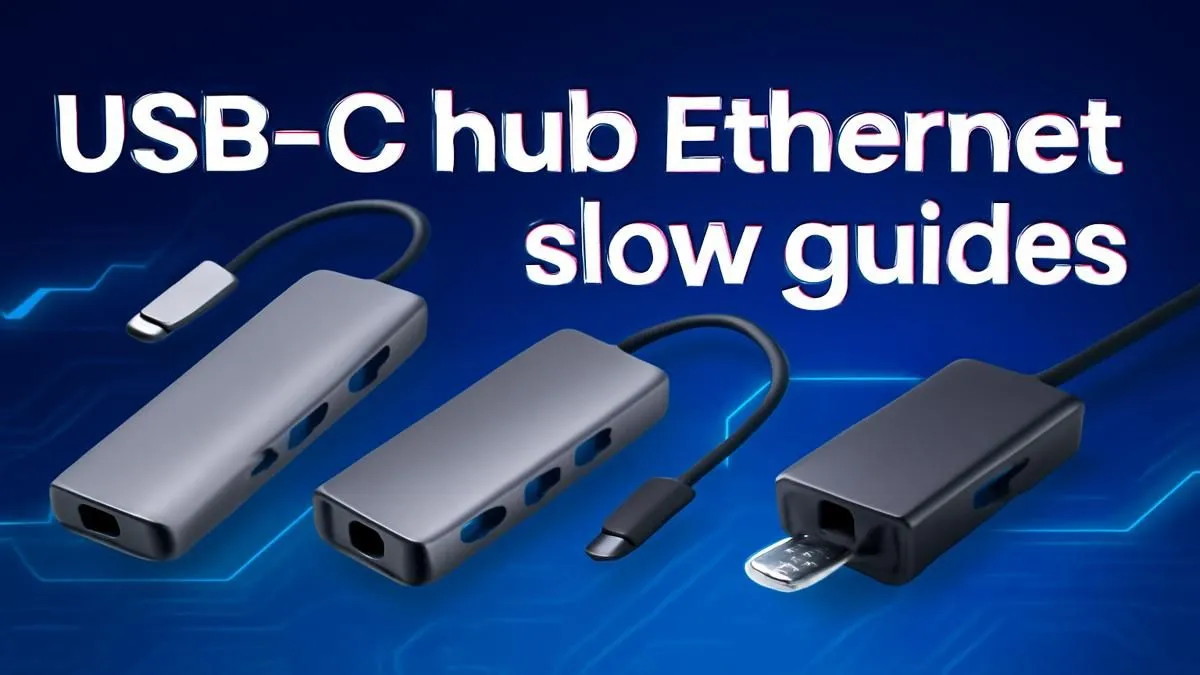
Why Your USB-C Hub Ethernet May Be Slowing You Down ⚡
South African gamers, ever plugged your laptop into a USB-C hub and noticed your Ethernet connection crawling? Spotty speeds can kill your competitive edge and frustrate streaming or downloads ⚠️. The good news? You don’t always need a new device. This guide unpacks quick, effective USB-C hub Ethernet slow fix ideas to speed up your connection and keep gameplay smooth.
Common Causes of USB-C Hub Ethernet Speed Issues
Many users don’t realise that USB-C hubs differ drastically in performance. Some models ship with USB 2.0 ports or outdated chipsets, throttling your Ethernet speeds well below fibre-optic broadband potential. Cabling quality or firmware incompatibility can also tank throughput.
A frequent culprit is hub power delivery: an underpowered hub can’t sustain stable data streams and power-hungry gear simultaneously. Ensuring your USB-C hub supports USB 3.1 Gen 2 or Thunderbolt 3 makes a big difference—these support high-speed data transfer ideal for gaming, streaming, or large file transfers.
Check Your Hub Specs
Look for USB 3.1 or higher and Gigabit Ethernet support on your USB-C hub. Lower-spec hubs often advertise 1Gbps but deliver far less in reality.
For a benchmark on quality, consider the Evetech USB-C Multiport Hub with Gigabit Ethernet, known locally for reliable speeds and durability in South African setups.
Step-by-Step Fixes To Speed Up Your USB-C Hub Ethernet Connection
- Update Drivers and Firmware
Drivers for your Ethernet controller and USB-C hub can impact connection stability and speed. Visit the hardware manufacturer's site or check Windows Update to grab the latest network and USB hub drivers.
- Inspect and Replace Cables
Faulty or poor-quality Cat5 Ethernet cables can bottleneck your fibre or ADSL line. Upgrade to a Cat6 cable for consistent Gigabit speeds across longer distances, commonly available from South African tech retailers.
- Change Power Settings
Windows often throttles USB devices to save power — not ideal when speed matters. Head to Power Options > USB Settings and disable selective suspend for your Ethernet adapter. This keeps your connection fully powered and stable.
- Direct Connections When Possible
While hubs are great multi-port solutions, direct connections from your device's native Ethernet port typically deliver the most reliable speeds. If gaming demands peak performance, skip the hub when possible.
If your setup lacks a built-in Ethernet port, pairing your USB-C hub with a dedicated Gigabit Ethernet adapter like this Evetech USB 3.0 to Ethernet Adapter can leapfrog your throughput significantly.
Expert Insights: Real South African Gaming Setups
One local gamer shared how upgrading from a budget USB-C hub to a fully-featured Thunderbolt 3 dock with gigabit Ethernet cut his latency by 20%, critical for online matches during peak evening hours in Johannesburg's fibre zones.
South African fibre speeds vary, but a solid USB-C hub that isn’t bottlenecked by design or underpowered hubs unleashes your ISP’s full bandwidth. That means no more buffering mid-match or patch downloads taking hours during downtime. 🚀
In Summary: Fix Your USB-C Hub Ethernet for Smoother Gaming and Workflows
Keeping your hub's firmware current, pairing with good cabling, and not settling for budget tech ensures faster Ethernet over USB-C. South African gamers deserve connectivity that matches their fibre speeds — and these fixes deliver just that.
Browse our handpicked hubs and adapters designed for this exact challenge in today’s hybrid work and gaming environment.
Get Your Connection Up to Speed
Stop slowdowns before they start. Shop now at Evetech for performance that leaves lag in the dust.