



How to Use a Nano SIM 4G Router for Reliable Home Internet
Master using a Nano SIM 4G router as your primary internet solution. Get stable speeds and seamless connectivity for gaming and streaming at home! 🌐🚀
Read moreStruggling with your VA monitor HDR settings? Unlock stunning HDR highlights and deep blacks with our expert tricks. We'll show you how to fix common issues like black crush and blooming for a truly immersive viewing experience. 🖥️✨ Get ready to see your games and movies like never before!
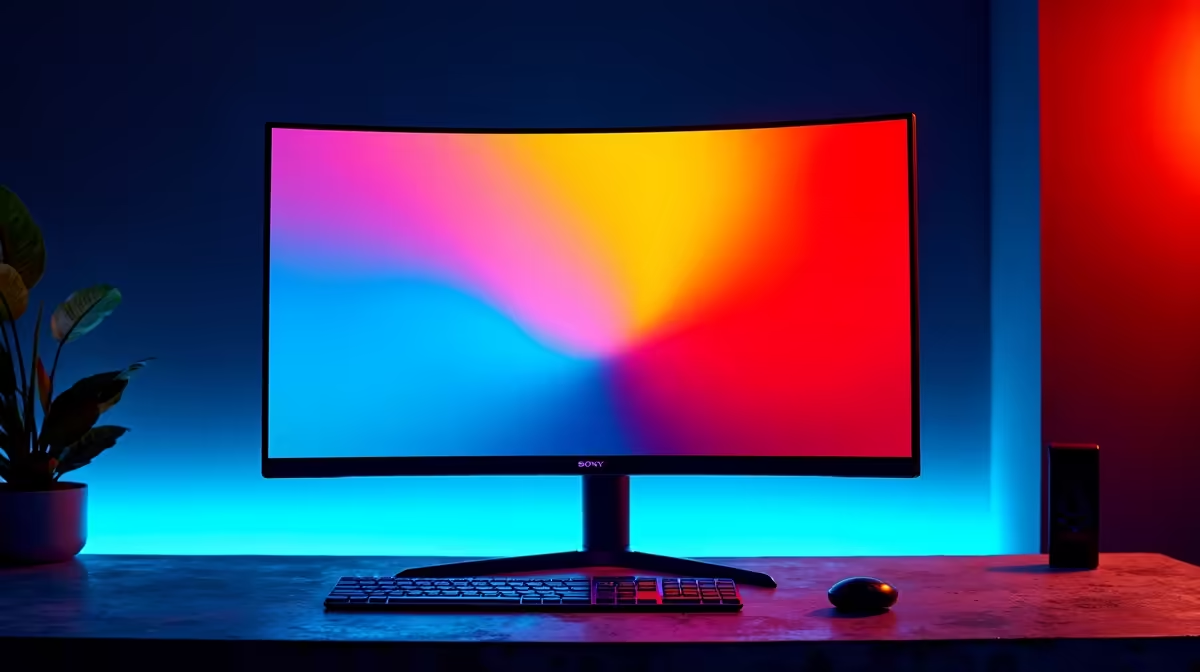
Just unboxed that beautiful new VA monitor, enabled HDR in Windows, and launched your favourite game... only to be met with a washed-out, greyish image? You're not alone. While VA panels have incredible contrast, getting High Dynamic Range (HDR) to pop requires a little finesse. Don't worry, we've got the secrets. Mastering your VA monitor HDR settings isn't complicated, and these simple tricks will unlock the deep blacks and brilliant highlights you were promised.
VA (Vertical Alignment) panels are famous for one thing: deep, inky blacks. Their native contrast ratio often blows other panel types out of the water, which is the perfect foundation for stunning HDR. HDR expands the range of both colour and contrast, making bright parts of the image significantly brighter and dark parts darker, closer to how we see the real world.
When you pair these two technologies correctly, the result is breathtaking. But getting the settings right is key. An uncalibrated setup can lead to crushed blacks (losing detail in shadows) or blown-out highlights (losing detail in bright areas). We see this often across the wide variety of PC monitors we stock, but the fix is usually straightforward.
Forget guesswork. Follow these steps methodically to dial in your display for a truly premium visual experience. This process ensures that Windows, your monitor, and your games are all speaking the same language. 🚀
Before you even touch your monitor's buttons, your first stop should be inside Windows itself. Microsoft has a fantastic (and free) "Windows HDR Calibration" app available on the Microsoft Store.
This step is crucial for all HDR content, especially if you're enjoying movies or games on modern 4K monitors where every pixel counts.
Now it's time to use the buttons on your monitor to access the On-Screen Display (OSD). With HDR enabled in Windows, some settings like "Brightness" and "Contrast" might be locked, as the HDR signal is controlling them. That's normal.
Focus on these settings instead:
Not sure what good HDR looks like? Search for "4K HDR" test patterns or demo videos on YouTube. Videos featuring fireworks, cityscapes at night, or vibrant nature scenes are excellent for checking if your highlights are brilliant without losing detail and your shadows are deep but not crushed.
Finally, launch your game. Most modern titles that support HDR have their own internal calibration settings, usually with sliders for "Peak Brightness" and "Paper White" or similar. Since you've already calibrated Windows, you now have a reliable baseline. Adjust the in-game sliders according to the on-screen instructions until the test images look correct. This final step in optimising your HDR settings for a VA monitor ensures the game engine renders the image perfectly for your specific display. This is what makes browsing through all our gaming monitors so exciting—each one offers a unique canvas for these incredible worlds.
Even with the right settings, a few things can trip you up. A common issue is using the wrong cable. For proper HDR, you need a cable with enough bandwidth, like DisplayPort 1.4 or HDMI 2.1. If you're using an old cable, it could be the source of your problems. You can find the latest high-speed cables and other essential monitor accessories to complete your setup.
Another tip for streamers or multitaskers: running a game in borderless windowed mode can sometimes cause issues with how Windows handles HDR across multiple screens. If you're using handy portable monitors as secondary displays, try running your game in exclusive full-screen mode to ensure it gets full priority for the HDR signal.
Absolutely. Taking 15 minutes to properly configure your VA monitor HDR settings transforms your experience. The difference between default, washed-out HDR and a properly calibrated image is night and day. Games feel more immersive, movies look more cinematic, and the world on your screen simply comes alive. Once you see it done right, you'll never go back. And if you're looking to make that jump, there are always some of the best PC monitor deals in South Africa to be found.
Ready to Build Your Ultimate Visual Experience? A perfectly calibrated monitor is just one piece of the puzzle. To truly power those incredible HDR visuals, you need a rig that can keep up. Explore our legendary PC gaming hardware deals and build the ultimate setup today.
To improve HDR, adjust your monitor's contrast and black level settings. Also, enable local dimming if available and calibrate HDR within your OS, like Windows 11.
VA panels have excellent native contrast, which is a great foundation for good HDR. However, they can suffer from issues like black crush, which requires proper calibration to fix.
The best setting varies by model. Start with the default 'Game' or 'HDR' mode and adjust brightness and contrast until you can see details in both dark and bright areas.
To fix black crush on a VA panel, slightly increase the black equalizer or gamma setting in your monitor's OSD. This lifts the details out of the darkest parts of the image.
Yes, local dimming is crucial. It allows the monitor to brighten specific parts of the screen for highlights while keeping others dark, significantly improving the HDR experience.
Washed-out highlights can be caused by incorrect OS-level HDR calibration or monitor settings. Ensure your peak brightness setting matches your monitor's capabilities.
Master using a Nano SIM 4G router as your primary internet solution. Get stable speeds and seamless connectivity for gaming and streaming at home! 🌐🚀
Read more
Confused by Cat4 vs Cat6 LTE routers? 🌐 We break down the technical differences to help you choose the right router for faster gaming and streaming. Get the speed you deserve today! 🚀
Read more
Learn how to setup a VPN server on your 4G LTE router to secure your remote access. Protect your data and browse safely from anywhere with our easy guide! 🌐🔐
Read more
Choosing the best 4G LTE router for South Africa ensures reliable internet when fibre is unavailable. Discover top connectivity tips for rural and urban areas. 🌐📶
Read more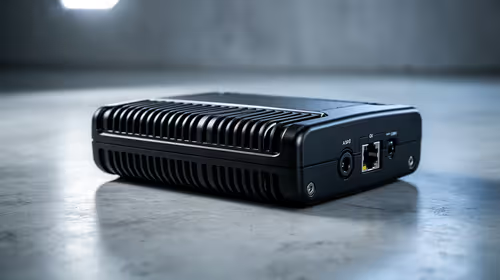
Discover what is passive PoE and how it streamlines outdoor router installations. Eliminate messy cabling and simplify your network setup with this efficient power delivery method. ⚡🌐
Read more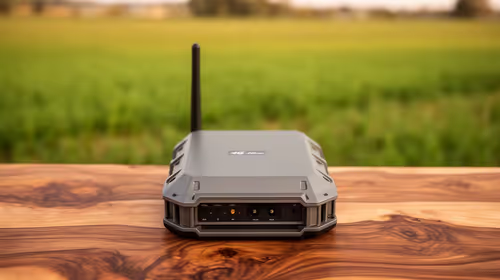
Need to extend internet coverage to outbuildings or farms? 📡 An outdoor 4G router is the ultimate solution for stable, high-speed connectivity in remote locations. Discover how to boost your range and stay connected anywhere on your property. 🌐
Read more
Wondering if a TKL wireless mechanical keyboard is worth it for everyday productivity? We break down latency, battery life, comfort, and workflow gains for real work. ⚡⌨️

Maximise battery life on a fanless 15-inch laptop using efficiency core architecture. Cut idle drain, tune power profiles, and improve thermals for longer runtime. 🔋⚙️

Learn how to reduce desk clutter with a TKL wireless keyboard using fewer cables, smart placement, and tidy essentials. Get a faster, calmer workspace with better ergonomics. ✅🧼

RGB keyboard lighting too distracting? Learn how to manage backlight modes, set brightness, and reduce distraction for focus and productivity 😌🖱️

Are themed gaming keyboards worth the extra cost? Compare build quality, switch options, features, and resale value to find the best fit for your setup 🎮⌨️

Full-Size vs Tenkeyless mechanical keyboards for gaming: find out if a smaller layout truly improves aim, speed, and comfort. We break down layout, desk space, latency-feel, and keybinds 🎮⌨️

Dedicated media rollers vs function key shortcuts: learn which setup gives you better workflow control, faster media access, and fewer mistakes. 🖱️🎧

Best Mechanical Switch Type for Gaming: Clicky vs Linear vs Tactile. Find your feel, speed, and noise balance with practical guidance for FPS, MOBA, and productivity 😄🎮

Direct mouse answer: Mouse not keeping up with your work? Everything that matters about dual-mode 2.4GHz + BT 5.0: DPI behaviour, channel switching, battery curves and per-app button mapping. Covers when 2.4GHz USB wins (low-latency desk) and when BT 5.0 wins (laptop, d

Plain wireless mouse guide: Mouse not keeping up with your work? Everything that matters about wireless productivity mouse: DPI behaviour, channel switching, battery curves and per-app button mapping. Includes DPI tuning tips, channel switch shortcuts, and ZAR-aware fea

Real productivity numbers: Set up your wireless mouse in this order: everything that matters about wireless productivity mouse: DPI behaviour, channel switching, battery curves and per-app button mapping. Includes DPI tuning tips, channel switch shortcuts, and ZAR-aware

Pen not feeling like paper? Stylus lag and skipping usually trace to old drivers, dirty nibs, or display refresh mismatches, not the pen itself. Covers pressure curve tuning, tilt thresholds, nib swap timing, and SA pricing brackets.