A 34-inch curved ultrawide listing is long enough that shoppers tend to either read all of it or skim none of it. Neither approach genuinely works well. There is a genuinely short list of things that actually separate one curved ultrawide from another, and everything past that list is packaging rather than a real reason to pick one panel over the next.
Quick Answer
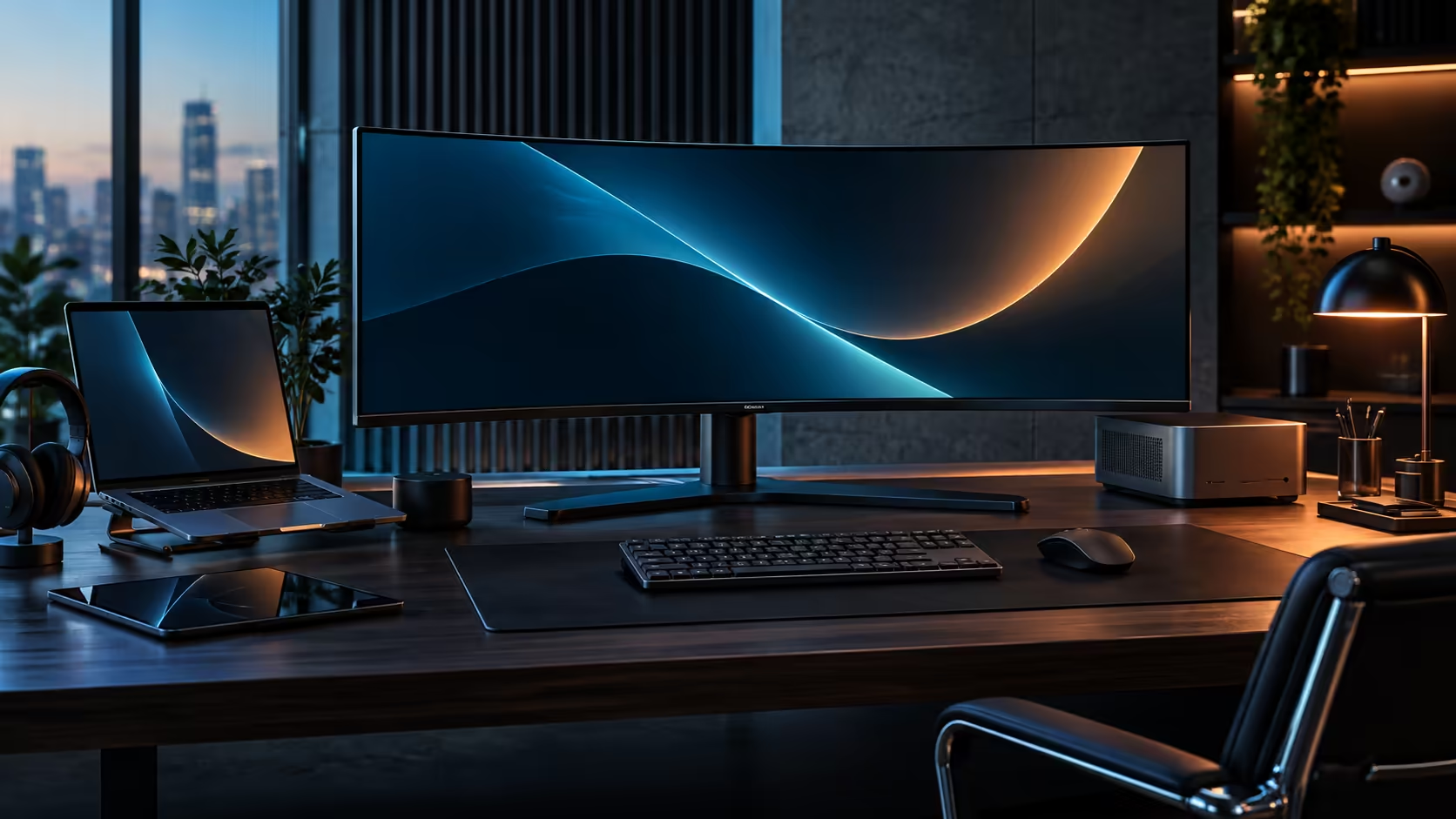
Check resolution and curve radius first, then USB-C wattage, the presence of a KVM, a network socket, and exactly how far the stand adjusts. The R7,999 CU34E4CW answers all five with 3440x1440, a 1500R curve, 90W docking, a built-in KVM and an RJ45 port, and a cheaper 34-inch panel usually drops one or more of those specific items in exchange for its lower price tag.
📏 Resolution and curve radius, the two numbers that set everything else
These two particular figures decide how the screen looks and feels before any other spec on the sheet even matters.
3440x1440 is the standard resolution for a 34-inch 21:9 ultrawide, giving roughly 109 pixels per inch, sharp enough for text without ever needing Windows scaling adjustments. Some cheaper 34-inch panels ship at 2560x1080, a lower and wider-but-shorter resolution that saves cost but noticeably reduces vertical working space, so confirm which of the two you are actually being sold before comparing price.
Curve radius is written as a number followed by R, such as 1500R, and that number is simply the radius, in millimetres, of the full circle the screen's bend would trace out if you kept extending it all the way around. A smaller number means a tighter curve: 1500R is built for someone sitting about a metre to a metre and a half from the screen, which describes most desks, while a gentler 1800R or 3000R curve is barely noticeable and behaves closer to a flat panel.
🔌 The connectivity checklist that separates a docking panel from a display-only one
This is precisely where a cheaper 34-inch monitor most often quietly drops features, since a bare display panel and a full docking hub cost genuinely different amounts to build.
USB-C wattage tells you whether the monitor can charge a laptop at all, and if so how much of its battery drain it can offset. 90W, as on the CU34E4CW, covers the great majority of ultrabooks; some budget panels include a USB-C port with video but no meaningful power delivery, which looks similar on a spec sheet but does an entirely different job. A built-in KVM matters only if you run two computers, but where it is missing there is no way to add it later without a separate switch box. An RJ45 network socket is the other easy one to overlook, and its absence means falling back on Wi-Fi even when the monitor is otherwise fully docked.
None of these four connectivity items show up in a photo of the monitor, and none of them are visible when the screen is switched off in a showroom, which is exactly why they get overlooked far more often than resolution or curve radius. Reading the full specification list line by line, rather than judging a panel by its picture and its price tag alone, is the only reliable way to catch a missing feature before it becomes a problem after delivery.
🪑 Stand adjustment and the features that only show up after delivery
The stand is genuinely the part people check least before buying and complain about most after using the screen for a full week.
Height adjustment matters more on a curved ultrawide than on a standard monitor, because the wider panel is heavier and harder to prop up on books if the fixed height is wrong for your desk. The CU34E4CW's stand gives roughly 180mm of travel, enough to suit most desk and chair combinations without a riser. Tilt and swivel are worth checking too, since a curved panel that cannot tilt back slightly can put unwanted glare into your eyeline depending on where overhead lighting sits in the room.
A fixed-height stand discovered only after unboxing is one of the more frustrating surprises in this category, since a panel this size and weight is genuinely awkward to prop up on books or a makeshift riser the way a small 24-inch monitor can be. Checking the exact travel figure in millimetres before ordering, rather than assuming any monitor stand adjusts enough, avoids that specific frustration entirely.
Speaker quality and webcam presence, where included, are genuinely secondary to the five items above. They are convenient extras rather than reasons to choose one panel over another, and a poor built-in speaker or camera can always be swapped for a dedicated one without affecting anything else on the desk.
Before ordering, compare the CU34E4CW against the wider curved monitor range and the general office monitor range, and look at monitor accessories if the included stand is not the mounting solution your desk actually needs.
Frequently Asked Questions
Which single spec deserves the most attention on a 34-inch curved ultrawide?
Resolution, genuinely, since 3440x1440 and 2560x1080 look similar on a spec line but give very different amounts of usable vertical space. Always confirm which one a listing actually offers before comparing price at all.
Does a tighter curve radius mean a better monitor?
Not automatically, no. It simply means the curve is more pronounced, which suits closer viewing distances specifically. A 1500R curve fits a normal desk well; a much tighter curve can feel genuinely excessive at arm's length.
Is USB-C charging wattage worth checking on the spec sheet?
Yes, definitely. Some panels include a USB-C video port entirely without meaningful power delivery, which looks similar to a full docking port but will not usefully charge a laptop at all.
Do I need a KVM if I only use one computer?
No, not at all. A KVM only genuinely matters once a second computer is involved, and it is not something you can retrofit later into a monitor that lacks one from the factory.
How much stand height adjustment is enough?
Roughly 150mm to 180mm of travel comfortably suits most desk and chair height combinations without ever needing risers or blocks placed under the base.
Ready to compare curved ultrawides on the specs that actually matter?
Check resolution, curve radius, USB-C wattage, KVM and network socket before you look at anything else on the sheet.