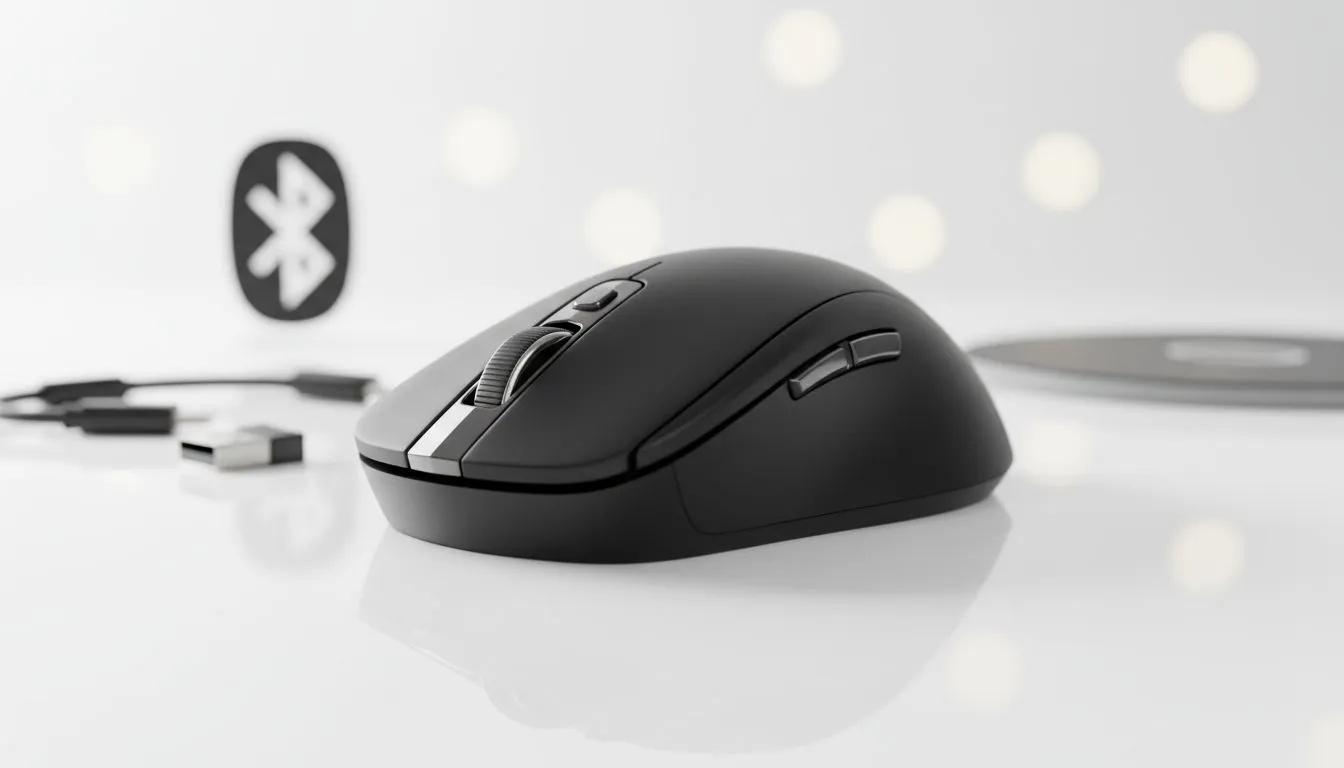
Troubleshooting Why Your Wireless Mouse Is Not Working
There is nothing more frustrating than being mid-clutch in a match when your cursor suddenly freezes. If your wireless mouse is not working, you do not need to panic just yet. Whether it is a dead battery, a dodgy dongle, or a Bluetooth glitch, we have the fixes to get you back in the game. Let us troubleshoot your mouse issues today. 🔧
Check Your USB Power and Connection Stability
The most common reason for a wireless mouse failing is a simple power issue. If you are using a 2.4GHz receiver, the USB port might not be providing enough juice. This often happens on older laptops or front-panel PC ports. Try plugging your receiver directly into the motherboard at the back of your case.
If you suspect the hardware is fine but the signal is weak, you might need to buy mouse accessories like a USB extension cable. This brings the dongle closer to your mouse, reducing interference from other devices. Ensure your batteries are fresh or that your mouse is fully charged... even a 10% drop in power can cause lag in some models.
Power Management Fix ⚡
On Windows, go to Device Manager and find your USB Root Hub. Right-click, select Properties, and under Power Management, uncheck 'Allow the computer to turn off this device to save power'. This prevents Windows from 'killing' your mouse connection during idle moments.
Fixing Dongles and Bluetooth Sync Issues
Is your PC failing to recognise the device entirely? If your wireless mouse is not working after a Windows update, the drivers might be the culprit. Open Device Manager and look for any yellow exclamation marks. Uninstalling the mouse driver and restarting your PC usually forces Windows to reinstall the correct version.
For those using Bluetooth, interference from your smartphone or router can disrupt the 2.4GHz frequency. Ensure your mouse is in pairing mode... usually indicated by a blinking light... and remove the device from your "Bluetooth & other devices" menu before trying to pair it again. If your current peripheral is simply too old to maintain a stable link, it might be time to buy wireless mouse hardware that features modern, low-latency technology.
When to Consider a Replacement
Sometimes, hardware just reaches the end of its lifespan. If you have tried different ports, new batteries, and driver updates but the sensor still skips, the internal hardware may be failing. If you are looking for a reliable upgrade without breaking the bank, check out the best gaming mouse deals available right now. You can find high-performance sensors for under R800 if you shop the sales. 🚀
For competitive players who cannot afford even a millisecond of delay, a high-end gaming mouse from brands like Logitech or Razer offers dedicated software to monitor signal strength. However, if you are tired of charging batteries altogether, you can always buy wired mouse options to guarantee 100% uptime during your gaming sessions. ✨
Ready to Upgrade Your Setup?
Don't let a faulty sensor ruin your K/D ratio. Whether you need the freedom of wireless or the reliability of a cable, we have the best tech in South Africa. Explore our massive range of gaming mice and find the perfect tool to conquer your next match.