Dropping into Urzikstan with stuttering frames guarantees a quick trip to the Gulag. For South African gamers battling high ping, local hardware advantages matter. To match your new AMD powerhouse, you need the best Call of Duty Warzone settings for RX 9070 XT GPUs. Let us tweak your system for maximum FPS and crystal-clear visibility... ensuring you spot enemies first. 🚀
Unlocking the Radeon RX 9070 XT Potential 🔧
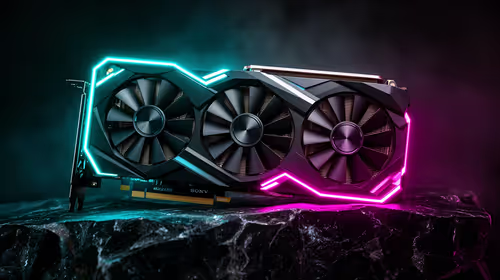
The RX 9070 XT is an absolute beast for 1440p competitive gaming. Raw power means nothing if your in-game menus are a mess. Before tweaking Warzone, ensure your graphics drivers are fully updated. If you are building a new rig, you can buy graphics cards that pair perfectly with high-refresh-rate monitors.
Optimal Call of Duty Warzone Settings for RX 9070 XT
Let us dive into the exact display and quality tweaks. These adjustments balance high frame rates with sharp textures.
Display and Resolution Tweaks
Always set your Display Mode to Fullscreen Exclusive. This gives the game total control over your display resources. Max out your screen refresh rate and turn V-Sync off. Playing on a fast monitor is non-negotiable for modern battle royales. It makes tracking enemies jumping around corners incredibly smooth.
To push these high frames, your processor must keep up. Bottlenecks will ruin your FPS. Check out our best gaming PC deals if your current CPU is holding back your Radeon card.
Quality and Upscaling Settings
Keep your Render Resolution at exactly 100 percent. Turn on AMD FSR 3.0 and set it to Quality mode. This boosts your FPS without making textures look muddy. Set Texture Resolution to Normal and Shadow Map Resolution to Low. Shadows consume massive amounts of VRAM... lowering them frees up crucial resources.
Particle Quality should stay on High to easily spot bullet tracers. However, disable Volumetric Quality and Screen Space Reflections. These settings drain performance while offering very little visual benefit in fast-paced firefights.
Gamers often prefer buying a tuned system over DIY troubleshooting. Our pre-built PC deals offer machines already optimised for competitive shooters right out of the box.
Warzone AMD Pro Tip ⚡
Turn on AMD Radeon Anti-Lag in your Adrenalin software. It reduces input delay significantly, giving you a crucial millisecond advantage during close-quarters gunfights in the final circle.
Field of View and Visual Clarity ✨
Visibility is everything when dropping into crowded hot zones. Set your Field of View to 110 or 120. This widens your peripheral vision so you can spot flanking enemies easily. Set your ADS Field of View to Affected. This stops your screen from zooming in too aggressively when aiming.
Next, turn off World Motion Blur and Weapon Motion Blur. Blurry visuals only cause eye strain. They make tracking fast-moving targets nearly impossible.
Keep Your FPS Optimisation Guide Local
South African summers get hot... and so does your hardware. Thermal throttling will drop your frames regardless of your settings. Good airflow is essential. Load shedding might interrupt your sessions... but poor hardware should not.
If you are constantly moving between campuses or LANs, desktop power is not your only option. You can browse notebooks for sale in South Africa that pack serious dedicated graphics for portable Warzone sessions.
Finding the right hardware does not have to drain your ZAR budget completely. You can always find massive discounts on premium gear by keeping an eye on our daily tech specials.
Ready to Dominate the Warzone? Having the right settings is only half the battle. You need the raw hardware power to back it up and secure those high-FPS victories. Explore our massive range of gaming specials and find the perfect machine to conquer your world.