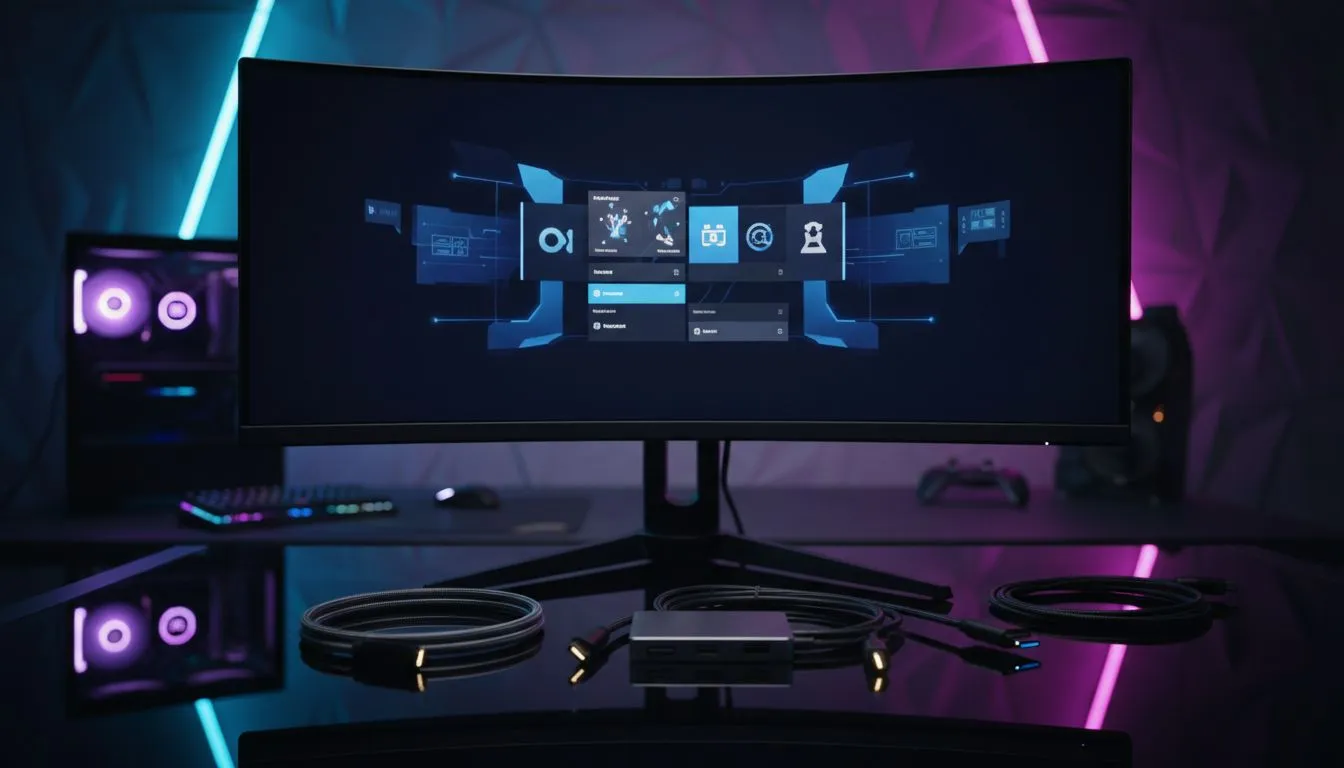
So, you’ve got a shiny PlayStation 5 or Xbox Series X, but the family TV is permanently booked for soapies and sports? Ja, we’ve been there. What if you could get a sharper, faster, and more responsive gaming experience using the screen already on your desk? Learning how to connect your console to a PC monitor is the key to unlocking a private gaming paradise, giving you a serious competitive edge. Let's get you set up. 🚀
Why Use a PC Monitor for Console Gaming?
Before we dive into the how-to, let's talk about the why. Swapping your TV for a dedicated monitor isn't just about convenience; it's a real performance upgrade.
- Lower Input Lag: Gaming monitors are built for speed. They have significantly less processing delay (input lag) than most TVs, meaning your button presses register on-screen almost instantly. For fast-paced games like Call of Duty or Apex Legends, this is crucial.
- Higher Refresh Rates: While new consoles target 120 frames per second (FPS), many TVs are still stuck at 60Hz. A 120Hz or 144Hz monitor can display those extra frames, resulting in buttery-smooth motion.
- Better Pixel Density: A 27-inch 4K monitor has a much sharper image than a 55-inch 4K TV because the pixels are packed more tightly. This means crisper details and a more immersive world.
- Your Own Space: No more fighting for the remote. Your desk becomes your dedicated battle station, ready whenever you are.
How to Connect Your Console to a PC Monitor: Step-by-Step 🔧
Getting your PS5, Xbox, or Nintendo Switch running on a monitor is surprisingly simple. For most modern setups, it’s a plug-and-play affair. Here’s the complete breakdown.
Step 1: Check Your Ports (HDMI is King)
First, take a look at the back of your console and your monitor.
- Consoles (PS5, Xbox Series X/S, Nintendo Switch Dock): These all use a standard HDMI Out port.
- PC Monitors: Almost all modern PC monitors have at least one HDMI In port.
If both devices have HDMI, you're golden! Just use the HDMI cable that came with your console. If your monitor is a bit older and only has DVI or DisplayPort, you’ll need an HDMI-to-DVI or HDMI-to-DisplayPort adapter. You can find these with other monitor accessories.
Cable Check! ⚡
Not all HDMI cables are created equal. To get 4K resolution at 120Hz on a PS5 or Xbox Series X, you need an Ultra High Speed HDMI 2.1 cable. The cable included with your next-gen console is HDMI 2.1, but if you're buying a new one, make sure to check the specs!
Step 2: Tackle the Audio Situation
This is the one step that catches most people out. Many PC monitors don't have built-in speakers. If yours doesn't, you won't hear a thing after connecting your console. Don't panic! You have a few easy options:
- Use a Headset (Easiest): Plug a wired headset directly into your controller's 3.5mm audio jack. All game and chat audio will come through your headset. Simple.
- Monitor's Audio-Out Jack: Check if your monitor has a 3.5mm "Audio Out" or headphone port. If it does, you can connect a pair of desktop speakers or a headset directly to the monitor.
- Use an HDMI Audio Extractor: This is a small device that sits between your console and monitor. It splits the HDMI signal, sending video to your monitor and audio to a separate output (like RCA or optical) for your speakers or sound system.
Step 3: Configure Your Settings
Once everything is plugged in, power on your console and monitor. Your console's display should appear automatically. Now, it’s time to fine-tune the settings for the best picture quality.
- On Your Console (PS5/Xbox): Go to the video output settings. Here, you can set the resolution (e.g., 1080p, 1440p, 2160p/4K), enable 120Hz mode (if your monitor supports it), and turn on HDR (High Dynamic Range) for better colour and contrast.
- On Your Monitor: Use the buttons on the monitor itself to open the On-Screen Display (OSD). Look for different picture modes (like "Gaming" or "FPS"), adjust brightness and contrast, and ensure features like FreeSync or G-Sync are enabled if available.
Choosing the Perfect Monitor for Your Console ✨
Now that you know how to connect a console to a PC monitor, you might be thinking about an upgrade. The right monitor can make your games look and feel incredible.
For pure visual fidelity in story-driven games, nothing beats the crisp detail of dedicated 4K monitors. If you're a competitive player, browsing all gaming monitors with high refresh rates (120Hz+) is the way to go.
For those who love deep immersion, the wraparound view of curved monitors can pull you right into the game world. And if you travel or have a compact setup, a slick portable monitor offers a fantastic plug-and-play solution.
Ultimately, the perfect screen is waiting to complete your ultimate game desk.