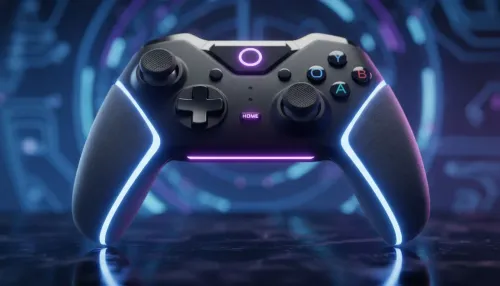
There's nothing more frustrating. You're deep into a boss fight on your ROG Ally or Steam Deck, and suddenly… nothing. Your character is frozen. Your inputs aren't registering. A handheld gaming PC controller not working is a proper momentum killer that can ruin any session. But before you rage-quit or start looking at pricey repairs, don't stress. Most of the time, the fix is simpler than you think. Let's get you back in the game, boet. 🚀
Common Reasons Your Handheld Gaming PC Controller Isn't Working
When your handheld's built-in controller stops responding, the culprit is usually software-related rather than a catastrophic hardware failure. It often boils down to one of these common issues:
- Software Glitches: The device's primary software (like Armoury Crate or Legion Space) might have a temporary bug.
- Outdated Drivers: The specific drivers that allow Windows to communicate with your joysticks and buttons need to be up to date.
- Incorrect Settings: Steam Input or a specific game's settings might be overriding the default controller configuration.
- Firmware Bugs: The device's core firmware might need a patch to address known controller issues.
We'll tackle these from the easiest to the most involved, so you can solve your handheld PC controller problems fast.
Your Step-by-Step Troubleshooting Guide 🔧
Work through these fixes methodically. Chances are, one of the first few steps will resolve the issue of your handheld gaming PC controller not working correctly.
Step 1: The Classic Reboot & Check
It sounds too simple, but it works wonders. A full system restart can clear temporary software conflicts that cause controller issues.
- Restart your device: Don't just put it to sleep. Do a full shutdown and restart.
- Check the Controller Mode: On devices like the ASUS ROG Ally, ensure the controller isn't accidentally disabled or set to 'Desktop' mode within the Command Centre.
Sometimes, a simple restart is all it takes. If that fails, it's time to dig a little deeper. Ensuring your setup is tidy with all the right essential tech accessories can also prevent accidental button presses or mode switches.
Step 2: Update Everything
An outdated system is often an unhappy one. Manufacturers regularly release updates to improve performance and fix bugs, including those that affect controller input.
- Windows Updates: Go to
Settings > Windows Update and install everything, including optional updates, which often contain driver patches. - Manufacturer's Software: Open your device's dedicated app (e.g., Armoury Crate, Legion Space) and check for any firmware or driver updates there.
- Graphics Drivers: Update your AMD or Intel graphics drivers, as these are often bundled with important system files.
Steam Input Pro Tip ✨
If a specific game is the problem, dive into Steam's controller settings. Right-click the game in your library > Properties > Controller. Here, you can disable Steam Input to let the game use the native controls, or browse community-made layouts that might fix your specific issue. It's a powerful tool!
Step 3: Recalibrate Your Controls
If you're experiencing stick drift or triggers that don't register fully, calibration is your best friend.
- In the Windows search bar, type
joy.cpl and press Enter. This opens the old-school Game Controllers panel. - Select your controller (it might be listed as 'Xbox 360 Controller' or similar) and click
Properties. - Go to the
Settings tab and click Calibrate. Follow the on-screen wizard to reset your joysticks and triggers.
A perfectly calibrated controller is key to immersion, so why not pair it with a great gaming headset to fully lose yourself in the game world?
When It Might Be a Hardware Problem
If you've tried all the software fixes and your handheld controller is still not working, it's time to consider a physical issue. This could be a loose internal ribbon cable or, in rare cases, a faulty component. If your device is still under warranty, contacting official support is your best bet.
Sometimes, a persistent issue is a good excuse for an upgrade. While you're troubleshooting, consider how much faster your games could load by upgrading to one of our best SSD deals. A snappy system makes the whole experience feel better. And if the built-in controller is truly beyond repair, remember that an external gamepad is always an option—check out our awesome gaming accessories deals for some excellent alternatives.
Ready to Perfect Your Portable Powerhouse?
A working controller is non-negotiable, but the right gear can elevate your entire handheld experience. From high-performance docks to protective cases and external gamepads, we've got what you need. Explore our massive range of gaming accessories and build the ultimate on-the-go setup in South Africa.