Ever jumped into a match on Summoner’s Rift only to find the map looks like a faded polaroid? Many South African League of Legends players struggle with dull visuals that make tracking skillshots a nightmare. Learning how to tweak your LoL color settings to fix washed-out colors fast is the easiest way to gain a competitive edge. Let's get your display looking vibrant and sharp today. 🔧
Optimise Your In-Game Visuals for Clarity
The first step to fixing a dull image happens right inside the League of Legends client. Many players leave their settings at default, which often results in a flat, "milky" appearance on budget monitors. Head into the "Video" tab during a practice tool session. You want to focus on the Brightness and Gamma sliders.
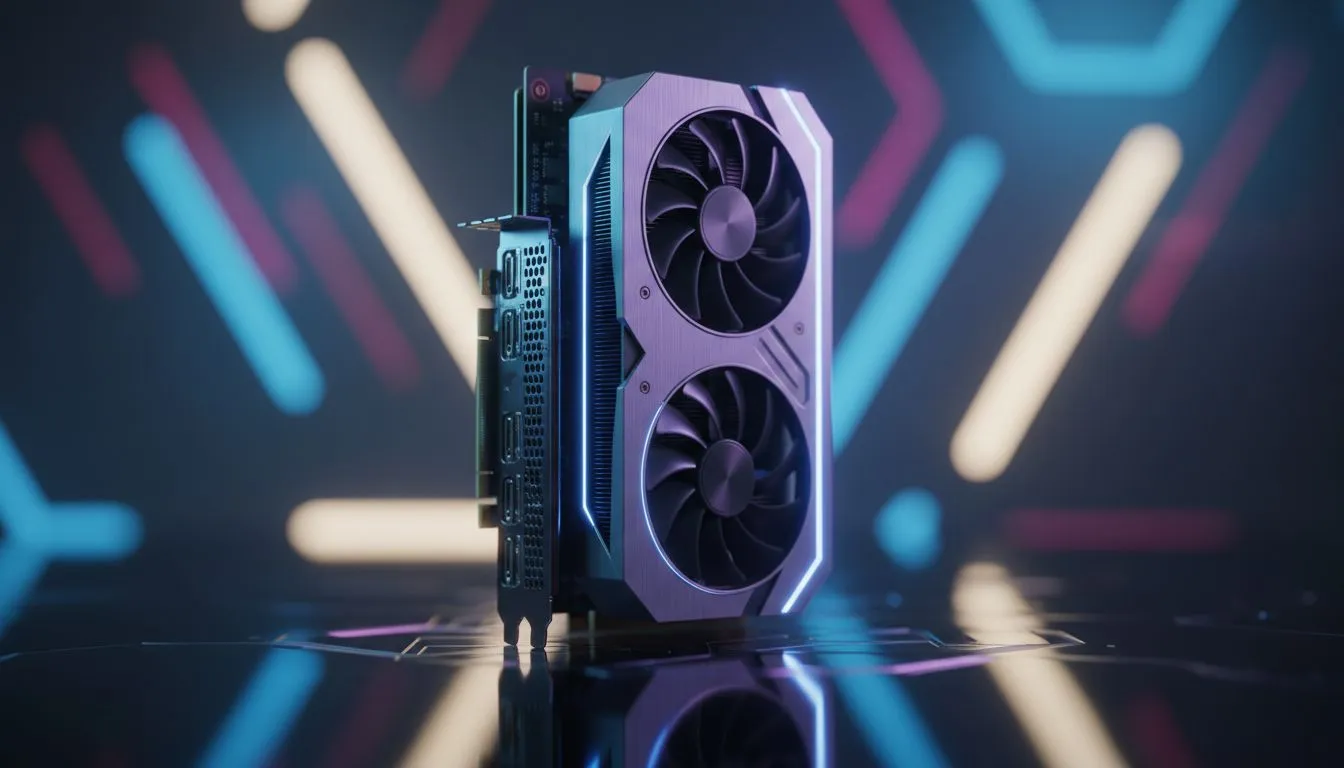
Lowering your Gamma slightly while bumping up the Contrast can help define the edges of character models against the jungle floor. If your current hardware is simply too old to process these post-processing effects without a frame drop, it might be time to look at modern NVIDIA graphics cards to ensure your hardware isn't the bottleneck.
Vibrance Pro Tip ⚡
If you are on an NVIDIA card, look for 'Digital Vibrance' under 'Adjust Desktop Color Settings' in the NVIDIA Control Panel. Bumping this to 70% or 80% makes the greens of the Rift pop without looking artificial. It makes spotting a stealthy Rengar in the brush much easier.
Adjusting Driver Settings for Deeper Hues
If the game still looks greyish, the issue likely lies in your GPU driver settings rather than the game itself. For those using MSI NVIDIA graphics cards, the Dragon Center or Afterburner software can sometimes interfere with desktop profiles... ensure you have a clean "Gaming" profile selected. ⚡
For the Red Team, the latest AMD Radeon graphics cards offer a feature called 'Custom Color' within the Adrenaline software. Increasing the 'Saturation' to about 140 can transform the Rift from a drab forest into a lush, high-definition battlefield. This doesn't just look better... it actually helps you distinguish between different ability effects during chaotic 5v5 teamfights at the Baron pit.
Hardware Calibration and Modern Solutions
Sometimes, the "washed-out" look is a symptom of using a display meant for office work rather than gaming. Even the newer Intel Arc graphics cards have robust driver suites that allow you to toggle "Full" vs "Limited" RGB range... a common culprit for grey blacks.
If you are a professional who spends your day in Creative Cloud, you might be using workstation graphics cards for your rig. These cards are incredibly precise, but they often default to a "Natural" colour profile that feels flat for gaming. Ensure you have toggled a high-contrast profile when switching from your 3D rendering work to your evening LoL climb. 🚀
By balancing your in-game contrast with your GPU's vibrance settings, you can achieve a look that feels like a brand-new game. You don't need to spend thousands of ZAR on a new monitor to see the difference... a few minutes in the settings menu is often all it takes to clear the fog. ✨
Ready to Find Your Perfect Match?
The right visual setup can be the difference between a victory and a defeat on the Rift. For maximum power, choice, and value in South Africa, our hardware range is hard to beat. Explore our massive range of laptop specials and find the perfect machine to conquer your world.