Why Your PC Stutters After a Big Game Update
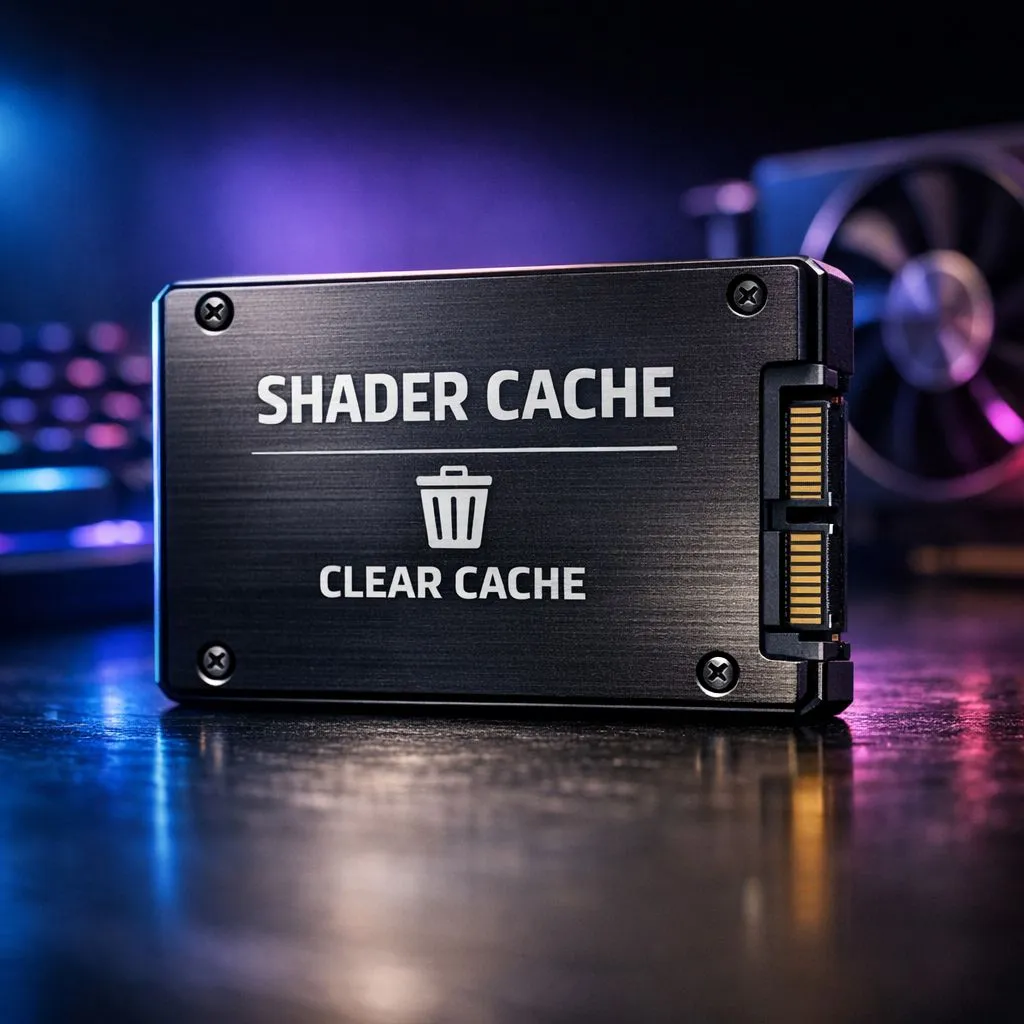
You have just finished a massive 40GB download for your favourite title... but something feels wrong. Instead of smooth frames, you are seeing micro-stutters every time you turn a corner. It is frustrating when your high-end rig feels sluggish. Often, the culprit is not your hardware... it is a cluttered shader cache. Learning how to clear shader cache to fix stutters after updates is the best way to restore your performance ⚡.
Understanding the Shader Cache Conflict
Shaders are small programs that tell your GPU how to render pixels, light, and shadows. To save time, your PC stores these in a cache. When a developer releases a patch, the old shaders might not match the new game code. This mismatch causes the GPU to re-compile files on the fly... leading to those annoying frame drops.
If you are using the latest NVIDIA graphics cards, you can manage this via the NVIDIA Control Panel. Simply navigate to 'Manage 3D Settings' and find the Shader Cache Size option. Setting it to 'Disabled' and then back to 'Driver Default' can often force a refresh.
DirectX Clean-up Pro Tip ⚡
can quickly clear shader files using the Windows Disk Cleanup tool. Search for 'Disk Cleanup' in your Start menu... select your C: drive... and ensure 'DirectX Shader Cache' is ticked before clicking OK. This safely removes old files that might be causing conflicts after a driver update.
Refreshing Performance on Different Hardware
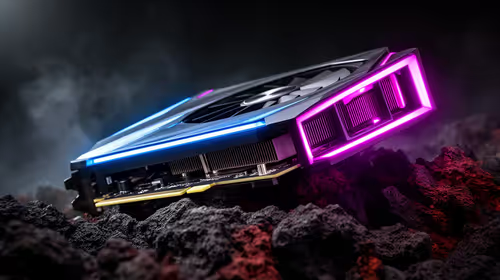
It does not matter if you prefer MSI graphics cards or other custom cooled models... the logic remains the same. Software leftovers will always hinder raw power. For those running AMD Radeon graphics cards, the process is even simpler. You can find the 'Reset Shader Cache' button directly within the Gaming tab of the Adrenalin software.
Even if you have adopted the new Intel Arc graphics cards, keeping your cache clean is vital for stability. This is especially true for professional environments where workstation graphics cards are used for rendering. A clean cache ensures that your creative apps do not crash during heavy exports 🚀.
Final Steps to Smooth Gameplay
Once you clear shader cache to fix stutters after updates, restart your PC. The first time you launch your game, you might notice a few seconds of slowdown. This is normal... the GPU is building a fresh, optimised cache for the new version. Within minutes, your frame times should level out... giving you the edge in your next competitive match 🔧.
Ready to Upgrade Your Visuals? If clearing your cache still leaves you wanting more performance, it might be time for a hardware boost. Explore our massive range of graphics card specials and find the perfect GPU to power your South African gaming setup.