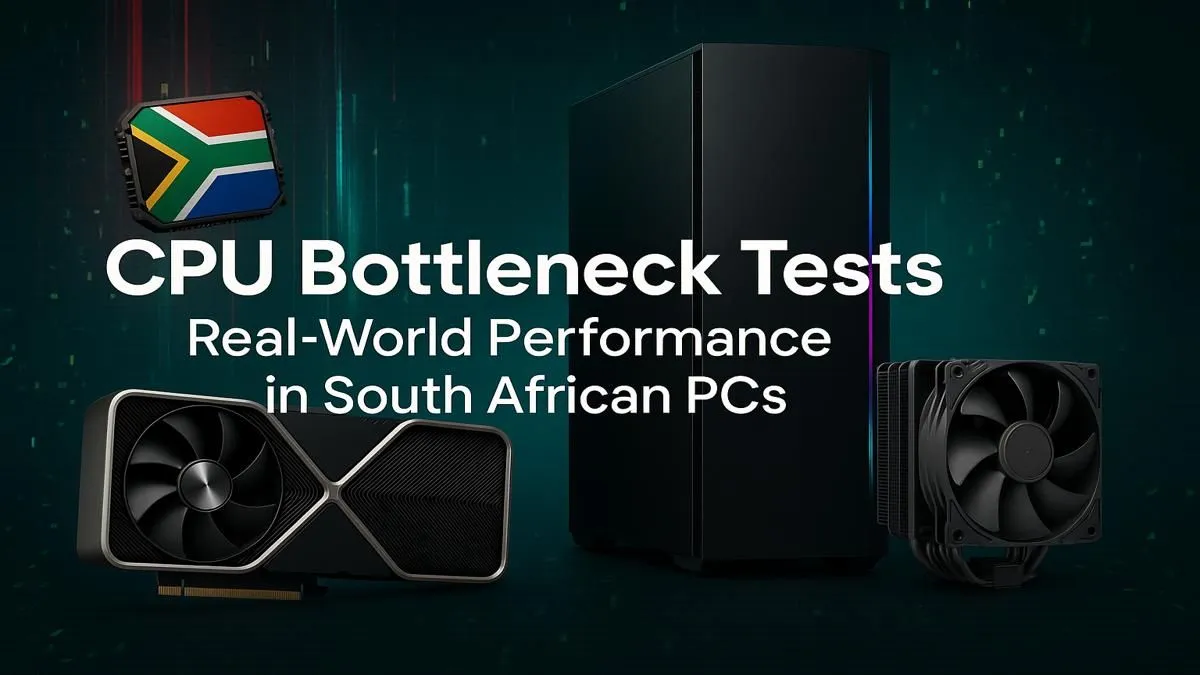
Splurged on a beastly new graphics card, but your frame rates in Warzone are still... meh? It’s a classic Mzansi tech tragedy. Before you blame your internet, the real culprit might be hiding in plain sight: your processor. An unbalanced system can cripple your performance. Let’s run a quick CPU bottleneck test and see if your PC is truly living up to its potential, or just holding your new GPU hostage. 🚀
What Exactly is a CPU Bottleneck?
Think of your PC as a team. Your graphics card (GPU) is the star striker, ready to score frames like crazy. But it needs the midfielder—your central processing unit (CPU)—to pass it the ball (data). If the CPU is too slow to prepare these data packets, the GPU ends up waiting around, doing nothing. That idle time is a bottleneck.
In gaming, this shows up as stuttering, inconsistent frame rates, and an overall feeling that your expensive hardware isn't performing as it should. This is especially true in fast-paced competitive titles popular in South Africa, like CS2 or Valorant, where CPU speed is critical.
How to Run a Simple CPU Bottleneck Test 🔧
You don't need fancy lab equipment to check for a CPU bottleneck. A simple, free monitoring tool and a few minutes in your favourite game are all it takes.
Step 1: Get Your Tools Ready
Download and install MSI Afterburner, which includes the RivaTuner Statistics Server (RTSS). This is the gold standard for monitoring your PC’s performance in real-time. In the settings, configure the On-Screen Display (OSD) to show:
- GPU Usage (%)
- CPU Usage (%) for each core (not just the total)
- Frame Rate (FPS)
Step 2: Fire Up Your Game
Launch a game you play often. For the most accurate CPU bottleneck test, you want to create a scenario where the CPU has to work its hardest.
Resolution Reality Check ⚡
Gaming at 1080p puts more pressure on your CPU, while 1440p or 4K shifts the load to your GPU. If you suspect a CPU bottleneck, try running your test at 1080p with low graphical settings. This maximises the strain on the processor, making it easier to see if it's the component holding you back.
Step 3: Analyse the Numbers
Play for a few minutes and keep an eye on the OSD stats. Here’s what you’re looking for:
- Ideal Scenario (GPU Bound): Your GPU usage is consistently at 97-100%. This is great! It means your graphics card is the limiting factor and is working at its full potential. Your PC is balanced.
- Problem Scenario (CPU Bottleneck): Your GPU usage is sitting well below 95% (e.g., 60-80%), while one or more of your CPU cores are maxed out at 100%. This is the classic sign of a CPU bottleneck. Your processor simply can't feed the GPU data fast enough.
Common Scenarios & Solutions for SA Gamers
We see this all the time. A gamer gets a fantastic deal on a new GPU but pairs it with an older processor, leading to disappointment.
For instance, pairing a brand-new GeForce RTX 4060 with a trusty old Intel Core i5 from five years ago is a recipe for a bottleneck. The new card is capable of so much more, but the CPU holds it back.
Similarly, if you're chasing high refresh rates (240Hz+) for competitive shooters, your CPU performance is paramount. In these cases, even a decent mid-range CPU can become the weak link. An upgrade to a modern AMD Ryzen CPU, especially one with 3D V-Cache technology, can make a world of difference, delivering the smooth, high frame rates you need to compete. ✨
Running a quick CPU bottleneck test empowers you to make smarter upgrade decisions, ensuring every Rand you spend on your rig translates into real performance.
Ready to Unleash Your PC's True Power? A CPU bottleneck is frustrating, but it's also fixable. Unlocking your GPU's full potential starts with a balanced processor. Explore our massive range of CPUs and find the perfect chip to eliminate stutter and dominate the leaderboard.