A 180Hz label on the box does not guarantee Windows will expose 180Hz through every port, cable and image setting. The missing option is usually a signal-path problem that can be narrowed down quickly.
Quick Answer
Open Windows Advanced display, select the correct monitor and confirm its native resolution. Check the monitor's high-refresh or overclock mode, use a port and cable rated for the required bandwidth, and test without HDR or unusually high colour depth if the link is near its limit. Update the graphics driver only after these basics are confirmed.
🖥️ Verify what Windows is sending
Open Settings, System, Display, Advanced display. Select the intended monitor and inspect the chosen resolution, bit depth, colour format and refresh rate. Windows only lists modes supported by the active combination of display, graphics adapter, driver and connection.
Microsoft notes that Dynamic Refresh Rate can limit the maximum refresh rate in some games. Turn it off during diagnosis so the result is a fixed, easily confirmed mode. If multiple displays are cloned, test the 180Hz panel on its own because mirroring can force a shared mode.
Compare the exact model in the gaming monitor range, but use its manual for the port-specific limit.
🔌 Match resolution to link bandwidth
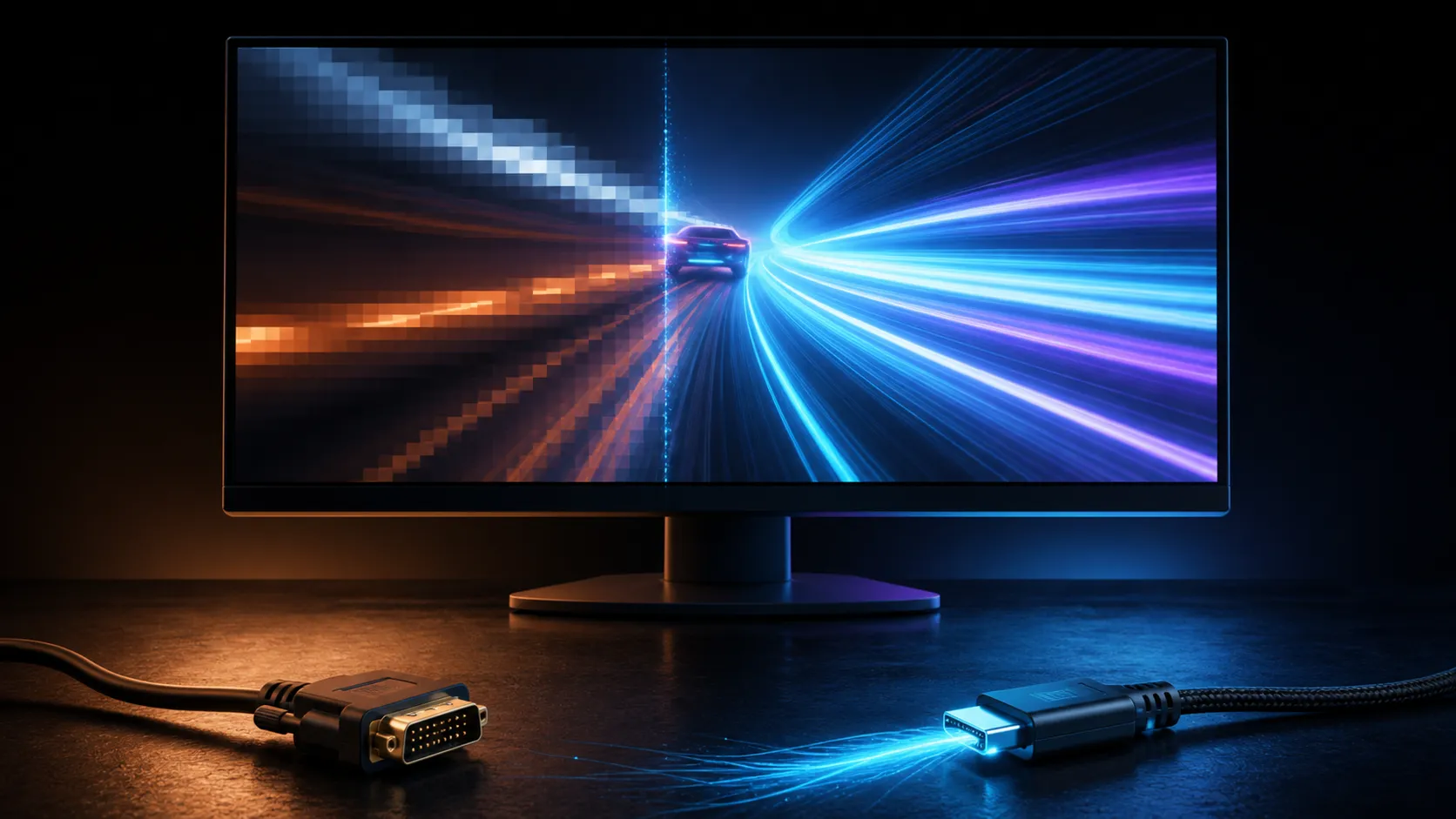
Higher resolution, refresh, colour depth and HDR all consume link bandwidth. A mode that works at standard dynamic range may disappear after another setting increases data requirements. Display Stream Compression can extend supported combinations when both ends implement it.
Test the cable supplied with the monitor on the recommended input. If another cable is needed, choose from verified cable solutions by specification, not connector appearance. Adapters and docks add more capability limits.
🎛️ Check panel and driver controls
Some monitors require a high-refresh or overclock toggle in the on-screen menu before 180Hz appears. Apply the mode, power-cycle the display and re-open Advanced display. Restore default timing if custom-resolution software was previously used.
Check the graphics control panel for a PC-resolution section as well as television-format modes. Selecting the same pixel dimensions from a television list can expose a different refresh set. Keep colour format on a known supported default while recovering the missing mode.
Update the display and graphics drivers from their official sources. Review useful monitor accessories only after the direct connection works, because a switch or dock cannot restore a mode that its own link does not support.
After 180Hz works directly, reconnect secondary displays and accessories one at a time. This identifies the device or topology that removes the option, while leaving a proven configuration to return to.
Frequently Asked Questions
Why does 180Hz appear only at a lower resolution?
The active connection may have enough bandwidth for one combination but not the higher resolution and refresh together.
Can HDR make the highest refresh option disappear?
It can increase the data requirement through colour depth or format, exposing a link limit on some combinations.
Should a custom resolution be the first fix?
No. Confirm the monitor menu, native mode, direct cable path and official driver before creating manual timings.
Ready to restore the full refresh mode?
Prove the native resolution and direct cable path first, then add HDR, accessories and extra displays one layer at a time.