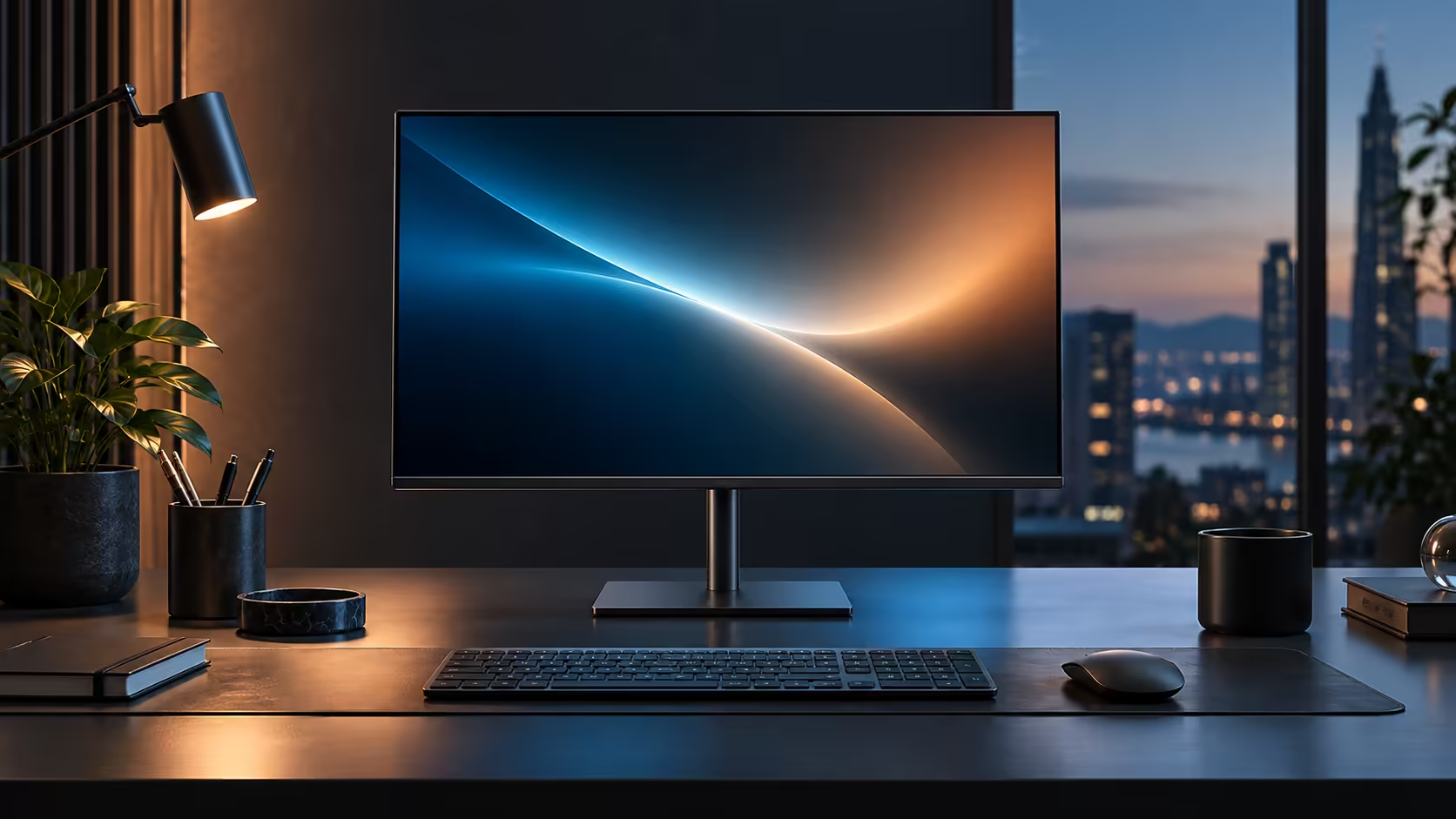
Replacing a dock with a monitor sounds like it should be a compromise, giving something up to gain the convenience of fewer boxes on the desk. For most laptops, it genuinely is not. The 90W USB-C Dell Pro 24 Plus P2425DE at R6,099 does both jobs over one cable.
Quick Answer
It can do both, provided your laptop charges at 90W or less. The same lead carries the picture, the USB devices and the wired network, which is precisely the work a dock was doing. Evetech has this one at R6,099.
✅ What "replacing a dock" actually means in practice
Before assuming this is a downgrade, it helps to be specific about what a typical dock is doing that this monitor also does.
A standard USB-C dock for a business laptop provides charging, a handful of downstream USB ports for keyboard and mouse, usually a wired Ethernet socket, and sometimes an additional video output for a second screen. The Dell Pro 24 Plus P2425DE covers charging up to 90W, downstream USB ports, an RJ45 Ethernet socket, and a DisplayPort output for daisy chaining a second monitor, all built into the screen itself rather than a separate box. For a desk running one external monitor, that is a genuinely complete match to what most people buy a dock to do.
⚡ Where the 90W ceiling actually matters
This is the one number worth checking against your specific laptop before assuming the swap is seamless.
Most 13 to 15-inch business laptops shipped with 45W or 65W chargers, giving real headroom under this monitor's 90W supply, meaning they charge normally even under fairly demanding use. Laptops that shipped with 90W chargers sit at the edge, charging fine under typical office work but potentially losing a little charge during sustained heavy tasks. Workstation-class laptops with discrete graphics, often shipping with 130W or higher chargers, can draw more than 90W under load and will need their original charger for the most demanding work, even while the monitor otherwise replaces everything else a dock was doing.
🔍 What you might still miss compared with a full-featured dock
Being fair to the comparison means naming what a dedicated dock sometimes offers that a monitor's built-in hub does not.
A standalone dock aimed at power users can include more downstream USB ports, an SD card reader, or multiple independent video outputs for driving two separate external monitors from one connection, none of which this hub monitor's more compact port selection matches. For a desk running exactly one external screen with standard peripherals, that gap rarely matters; for a desk with heavier port demands, it is worth counting your actual needs against the monitor's specific port list before assuming full replacement. Compare the docking station range directly against this monitor's ports, browse use hubs for extra USB expansion if needed, and check the wider office monitor range for other hub-equipped panels.
Frequently Asked Questions
Will this monitor charge any laptop that previously used a 90W dock?
Most business laptops rated for 90W charging or less will charge normally. Workstation laptops with higher power draw under load may still occasionally need their original charger.
Does replacing a dock with a hub monitor lose any USB ports?
Possibly, if your dock offered significantly more downstream ports than this monitor's built-in selection. Count your actual connected devices before switching.
Can I add a separate USB hub if I need more ports than the monitor provides?
Yes. Plugging a small extra hub into one of the monitor's own USB ports adds room for more peripherals while the laptop still only ever sees the one cable.
Is the Ethernet port as reliable as a dedicated dock's?
Yes. It is a standard RJ45 socket detected by Windows as a normal wired network adaptor, functionally identical to the same port on a dock.
Ready to see if your dock is actually redundant?
Check your laptop's charging wattage against 90W, then count the ports you use daily against what the monitor provides.