


1000W PSU Planning for RTX 5090 Builds in SA
1000W for RTX 5090 needs a full-build check, not a simple yes. Review GPU guidance, CPU draw, transient load, connectors, PSU quality, and upgrade plans before deciding.
Read moreCapcut editing hardware plan: when mini PCs should be shortlisted around the job it must do. South African buyers should compare fit, performance, compatibility, and upgrade room, warranty path, and upgrade room before treating any pick as best.
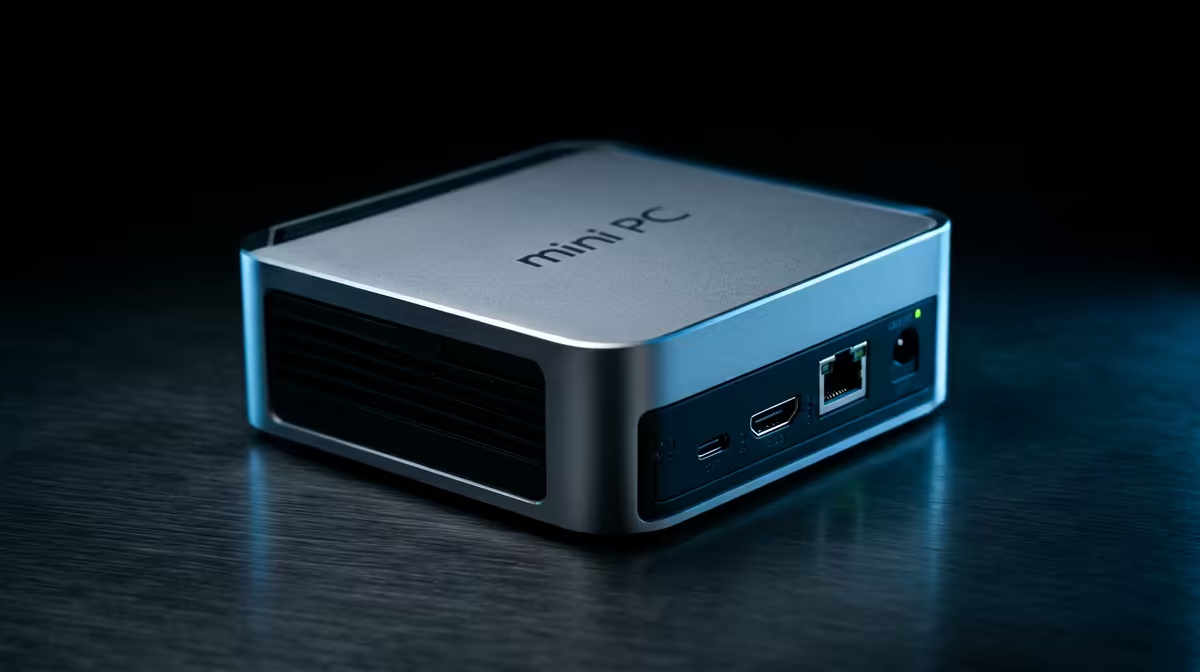
Mini PCs trade upgrade room for size and silence, so the whole decision is about specifying RAM and storage correctly the first time.
Entry-level mini PCs handle CapCut 1080p editing comfortably but struggle with 4K timelines. A Beelink SER8 (Ryzen 7 8845HS, around R11,000) edits and exports 1080p smoothly; for regular 4K work you want 32GB RAM and a stronger iGPU like the Minisforum UM790 Pro (around R14,500). Below 16GB RAM, CapCut stutters on any resolution.
For 1080p CapCut projects - the bulk of social and student content - a modern mini PC with a Ryzen 7 8845HS or Ryzen 9 chip, 16-32GB RAM and a fast NVMe exports a 5-minute 1080p clip in roughly 2-4 minutes. The Radeon 780M iGPU in these chips handles CapCut's effects and timeline scrubbing without a discrete GPU. That's a genuinely capable editing box in a 0.5L case.
4K multi-track timelines, heavy colour grading and long renders expose the limits of integrated graphics and thermally-constrained chips. If 4K is routine, jump to 32GB RAM minimum and accept longer exports, or move to a tower with a discrete GPU. Also check the mini PC has at least 32GB RAM headroom and a second NVMe slot for scratch and footage storage.
It can, but slowly. Expect sluggish scrubbing and long exports on integrated graphics. For regular 4K, fit 32GB RAM and a fast NVMe, or step up to a tower with a discrete GPU.
16GB is the floor for smooth 1080p editing; 32GB is the recommendation if you touch 4K or run other apps alongside. Below 16GB, CapCut stutters at any resolution.
A Beelink SER8 or Minisforum UM790 Pro with a Ryzen 7/9 chip and 32GB RAM gives the best balance of size, price and editing headroom for 1080p-to-light-4K work.
RAM and a 1TB NVMe even on a mini PC for CapCut - it's the cheapest way to keep 1080p timelines smooth and leave room for occasional 4K work.
1000W for RTX 5090 needs a full-build check, not a simple yes. Review GPU guidance, CPU draw, transient load, connectors, PSU quality, and upgrade plans before deciding.
Read more
RTX 5080 Super with a 750W PSU is more comfortable than lower wattage if the unit is quality. SA builders should still confirm GPU guidance, CPU draw, connector type, airflow, and upgrade room.
Read more
How to fix FPS drops after a RX 9070 XT starts with driver cleanup, chipset updates, thermals, and power checks. For SA gaming PCs, confirm PCIe seating, monitor refresh, frame caps, and per-game graphics settings before replacing parts.
Read more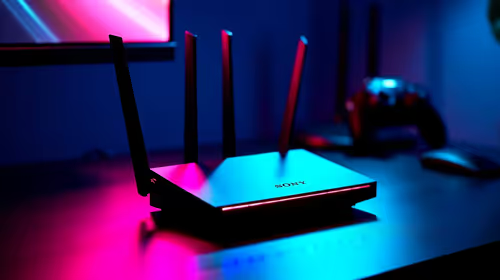
How to fix low FPS Windows 11 Wi-Fi 7 issues starts by checking whether the problem is frame rate or network lag. Test ping, drivers, power settings, Ethernet, and game FPS before adjusting visuals.
Read more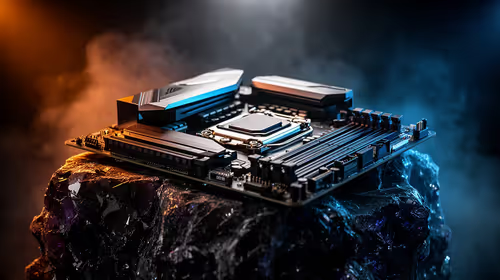
AM5 is smart for SA builders because it supports newer Ryzen CPUs, DDR5 memory, and a longer upgrade path. Compare board cost, cooling, gaming needs, and local part availability before choosing your next PC platform.
Read more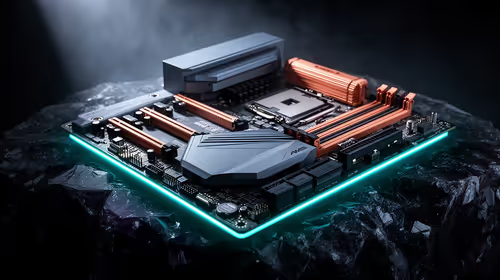
AM5 gives Randburg gaming builders a longer upgrade path. For SA buyers, DDR5 support, newer board features, and future CPU options can justify the platform. Weigh board cost, cooler support, BIOS maturity, and upgrade timing before choosing.
Read more
RTX 5090 on a 550W PSU leaves almost no practical room for OC plans. Treat the setup as constrained, with CPU draw, power spikes, cable quality, thermals, and stability checks more important than chasing extra clocks.

FPS drops on a Ryzen 9 9950X3D build often have a fixable cause. Check settings, drivers, thermals, background tasks, network conditions, and bottlenecks before assuming a part must be replaced.

The difference between PCIe 5.0 and PCIe 4.0 for SA gamers is mostly bandwidth headroom. Compare GPU slot needs, NVMe speed, motherboard support, and upgrade timing before paying extra for a newer platform.

Gaming PC stuck pixel checks in South Africa should confirm the monitor fault first. Use colour tests, screenshot comparison, cable swaps, display menu checks, and clear photos before deciding on support.

AMD's current driver now lists a Radeon RX 9050 4GB, while product coverage details a narrowed memory system. SA buyers should weigh the low VRAM ceiling against current local Radeon options.

Samsung Display has demonstrated a 16-inch 2.5K OLED laptop panel running at 300Hz. SA buyers should wait for a named notebook, full panel specifications and a local price before planning an upgrade.

Microsoft says some Windows 11 game crashes after recent updates are linked to RGB-related drivers. Affected SA gamers should confirm the update and driver before using the published registry workaround.

Thermalright's Fan Frame Vision-1 adds a 640x172 status screen to a standard 120mm fan. SA builders should check clearance, USB routing and local support before treating it as an easy upgrade.
1000W for RTX 5090 needs a full-build check, not a simple yes. Review GPU guidance, CPU draw, transient load, connectors, PSU quality, and upgrade plans before deciding.

Wi-Fi 6E vs Wi-Fi 6 matters for 4K video editing when files move across a network. The real-world difference between Wi-Fi 6E and Wi-Fi 6 for video editing in 4K depends on NAS access, cloud uploads, router range, and SA creator workflows.
RTX 5080 Super with a 750W PSU is more comfortable than lower wattage if the unit is quality. SA builders should still confirm GPU guidance, CPU draw, connector type, airflow, and upgrade room.
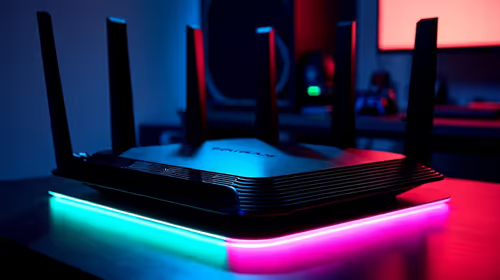
Wi-Fi 6E vs Wi-Fi 6 for Video Editing in 4K comes down to router support, latency, client devices, band support, and home network layout. SA buyers should match the choice to their setup instead of assuming one option always wins.