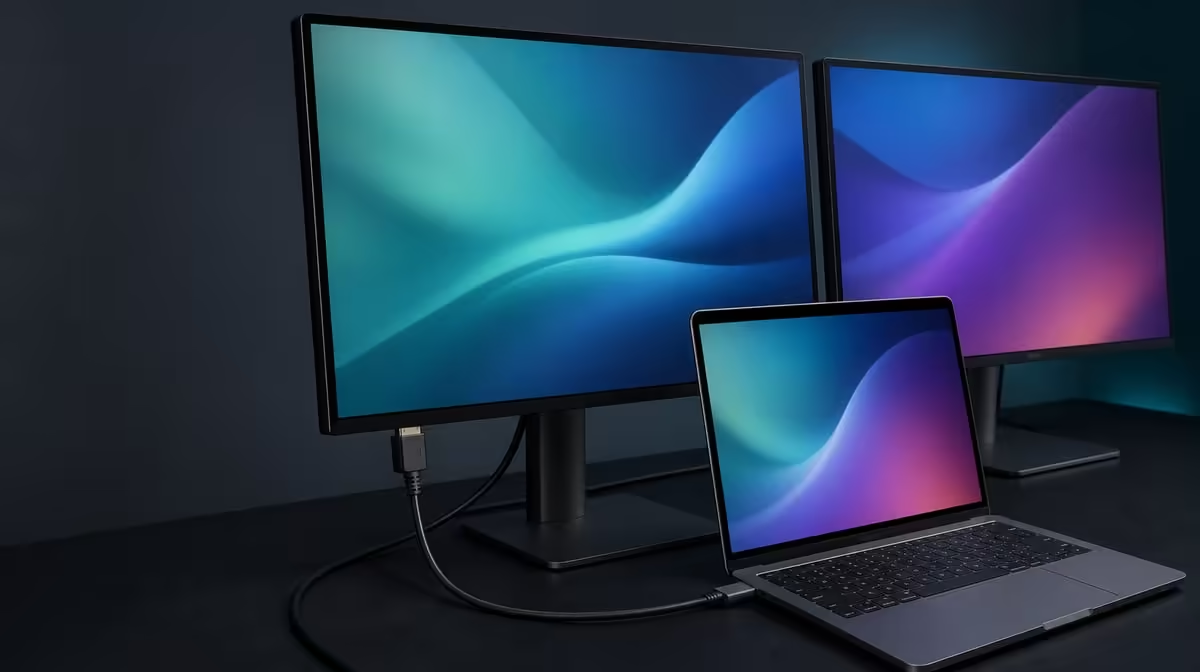
One visible panel does not prove the second screen has failed. A dual monitor detecting only one screen needs a layered check of stand, power, laptop output, cable, input and display settings before refresh or applications enter the diagnosis.
Quick Answer
When only one R6,899 UPERFECT Delta Mega panel appears, keep both screens physically stable, confirm the Type-C or HDMI route supports the intended laptop setup and reconnect cleanly. Use Windows or Mac display settings to detect and identify both Full HD panels before enabling 100Hz.
🔌 Check the complete physical route
Start with the Delta Mega's power and the cable seated at both ends. Inspect the lead around the 360-degree folding joints and make sure it is not pulled by the vertical or horizontal layout.
Confirm the exact laptop output and cable can support the intended dual-display operation. Platform compatibility does not make every Type-C or HDMI path identical.
Use one known route. Disconnect by the plug, wait for the normal device cycle and reconnect without changing several adapters or ports together.
Compare dual screens through Evetech's portable monitor category only after the laptop capability is understood.
🖥️ Detect, identify and map
Open display settings and request detection. If two rectangles appear, use identify to distinguish the physical panels.
Set both to 1920 x 1080 and choose an ordinary scale. Keep refresh at a stable default while the missing-screen symptom is being reproduced.
Arrange top, bottom, left or right positions to match the fold. A panel may seem missing when an application opens on a display placed incorrectly in the software map.
🧪 Isolate the source and mode
Test the established alternative input only after the first route has a recorded result. A working HDMI or Type-C path narrows the problem without proving one component failed.
Use another compatible laptop only if its output is already understood. Record whether it detects both panels and preserve the same Full HD baseline.
Do not enable 100Hz until both displays are stable. Then select the higher rate individually and watch whether one panel disappears.
The Evetech PC monitor range can help when the source needs a different permanent output arrangement.
📝 Save the recovery
Record laptop, port, cable, input, panel order, resolution and the step that restored the second display. Restart and repeat once.
Test the built-in speakers after the image returns because the computer may select another playback device. Keep audio outside the display-detection conclusion.
If both panels still cannot be reproduced through a compatible path, use the appropriate support route with the exact setup record. At R6,899, diagnosis should preserve evidence instead of hiding the symptom with random changes.
Check Evetech's monitor best sellers if the laptop's needs point towards another display format.
Create separate records for "not detected" and "detected but disabled". The first points towards the physical or source path; the second belongs to the laptop's display mode.
Check whether the missing screen sits outside the visible software map. Drag the rectangle close to the active panel and move a test window across.
Repeat after the laptop wakes from sleep if that is when the symptom occurs. Preserve the same cable and input.
Inspect the stand angle during the failure. A fold can change cable tension even when the connectors appear seated.
After recovery, run both screens for thirty minutes at native resolution before adding 100Hz, speakers or low blue light.
Create a final restart check and a laptop-only fallback. Move important windows back before disconnecting, then restore the two-screen map from the recovery note.
Date the symptom and successful route so a later cable or computer change starts a new record.
Frequently Asked Questions
What should be checked before software settings?
Confirm stand stability, power, the laptop output, cable seating and selected monitor input.
Why can one panel appear while the other does not?
The source route, cable capability, display mode or software map may not expose both screens as intended.
What does a clean reconnection involve?
Disconnect by the plug, preserve the known route and reconnect without changing several components.
Where should both panels appear?
They should appear as distinct screens in the Windows or Mac display settings.
Should 100Hz be enabled during first diagnosis?
No. Establish two stable Full HD images before adding the higher refresh mode.
Can another computer isolate the cause?
Yes, when that laptop and its output path are already known to support the intended arrangement.
When is technical support appropriate?
Use support when the fault remains reproducible after compatible power, source, cable and display-setting checks.
Ready to replace one-screen guesswork with a recorded signal path?
Explore Evetech's dual monitors and trace the Delta Mega from laptop output through both detected Full HD panels.