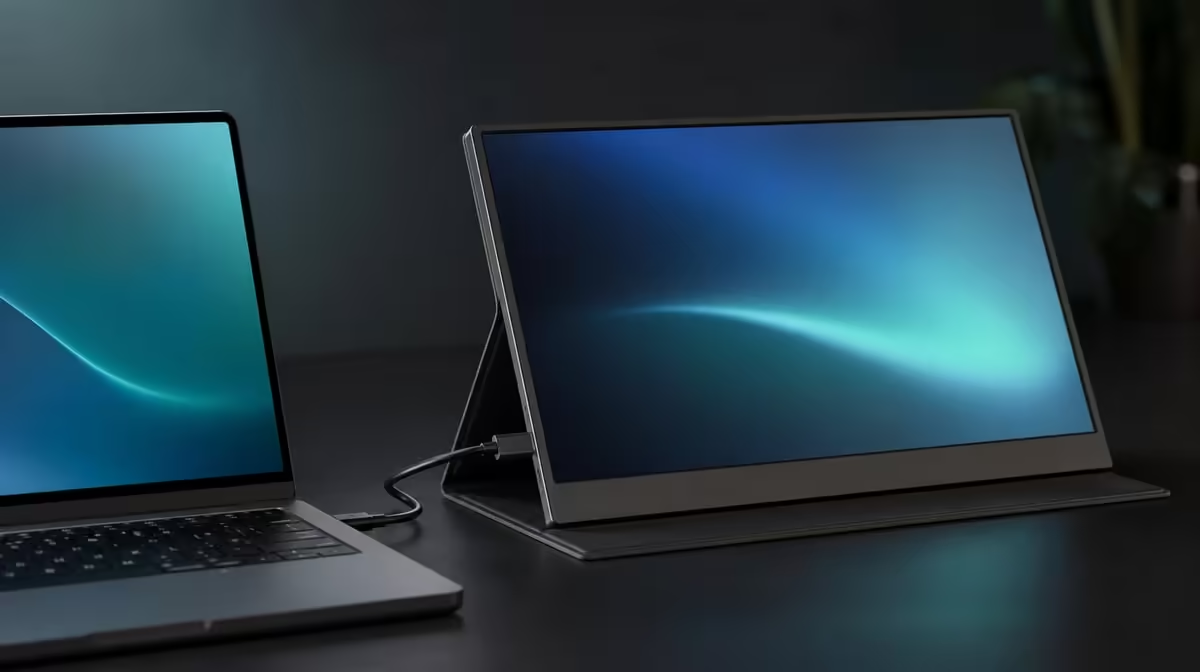
A USB-C plug can fit while carrying no display signal. A USB-C portable monitor showing no signal usually needs a layered check of power, host capability, cable function and selected input before any picture setting is blamed.
Quick Answer
For no signal on the R2,399 UPERFECT UFree V, confirm the monitor is powered, select its USB-C input, verify the host port supports video and test a suitable cable. Use Mini HDMI with the correct power arrangement as a separate route to isolate the screen from the USB-C path.
⚡ Confirm the physical path
Start with power indication and fully seated connections. Disconnect hubs or unknown adapters while establishing the baseline. Inspect both ends and avoid forcing the compact ports.
Check the laptop's exact USB-C specification. Data transfer or charging support does not automatically include display output. Try the port documented for video rather than cycling through connectors at random.
Use a cable known to carry the required display signal. A charging cable can look identical while lacking the needed capability.
Evetech's portable monitor range helps compare input requirements once the source capability is understood.
🖥️ Select and detect
Choose the UFree V's USB-C input manually. Then open the operating system's display settings and request detection.
If the monitor appears in software but stays blank, select 1920 x 1080 and a normal display mode. Keep brightness and colour controls unchanged while the signal problem is being isolated.
Restart the source once with the known cable connected. Record whether detection returns without reconnecting several times.
🎞️ Isolate with Mini HDMI
Connect a compatible Mini HDMI video route and arrange power separately. Select that input and repeat detection.
A working Mini HDMI image proves the panel can display a source through another path. It points attention towards USB-C host support, cable suitability or input selection without proving which single item failed.
If neither route works, return to power, source output and input selection. Test one known component at a time.
Use Evetech's wider PC monitor category to compare connection layouts when the source needs a different port strategy.
📝 Save the working result
Write the source device, USB-C port, cable, power arrangement, input and native resolution. This known-good record makes the next travel setup faster.
Route cables with relaxed slack and retest after moving the foldable stand. Connector strain can create an intermittent symptom that resembles software trouble.
At R2,399, the two inputs add diagnostic value when used methodically. Check Evetech's current monitor favourites if the source still cannot provide a compatible path.
Build a small fault table with four rows: no power indication, powered with no image, detected but blank, and intermittent connection. Each symptom begins at a different layer and should not trigger the same random response.
For an intermittent result, leave the picture unchanged and move only one physical part through its normal range: first the laptop lid, then the stand, then the cable near each connector. Stop if a plug appears loose or strained.
Test a second source only when its output is known to work. An unknown laptop plus an unknown cable adds two variables and can make a healthy monitor look faulty.
If Mini HDMI passes, preserve that setup as a reference while checking the USB-C card. If USB-C passes elsewhere, compare the exact host port rather than all ports with the same shape.
After the fix, run a document and video for thirty minutes, then restart. Detection, stable native resolution and an undisturbed cable route are all part of the pass.
Store the working cable separately and label its role. A future charging lead should not replace it simply because both use USB-C connectors.
Close the fault note with the exact successful chain from wall or source power through monitor input and operating-system mode. That single line becomes the first comparison when no signal returns.
Frequently Asked Questions
Which hardware check should precede software changes?
Confirm power, fully seated connections, host video capability and a suitable cable.
Can every USB-C port output video?
No. The source must specifically support display output through that port.
How can the cable cause no signal?
A cable may support charging or data without carrying the required video signal.
Why select the input manually?
The monitor must listen to the route that is physically connected.
Can Mini HDMI isolate the problem?
Yes. A separate working video route narrows attention to the USB-C path.
What if the laptop detects the monitor?
Select native 1920 x 1080, confirm the display mode and keep other settings unchanged while testing.
What is the price of the dual-input model?
The UPERFECT UFree V costs R2,399.
Ready to replace cable swapping with a known-good signal path?
Compare Evetech's portable displays and test the UFree V from power through USB-C, then isolate the route with Mini HDMI.