An eFootball download for PC should begin with one simple safety decision: use the publisher's official route or an authorised PC platform, then sign in to the account that will receive updates. Search results, unofficial mirrors and files shared in chat groups can look convenient, yet they add uncertainty at the exact moment a game needs account access and ongoing patches.
Quick Answer
Install eFootball from its official publisher page or approved PC store, not from a third-party download link. Before clicking install, check the current system requirements, free drive space and the size of the initial download. South African players on capped LTE or a managed res network should also confirm data and access rules so the installation does not stop halfway through.
🔌 Start with the official account path
The official route tells the launcher which account owns the game, delivers the correct updates and provides a recognised place to verify installed files later. If the page opens a PC storefront, make sure the logged-in account is the one that will be used on the machine. This avoids a common frustration where the game appears in one account while another account is used to launch it.
Do not treat a file name or a familiar logo as proof that a download is safe. A legitimate installer should come from the publisher or the authorised service it names. If a page asks for unusual security changes, separate account credentials or a copied executable from elsewhere, close it and return to the official path.
📶 Plan the data before the installer runs
The download footprint can change as files, language packs and seasonal updates change. On fibre, the main concern is often time and local network traffic. On LTE, the size matters more because a partial attempt can consume a meaningful part of a capped bundle without leaving a playable game behind.
Students in res or shared digs may have a managed connection with limits on large downloads or game traffic. Check the network rules before starting instead of discovering a restriction after the launcher has begun. A wired connection can also make the first installation steadier when the Wi-Fi is busy, although it cannot override the residence network's own policy.
✅ Check the PC before troubleshooting the game
Read the current requirements from the official source and compare them with the actual processor, memory, graphics hardware and operating-system version in the PC. Leave extra storage beyond the initial install because patches, temporary files and verification steps can need room later. Outdated graphics drivers or pending Windows updates are worth resolving before blaming the game itself.
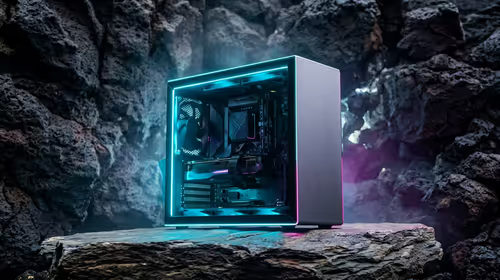
A machine selected from budget gaming PCs should be assessed against the current requirements rather than an old recommendation video. Requirements can move after updates, and a game that launches today may still benefit from driver maintenance tomorrow.
🧩 Controls and first-launch issues
Keyboard controls may be available, but football games often feel more natural with analogue movement and familiar button placement. A supported gaming controller is a practical option if the player prefers that style, provided its connection and support match the PC setup.
If eFootball fails on its first start, begin with the simple causes: complete pending system updates, update the graphics driver, restart the launcher and use its file-verification option where available. Security software and damaged local files can also interfere. Reinstalling immediately is usually less efficient than checking the official help guidance and the launcher status first.
🛡 Keep updates manageable
Game updates do not arrive on a fixed data budget. Check the launcher notice before downloading a large patch, especially on mobile data. If a household shares a capped connection, schedule the update when it will not disrupt study, work or video calls.
The safe habit is to let the authorised launcher handle updates, keep enough free space available and avoid copied patch files. It is slower to recover from a damaged installation than it is to wait for the official download to finish cleanly.
Frequently Asked Questions
Where should I download eFootball for PC?
Use the publisher's official page or an authorised PC platform named by the publisher. Sign in with the account that will own the game and receive its updates.
What should I check before starting the download?
Check current system requirements, available storage, data allowance and the estimated download size. Keep extra drive space for later patches and verification files.
Can a South African res network block eFootball?
It can restrict large downloads or certain game traffic under its own rules. Ask the network administrator before relying on the connection for an installation or update.
Why does eFootball fail to launch after installation?
Pending Windows updates, old graphics drivers, security controls or damaged files can interrupt the first launch. Use the official launcher checks before attempting a full reinstall.
Is a controller required for eFootball on PC?
Not necessarily, but many players prefer a compatible controller for analogue movement and familiar football controls. Confirm the controller's PC support and connection method first.
Preparing a PC for football games?
Match the machine, connection and preferred controls to the current game requirements before starting the download.