The FIFA 15 system requirements are a checklist for the whole original PC release, not a verdict on whether any newer machine will run it perfectly. Processor, graphics, memory, storage and software all contribute. Modern compatibility adds another layer, so a sensible diagnosis starts by separating what the game asked for from what has changed since it launched.
Quick Answer
Check FIFA 15's original requirements against the entire computer, including the operating system and installed storage, then investigate modern compatibility if the game misbehaves. The minimum list is an entry point rather than a comfort guarantee; recommended guidance better reflects steady play with normal background services. South African players can use local technical support to identify a genuine PC or controller fault without replacing hardware simply because an old game needs attention.
🧩 Use the original list for the right purpose
Read the requirements from an authorised source for the exact PC release. They describe the environment the publisher expected at the time, so they are useful for checking basic fit. They do not automatically account for later Windows changes, new drivers or overlays installed by other programs.
Avoid judging a machine from only its graphics card. Free disk space, memory pressure and operating-system support can all affect installation and play. If you are comparing several computers, write down the full configuration rather than relying on a marketing label.
🛡 Recognise compatibility symptoms
A black screen before the menu, an error in the launcher and a crash after a match begins are clues pointing at different areas. Display settings, legacy runtimes, overlays or modified files can interrupt rendering before a component is proven faulty. Start with an authorised installation and remove changes you cannot account for.
Record the game build, driver version, error wording and last known working state. Then adjust one setting, retest and keep the result. This is slower than applying ten internet suggestions at once, but it makes it possible to reverse a bad change and find the real cause.
✅ Test input separately from the game installation
Controllers deserve their own check. Confirm that the device is recognised in the operating system, then test menus and buttons inside the game. Current gaming controller choices vary in connection and driver behaviour, so a pairing issue or input utility may be involved even when the PC otherwise performs well.
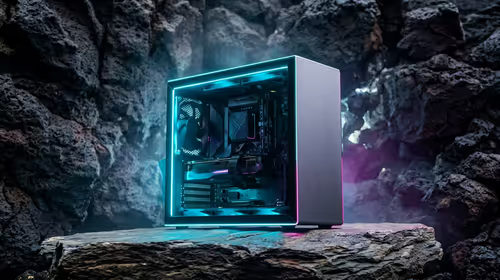
If you also want a computer for newer games, the budget gaming PC category provides a sensible comparison point for contemporary systems. That broader purchase decision should stand on its own; FIFA 15 does not require you to discard capable hardware because an older software layer needs troubleshooting.
🔌 Seek help with useful evidence
When a suspected device fault appears in more than one application, local support can test it with a clearer starting point. Keep your proof of purchase and the notes from your testing. For a qualifying new purchase, South African Consumer Protection Act remedies may apply, but the exact outcome depends on the facts.
If the fault occurs only in FIFA 15 and file verification or compatibility changes affect it, pursue the software path first. You will avoid unnecessary expense and preserve a system that may be perfectly healthy.
Frequently Asked Questions
What does the FIFA 15 requirements list cover?
It covers the processor, graphics, memory, storage and software environment expected by the original PC release. Check every item rather than treating it as a graphics-card test.
Should I rely on the minimum specification?
Use it as an entry threshold. The recommended level is a better guide to stable play when ordinary background services are active.
Why might FIFA 15 show a black screen?
Display configuration, drivers, legacy components, overlays and altered files can all interfere before hardware capacity is the issue.
Can newer Windows versions cause trouble?
They can. Older games may rely on launcher behaviour or supporting components that changed later, so follow documented steps and keep each change reversible.
Ready to evaluate a gaming setup with confidence?
Explore contemporary gaming PCs for the games you intend to play, and use measured checks to sort a legacy title issue from a hardware fault.