God of War PC requirements are best treated as a target-setting exercise: decide whether you want a dependable 1080p experience, higher detail, or a higher frame-rate target before matching hardware. Minimum support only tells you that the game can start. It says little about the visual preset, scene complexity or consistency you may get once a fight becomes busy.
Quick Answer
For God of War on PC, begin with the official requirement tier that matches your chosen resolution and visual settings, then assess the processor, graphics card, memory and storage together. A balanced PC matters more than one impressive part, because an older CPU, full drive or limited memory can hold back a newer GPU. South African buyers should also consider room temperature, dust and a clear local support route when choosing hardware for long gaming sessions.
✅ Start with the result you want
Set a realistic display target before comparing specifications. Resolution, detail preset and frame-rate expectation pull the system in different directions: raising pixels burdens the graphics hardware, while chasing very high frame rates can make processor performance more visible. The official requirement table is a useful reference, but it needs to be read as a set of tiers rather than a promise that every PC will feel the same.
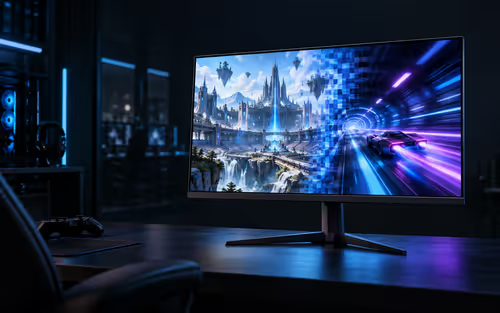
If you already own a computer, check its exact CPU and GPU model in Windows, note installed RAM, then look at the monitor's native resolution. A 1080p display does not demand the same graphics workload as a 1440p or 4K panel. That simple check prevents an upgrade decision based on a setting you are not actually going to use.
For someone assembling a complete machine, the current gaming PC deals can give you a practical view of balanced desktop configurations. Read each configuration as a whole: a capable graphics card needs adequate processor headroom, memory and airflow to turn its potential into stable play.
🔌 Check the graphics card in context
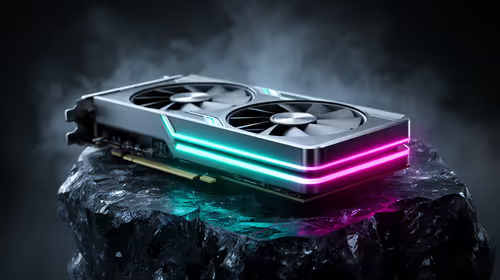
God of War can place most of the visual load on the GPU, particularly at higher resolutions and richer detail settings. That still does not make graphics hardware the only decision. Processor-limited scenes, background applications, a single memory channel or a drive with very little free space can all show up as uneven frame delivery.
Use current graphics card options to understand the class of hardware available, then compare that class with the official target you have selected. Do not assume a name alone settles the question; cooling design, available power connections, case clearance and the rest of the PC all belong in the plan.
On an existing system, measure before spending. A repeatable section of the game can reveal whether the GPU is fully loaded, whether the processor is struggling, or whether temperatures rise after a few minutes. That information points to the part of the system that needs attention instead of turning an upgrade into a guess.
🛡 Make storage, cooling and support part of the build
Leave working room on the game drive. Installation files, patches, shader caches and normal Windows housekeeping need space, and a nearly full SSD makes troubleshooting unnecessarily awkward. Fast storage helps loading behaviour, but it cannot compensate for an unsuitable graphics tier or a CPU that cannot keep pace with the desired frame rate.
Cooling deserves attention in South African homes, especially when a PC sits in a warm room or close to a wall. Clean intake filters, sensible fan paths and enough clearance around the case help the cooler move heat out rather than recycling it. If performance changes after a long session, record the temperatures and fan behaviour before changing settings.
For a new purchase, keep invoices and serial details from day one and understand how warranty support works locally. That is useful preparation if a fault appears, but it should not distract from the initial job of choosing parts that suit the intended settings.
📶 Test after each meaningful change
Change one factor at a time: driver version, resolution, preset or cooling adjustment. Repeating the same test area makes the outcome easier to interpret than changing five settings and hoping the frame rate improves. Keep notes on average behaviour, frame-time spikes and temperatures, not only the best number seen in a quiet scene.
Online guides often focus on a single benchmark, while your own monitor and preferred settings decide whether a result is useful. A stable frame pace at the resolution you play can feel better than an aggressive preset that produces occasional stutter. Once the system is behaving predictably, save the working settings so a later driver update can be compared against a known baseline.
Frequently Asked Questions
What should I compare for God of War on PC?
Choose the official tier for your target resolution first, then compare the processor, graphics hardware, memory, available storage and Windows support against it.
Do minimum requirements support the best visuals?
No. Minimum requirements establish a starting point for running the game. Higher detail, resolution and frame-rate goals call for more capable and balanced hardware.
Why should I leave free storage space?
Updates, temporary files and shader data need working room. Keeping space free also makes maintenance and fault-finding less troublesome.
Can hot room air reduce gaming performance?
Yes. Warm intake air gives a cooler less temperature difference to work with, so clear vents, clean filters and sensible case placement matter during long sessions.
Should I replace the GPU before testing the system?
Not immediately. Check frame timing, CPU use, memory pressure and temperatures first, since several different bottlenecks can create similar symptoms.
Does monitor resolution affect the hardware I need?
Yes. A higher-resolution panel asks the graphics card to render more pixels, so the requirement tier should match the display and settings you intend to use.
Ready to match a PC to your preferred God of War settings?
Explore balanced gaming desktop options, then choose the configuration that suits your monitor and play style.