Why BIOS Flash Your RX 9070 XT? Understanding the Purpose 🔄
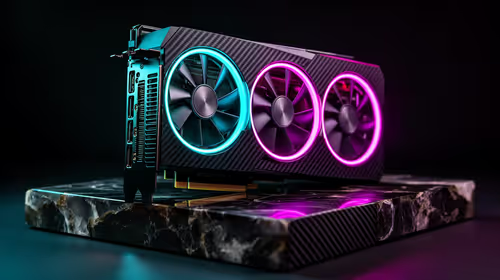
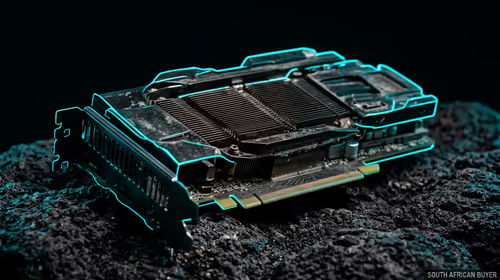
AMD releases BIOS updates addressing performance optimisations, power efficiency improvements, and compatibility fixes. Manufacturers also ship custom BIOS versions that tune power limits or fan curves beyond AMD reference specifications. BIOS flashing—replacing the firmware on your GPU—unlocks these improvements. For SA enthusiasts with RX 9070 XT cards, flashing enables switching between AMD reference BIOS and custom AIB (board partner) variants, each offering distinct performance and thermal profiles.
Unlike CPU BIOS updates (which brick systems on failure), GPU BIOS flashing is forgiving—if something goes wrong, your card remains functional and you can reflash to restore stability.
Pre-Flash Preparation and Risk Assessment ⚠️
Before touching anything, back up your current BIOS. Download GPU-Z (from TechPowerUp, free). Launch it, click the "BIOS" section within GPU-Z, and select "Save BIOS" to preserve your current firmware. Store this file somewhere safe; if the new BIOS introduces problems, you can revert instantly.
Ensure you're flashing a BIOS version explicitly compatible with RX 9070 XT—don't guess or assume variants work. RX 9070 XT comes in different memory configurations (16GB GDDR6 variants exist); verify your BIOS matches your exact card specifications by checking the original BIOS filename or TechPowerUp GPU database entries.
Power off completely. Unplug your PSU from the wall—this safety measure prevents accidental shorts during the process. Leave the system powered off for 30 seconds, allowing residual charge to dissipate from the GPU memory.
Downloading and Verifying BIOS Files 📥
RX 9070 XT BIOS files come from two sources: AMD reference designs (available on AMD's drivers page) or custom AIB designs (ASUS, Sapphire, Gigabyte, etc.). For first-time flashing, stick with your card's manufacturer BIOS—if you own an ASUS RX 9070 XT, download the official ASUS RX 9070 XT BIOS from ASUS's support page, not an aftermarket variant.
Download the appropriate BIOS file (usually named something like "ASUS_RX9070XT_vXXX.rom"). Save it to a USB stick or directly accessible folder—avoid nested directories. Verify the file isn't corrupted by comparing its MD5 checksum against the source website's posted hash. Use a free online checksum calculator if you're unsure.
Flashing Procedure: GPU-Z Method (Safest Approach) 🛠️
Re-power your PC. Launch GPU-Z. Click the BIOS dropdown near the top and select "Edit" (red pencil icon). Navigate to the BIOS file you downloaded, select it, and click "Flash." GPU-Z displays a countdown and progress bar. Do not interrupt this process—interrupting mid-flash corrupts the GPU BIOS irreparably.
Flashing typically completes in 30–90 seconds. Once finished, GPU-Z displays "Flash completed successfully" or an error message. If successful, restart your PC.
Alternative: ATIFlash Command-Line Method (Advanced)
If GPU-Z flashing fails or appears stuck, ATIFlash offers command-line control. Download ATIFlash from TechPowerUp. Place your BIOS file in the same folder as ATIFlash.exe. Open Command Prompt, navigate to that directory, and type: atiflash -f -p 0 BIOSFILENAME.rom (replace BIOSFILENAME with your actual file). This method provides more direct control; flashing progress displays in real-time with verbose feedback.
Complete the flashing process identical to GPU-Z—don't interrupt, don't unplug, don't restart.
Post-Flash Validation and Driver Reinitialisation 🔍
After restart, launch GPU-Z immediately. Verify the BIOS version has updated (check the BIOS field at the top). If it shows old version numbers, the flash didn't complete successfully—attempt reflashing using your backup BIOS, then troubleshoot the new BIOS variant.
Launch your GPU driver control panel (AMD Radeon Settings if using AMD drivers). Perform a complete driver reinstallation: Control Panel → Display Settings → Advanced → Uninstall AMD drivers completely, reboot, then reinstall the latest driver from AMD's website. This ensures the new BIOS firmware synchronises properly with your driver stack, avoiding unstable operation or crashes.
RX 9070 XT Pro Tip ⚡
If flashing a custom AIB BIOS (like ASUS or Sapphire models), power limits often increase beyond AMD reference specifications. Monitor power draw in-game using HWiNFO64; if power approaches your PSU's capacity, verify your power supply headroom before pushing overclocks. Custom BIOS can demand 400W+ on RX 9070 XT, significantly higher than reference designs.
Testing and Stability Verification 🧪
Launch a demanding game—Doom The Dark Ages or Cyberpunk 2077—and monitor GPU clock, temperature, and power draw. Verify clocks lock to new firmware-specified frequencies. If you're flashing a performance-tuned BIOS (like ASUS or Sapphire), expect clock speed improvements of 50–100MHz compared to reference firmware.
Run a 2-hour stress test (GFXBench or 3DMark Extreme) to confirm stability. If crashes occur post-flashing, your new BIOS may be incompatible with your specific hardware revision (silicon lottery strikes). Reflash your backed-up original BIOS to restore stability, then report the incompatibility on relevant forums.
Managing Multiple BIOS Variants 🔁
Some RX 9070 XT models include dual BIOS switches on the card itself—a hardware toggle allowing instant BIOS swapping without software tools. Check your card's specifications. If dual-BIOS equipped, you can flash one BIOS, test it, then instantly flip to the other version without reflashing. This physical safety net makes experimentation risk-free.
SA enthusiasts with extended loadshedding concerns appreciate this redundancy; if one BIOS introduces instability, a simple hardware switch reverts to the safe known-good version.
Reverting to Original BIOS 🔄
If the new BIOS proves unstable or your gaming performance regresses (rare but possible), use your backed-up original BIOS file and reflash identically to the upgrade process. GPU-Z and ATIFlash handle reverting exactly like flashing forward; the process is symmetrical. Power down, reflash your backup, restart, and you're back to original specifications.
Ready to unlock your RX 9070 XT's full potential?
Flash the optimised BIOS and experience performance improvements tailored to your exact card.
Browse AMD Radeon RX Graphics Cards.