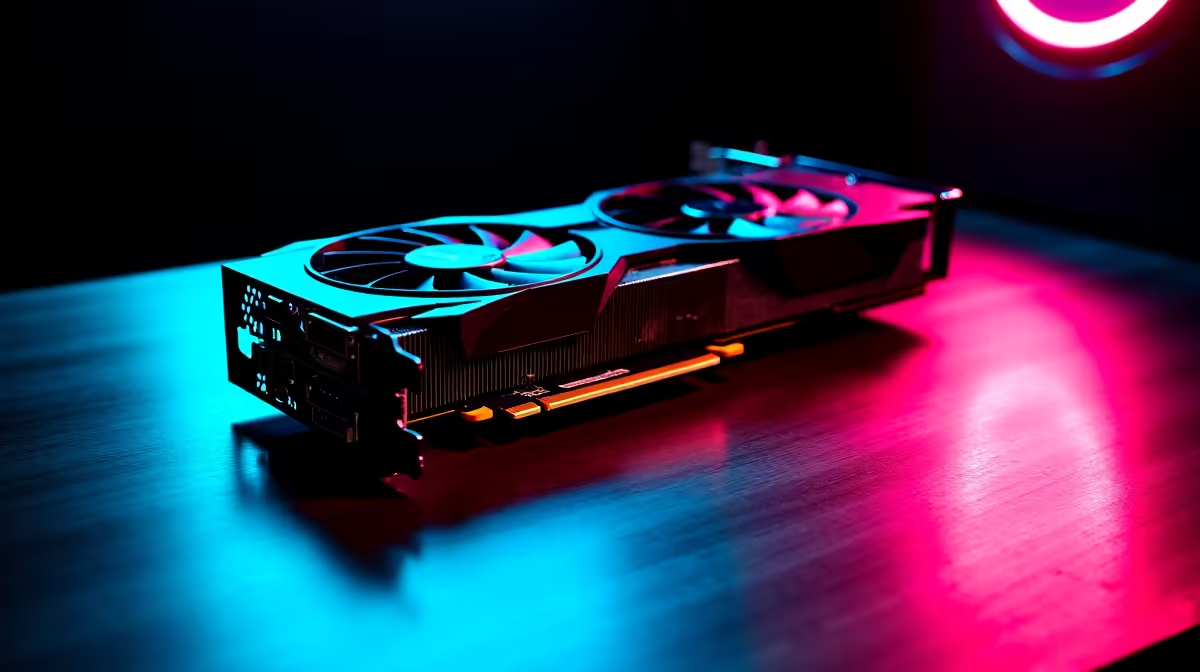
You finally dropped some serious ZAR on the ultimate graphics powerhouse. But whether you face dry Highveld dust or coastal humidity, dirt will eventually choke your system. Learning how to clean your RTX 4090 without damaging it is crucial. One wrong move on a component this expensive can lead to tears. Let us walk you through a safe, stress-free maintenance routine.
The Danger of Dust Build-Up
Dust acts like a thermal blanket. When your heatsink gets clogged, temperatures spike. This forces your fans to spin louder and reduces your boost clocks. Regular maintenance is key to protecting your investment. If your current card is already beyond saving, you might be browsing our massive range of graphics cards. But if you own a flagship 4090, preserving its lifespan is your absolute top priority.
Gathering Your Cleaning Arsenal 🔧
Do not use a vacuum cleaner. Static electricity is a silent killer for sensitive PC parts. Instead, grab a can of compressed air, a soft-bristled brush, and some high-percentage isopropyl alcohol.
If you bought one of our premium pre-built PCs, your case likely features removable dust filters. Always clean those first. Good airflow prevents heavy dust from reaching the GPU in the first place.
Step-by-Step: How to Clean Your RTX 4090 Without Damaging It
First, power down and unplug your rig. Remove the GPU carefully from the PCIe slot. Place it on a non-conductive surface like a wooden table or an anti-static mat.
Hold the cooling fans gently with your fingers. Blasting compressed air into free-spinning fans can easily ruin the bearings. Use short bursts of air to dislodge dust from the massive heatsink fins. For stubborn grime on the metal backplate, a microfibre cloth lightly dampened with isopropyl alcohol works wonders.
If you are tired of intense desktop maintenance, you might be tempted to switch to high-performance gaming laptops. However, mobile hardware needs careful cleaning too... just with much less room to manoeuvre.
Hardware Pro Tip ⚡
Never let your GPU fans spin freely when using compressed air. The forced rotation can generate an electrical charge that feeds back into the board, or simply destroy the delicate fan bearings. Always hold the blades still with your finger.
Reassembly and Final Checks ✨
Once the card is completely spotless and dry, slot it back into your motherboard. Ensure the power cables are seated entirely flush. The 12VHPWR connector needs to be pushed in all the way to prevent dangerous overheating.
Boot up your system and monitor the temperatures under load. You should see a solid drop in both heat and fan noise. A clean GPU means better frame rates and a much longer lifespan.
If you want to upgrade the rest of your rig to match this incredible performance, check out our best gaming PC deals. We always have something to suit your exact budget. Also, keep a close eye on our weekly tech specials for massive discounts on components, cooling gear, and peripherals.
Ready to Upgrade Your Setup?
Keeping your flagship GPU clean is just the start. If your older components are bottlenecking your frame rates, it is time for an upgrade. Explore our massive range of PC deals and find the perfect hardware to conquer your favourite titles in glorious 4K.