


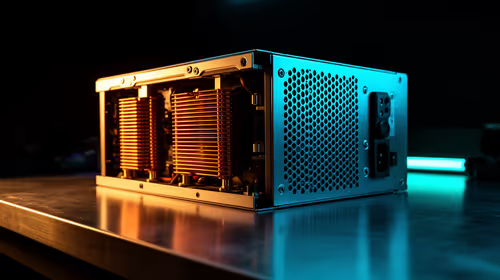
1000W PSU Planning for RTX 5090 Builds in SA
1000W for RTX 5090 needs a full-build check, not a simple yes. Review GPU guidance, CPU draw, transient load, connectors, PSU quality, and upgrade plans before deciding.
Read moreDisable Windows 11 Bloatware for Better. Step-by-step instructions with SA-specific tips, common pitfalls to avoid & expert recommendations.
If you’re gaming or working hard on your PC in South Africa, every ounce of performance counts. Yet Windows 11 often loads your system with bloatware—unwanted apps and background processes that slow your rig down. Knowing how to disable Windows 11 bloatware can make your PC run smoother, reduce boot times, and free up valuable resources for gaming or creative work. Let’s dive into how you clean up your system and unleash its potential 🔧.
Bloatware includes pre-installed apps like trial versions or redundant Microsoft software you don’t need. These apps run silently in the background, often consuming RAM and CPU cycles, which affects your FPS and overall responsiveness. In South Africa’s gaming scene, where networks and rigs compete for speed, trimming this excess load matters.
Some usual suspects are Xbox Game Bar, OneDrive’s constant sync, and unwanted trial apps. These might seem harmless but can hog bandwidth and CPU, leading to stutter or lag during intense sessions. Disabling these can instantly boost your system’s fluidity.
For a premium gaming setup, consider pairing this cleanup with hardware upgrades or a new build. Check out top best gaming PC deals to maximise your gaming experience in South Africa.
Go through Windows 11’s Settings > Apps > Installed apps. Look for apps you don’t recognise or use. Uninstall or disable suspicious bloatware like Xbox Game Bar or third-party trials. This is the safest first step without risking system stability.
Navigate to Settings > Privacy & Security > Background apps. Toggle off apps running in the background unnecessarily. This reduces CPU cycles wasted on activity you don’t need, saving precious system resources.
For tougher-to-remove preinstalled apps, Windows PowerShell is your friend. Run commands with admin access to uninstall apps like Xbox or OneNote. Be cautious—remove only apps you’re confident about to avoid breaking system features.
OneDrive syncing can also slow you down, especially on slower South African fibre or mobile connections. Disable it from startup by typing “Task Manager” > Startup tab > disable OneDrive.
Some apps like CCleaner or specialized bloatware removers help automate this process. If you choose them, ensure you use reputable software to protect your data and privacy.
For convenient upgrades that complement a fast, clean system, explore South Africa’s best pre-built PC deals for great value and performance.
a lightweight, instantly more responsive PC? Lower Windows visual effects: Head to System Properties > Settings > Performance Options, and select “Adjust for best performance.” Your rig will thank you!
Removing unnecessary apps gives your graphics cards and CPU more breathing room. This often improves frame rates and reduces input lag during online matches. Speaking of graphics cards, revamp your rig with the latest graphics cards available at Evetech—great for future-proofing your system after your bloatware purge.
In daily use, you’ll notice a snappier start-up and multitasking experience. Combine these tweaks with regular system maintenance and smart upgrades to keep your desktop or laptop running tip-top.
Explore a diverse range of laptops and notebooks in South Africa if you want portable speed without the hassle of heavy bloatware.
While Windows 11 is an improvement in many ways, out-of-the-box it’s not optimised for peak performance. Disabling Windows 11 bloatware is a straightforward way to unlock better speed without investing in new hardware. Stay vigilant and regularly review your installed apps and background processes.
For rock-solid upgrades paired with these optimisation tips, browse our latest specials. Now you're fully equipped to enjoy a faster PC experience.
Elevate Your PC Performance Today Clean out the unnecessary and gear up with the best rigs and components—Shop now at Evetech for performance that leaves lag in the dust.
How to Disable Windows 11 Bloatware for available at Evetech.co.za with local warranty and fast delivery.
How to Disable Windows 11 Bloatware for - check Evetech for latest stock and SA pricing.
Depends on your use case. How to Disable Windows 11 Bloa offers good value at current Rand pricing.
1000W for RTX 5090 needs a full-build check, not a simple yes. Review GPU guidance, CPU draw, transient load, connectors, PSU quality, and upgrade plans before deciding.
Read more
RTX 5080 Super with a 750W PSU is more comfortable than lower wattage if the unit is quality. SA builders should still confirm GPU guidance, CPU draw, connector type, airflow, and upgrade room.
Read more
How to fix FPS drops after a RX 9070 XT starts with driver cleanup, chipset updates, thermals, and power checks. For SA gaming PCs, confirm PCIe seating, monitor refresh, frame caps, and per-game graphics settings before replacing parts.
Read more
How to fix low FPS Windows 11 Wi-Fi 7 issues starts by checking whether the problem is frame rate or network lag. Test ping, drivers, power settings, Ethernet, and game FPS before adjusting visuals.
Read more
AM5 is smart for SA builders because it supports newer Ryzen CPUs, DDR5 memory, and a longer upgrade path. Compare board cost, cooling, gaming needs, and local part availability before choosing your next PC platform.
Read more
AM5 gives Randburg gaming builders a longer upgrade path. For SA buyers, DDR5 support, newer board features, and future CPU options can justify the platform. Weigh board cost, cooler support, BIOS maturity, and upgrade timing before choosing.
Read more
RTX 5090 on a 550W PSU leaves almost no practical room for OC plans. Treat the setup as constrained, with CPU draw, power spikes, cable quality, thermals, and stability checks more important than chasing extra clocks.
FPS drops on a Ryzen 9 9950X3D build often have a fixable cause. Check settings, drivers, thermals, background tasks, network conditions, and bottlenecks before assuming a part must be replaced.

The difference between PCIe 5.0 and PCIe 4.0 for SA gamers is mostly bandwidth headroom. Compare GPU slot needs, NVMe speed, motherboard support, and upgrade timing before paying extra for a newer platform.

Gaming PC stuck pixel checks in South Africa should confirm the monitor fault first. Use colour tests, screenshot comparison, cable swaps, display menu checks, and clear photos before deciding on support.

AMD's current driver now lists a Radeon RX 9050 4GB, while product coverage details a narrowed memory system. SA buyers should weigh the low VRAM ceiling against current local Radeon options.

Samsung Display has demonstrated a 16-inch 2.5K OLED laptop panel running at 300Hz. SA buyers should wait for a named notebook, full panel specifications and a local price before planning an upgrade.

Microsoft says some Windows 11 game crashes after recent updates are linked to RGB-related drivers. Affected SA gamers should confirm the update and driver before using the published registry workaround.

Thermalright's Fan Frame Vision-1 adds a 640x172 status screen to a standard 120mm fan. SA builders should check clearance, USB routing and local support before treating it as an easy upgrade.
1000W for RTX 5090 needs a full-build check, not a simple yes. Review GPU guidance, CPU draw, transient load, connectors, PSU quality, and upgrade plans before deciding.

Wi-Fi 6E vs Wi-Fi 6 matters for 4K video editing when files move across a network. The real-world difference between Wi-Fi 6E and Wi-Fi 6 for video editing in 4K depends on NAS access, cloud uploads, router range, and SA creator workflows.
RTX 5080 Super with a 750W PSU is more comfortable than lower wattage if the unit is quality. SA builders should still confirm GPU guidance, CPU draw, connector type, airflow, and upgrade room.
Wi-Fi 6E vs Wi-Fi 6 for Video Editing in 4K comes down to router support, latency, client devices, band support, and home network layout. SA buyers should match the choice to their setup instead of assuming one option always wins.