Dropping thousands of ZAR on a beastly 14th-generation rig only to face random blue screens is incredibly frustrating. When you boot up your favourite competitive title, you expect pure performance... not a stuttering mess. If you are wondering how to fix Core i7-14700K driver issues in Windows 11, you are certainly not alone. Let us walk through the exact steps to get your premium rig running smoothly and dominating the local lobbies.
Understanding the 14th-Gen Architecture 🧠
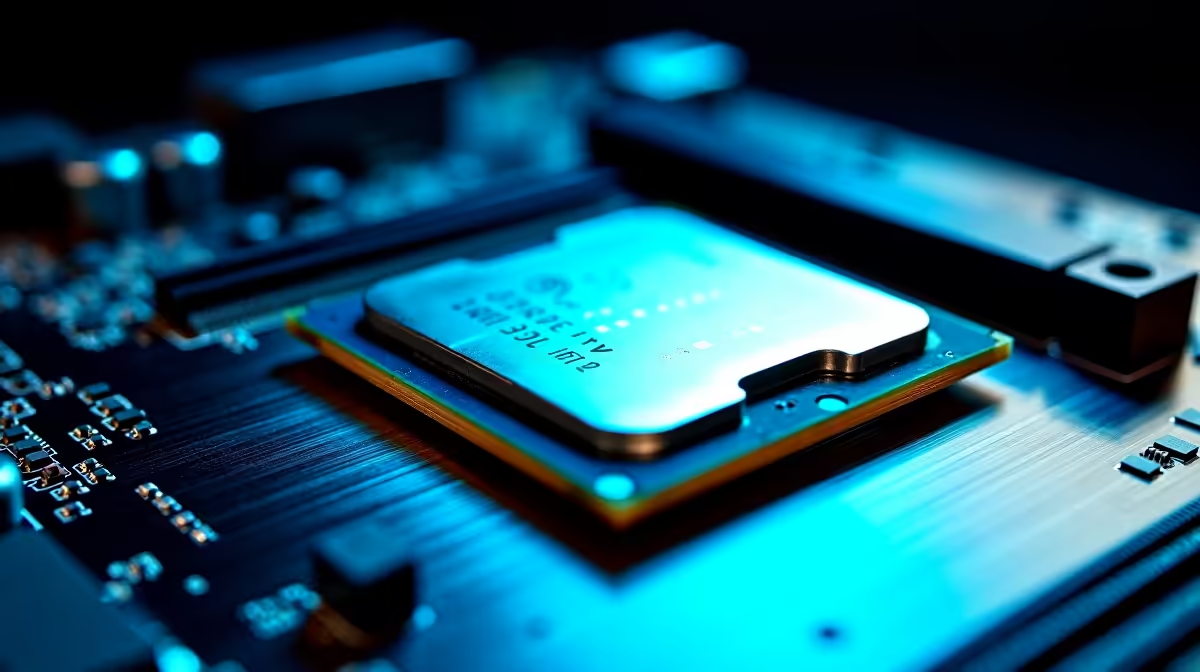
The Intel Core i7-14700K is an absolute powerhouse. It features a highly complex mix of Performance-cores and Efficient-cores. Windows 11 relies heavily on a feature called the Intel Thread Director to assign background tasks correctly. When these software layers miscommunicate, you experience lag spikes. Upgrading your processor should mean an instant frame-rate boost... not endless weekend troubleshooting.
Step 1: Update Your Motherboard BIOS 🔧
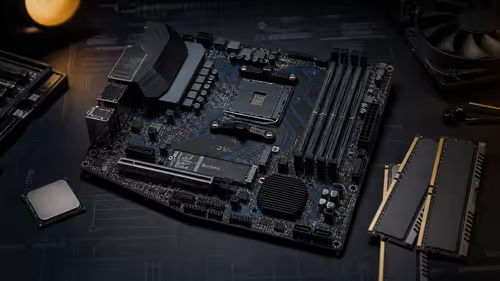
The most common culprit for 14th-generation instability is simply an outdated BIOS. Motherboard manufacturers constantly release vital updates to optimise voltage curves and CPU microcode. Grab a reliable flash drive and head directly to your motherboard manufacturer's official support page. Download the absolute latest BIOS version. If you recently secured one of our best gaming PC deals, our technicians usually update this for you... but checking for newer revisions is always a smart move.
Step 2: Install the Latest Intel Chipset Drivers ⚡
Windows 11 often tries to install basic, generic drivers during the initial setup phase. These are rarely good enough for high-end gaming hardware. You need the official Intel Chipset Software Installation Utility. This ensures your motherboard communicates flawlessly with your new CPU. Many gamers completely overlook this crucial step when customising their pre-built PC deals, leading to frustrating and unexplained performance drops.
Power Management Pro Tip ⚡
In Windows 11, type "Choose a power plan" in your Start menu search bar. Ensure you select the "High Performance" or "Ultimate Performance" plan. This prevents Windows from aggressively parking your P-cores to save energy, giving you a much smoother gaming experience.
Step 3: Update Intel Management Engine (ME)
The Intel Management Engine works silently in the background of your system. It actively controls thermal management and power delivery to your processor. If your ME firmware is outdated, your 14700K might throttle unexpectedly during intense gaming sessions. You can easily find the latest ME update on your motherboard's support website. Just like keeping high-performance laptops fully updated, maintaining your desktop's core firmware is non-negotiable for peak stability.
Step 4: Clean Install Your Graphics Drivers 🚀
Sometimes the core issue is not actually the CPU itself. Driver conflicts between your processor's integrated graphics and your dedicated graphics card can cause severe system crashes. We highly recommend using a free tool called Display Driver Uninstaller (DDU) to wipe your old display drivers completely. Once your system is clean, install the latest Nvidia or AMD drivers fresh from their official websites.
Taking the time to optimise your operating system ensures every single Rand spent translates into pure gaming joy. If you are tired of troubleshooting and just want hardware that works perfectly out of the box, keep a close eye on our weekly tech specials for rigorously tested, plug-and-play components.
Ready to Upgrade Your Setup?
Troubleshooting can be exhausting. If you want maximum power, choice, and value in South Africa without the hassle, Evetech has you covered. Explore our massive range of PC components and specials and find the perfect hardware to conquer your world.