Generating video on your own machine fills graphics memory faster than almost any other AI task, and the result is the dreaded out-of-memory error partway through a render. The reason is structural: local AI video generation has to hold many frames in video memory at once, so the memory cost climbs with every extra second of clip, every step up in resolution, and every increase in model size. Fixing it means shrinking one of those three demands until the job fits the memory you actually have.
Quick Answer
Cut the memory demand on one of three axes: shorten the clip, lower the resolution, or switch to a quantised version of the model. Smaller and quantised models like the lighter Wan 2.2 variant can stay within roughly 8GB, while the larger 14B-class model wants around 24GB for 720p output. FP8 quantisation alone can cut a model's memory footprint by close to 40 percent with little visible quality loss.
Why Video Eats VRAM
Image generation holds a single frame in memory. Video has to hold a whole sequence at once so the frames stay consistent with each other, which multiplies the memory cost. Tools such as Wan and the LTX-2 family keep many frames resident in video memory during a render, and that working set is what overflows your card. The error usually fires mid-generation, once the model has loaded and starts assembling the full clip.
Three levers control that memory footprint, and you can pull any of them. Understanding what each costs you helps you choose the one that hurts your result the least.
The Three Fixes
Shorten the clip
Length is the most direct lever. Because memory scales with the number of frames held at once, halving the clip length roughly halves that part of the cost. If you are pushing for a long sequence and hitting the wall, generate a shorter clip first and confirm it fits. Many workflows also let you extend or stitch clips afterward, so you can build a longer final video from shorter generated segments without ever holding the whole thing in memory at once.
Lower the resolution
Resolution multiplies memory across every frame. Dropping from 720p to a lower resolution cuts the per-frame cost substantially, often enough to bring a render that overflowed back within budget. Generate at a lower resolution to confirm the result, then consider upscaling afterward if you need more detail, rather than forcing the full resolution through a card that cannot hold it.
Switch to a quantised model
Quantisation stores the model's numbers in a more compact form, shrinking how much memory the weights occupy. FP8 quantisation can reduce a model's footprint by close to 40 percent while keeping most of the quality, and more aggressive formats shrink it further still. Choosing a distilled or quantised build of your model is often the single most effective fix, because it lowers the baseline memory cost before you even touch clip length or resolution.
Matching the Model to Your Card
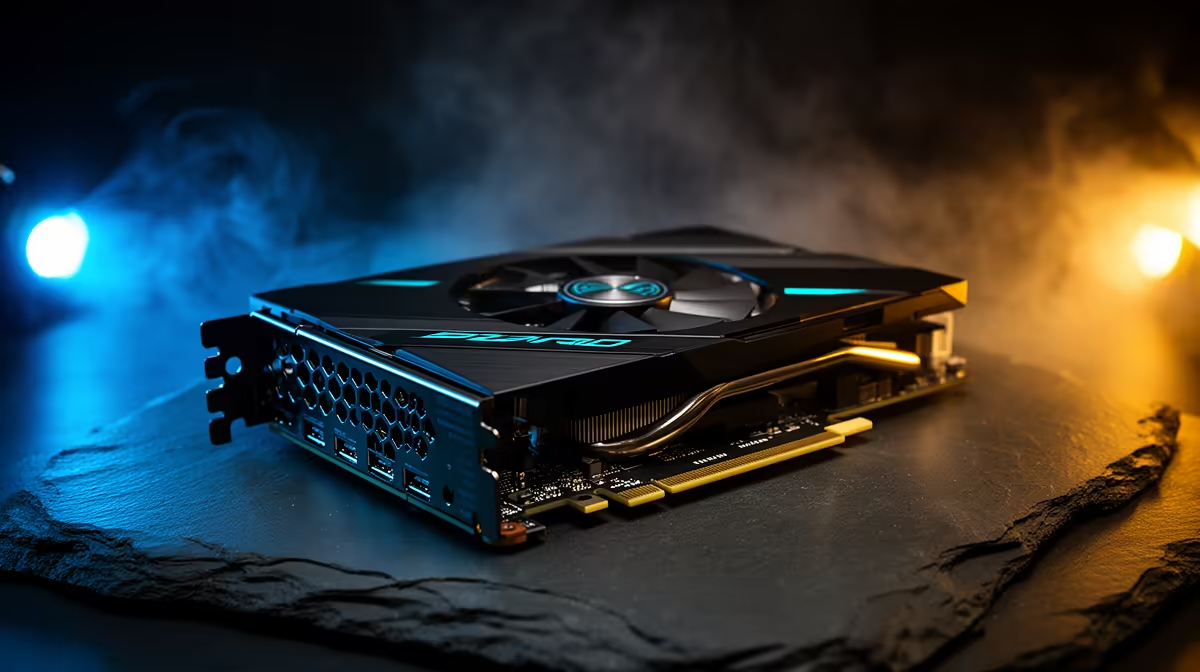
Pick the model variant that fits your hardware rather than fighting a model that does not. A lighter, quantised model can run within roughly 8GB and is fine for short social clips and B-roll. Stepping up to a larger 14B-class model for higher quality at 720p pushes you toward around 24GB. If you consistently want longer, higher-resolution clips from the bigger models, more video memory is the real answer, and a card with more headroom removes the constant juggling. The most popular GPUs show what is currently performing well, and a purpose-built AI-ready PC takes the guesswork out of pairing the GPU with enough cooling and power for sustained renders.
Frequently Asked Questions
Why does AI video run out of memory when images do not?
Video must hold a whole sequence of frames in memory at once so they stay consistent, while image generation holds only one. That much larger working set is what overflows the card, which is why video is so much more memory-hungry than still images.
Does quantisation hurt the output quality?
Less than you might expect. FP8 quantisation typically cuts the memory footprint by close to 40 percent while keeping most of the visible quality, and a quantised build is often the smartest first fix. Only very aggressive quantisation starts to show clear quality trade-offs.
How much VRAM do I need for 720p video?
For a larger 14B-class model at 720p, plan on around 24GB. Lighter, quantised models can produce usable output within roughly 8GB at lower resolutions or shorter clips, so the answer depends heavily on which model and settings you choose.
Should I shorten the clip or lower the resolution first?
Try whichever matters least for your project. If clip length is flexible, shorten it and stitch segments later. If you can accept a softer image, lower the resolution and upscale afterward. Both reduce memory; the right one depends on what you are willing to compromise.
Will more system RAM fix this?
Not directly. The bottleneck is the GPU's video memory, which holds the frames during generation, not system RAM. Adding system memory does not solve a video-memory overflow. You need a card with more VRAM, or you reduce the model, resolution, or clip length.
Tired of out-of-memory errors halfway through every render? Explore the AI PC range at Evetech and generate video on a machine sized for the job.