


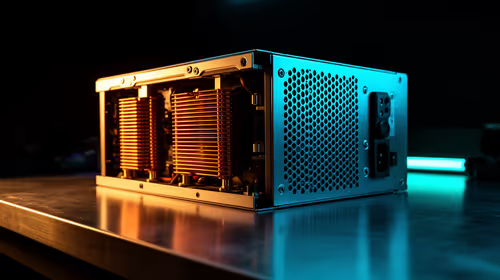
1000W PSU Planning for RTX 5090 Builds in SA
1000W for RTX 5090 needs a full-build check, not a simple yes. Review GPU guidance, CPU draw, transient load, connectors, PSU quality, and upgrade plans before deciding.
Read moreFix PAGE_FAULT_IN_NONPAGED_AREA Blue Screen Error. Step-by-step instructions with SA-specific tips, common pitfalls to avoid & expert recommendations.
You are in the final circle of Warzone or deep into a raid. Suddenly, your screen turns blue. The dreaded PAGE_FAULT_IN_NONPAGED_AREA error on Windows 11 strikes again. Nothing ruins a gaming session faster. This blue screen usually points to a memory issue or a faulty driver. Do not panic. We will help you fix this frustrating Windows 11 error and get you back into the lobby.
Your PC uses RAM to store active data. The non-paged area is a critical section of your system memory. When Windows 11 cannot find the data it expects there, it crashes to protect your system. This often happens because of faulty RAM sticks, outdated drivers, or corrupted files. Sometimes... it is just a sign that your old hardware is finally showing its age. If you are constantly battling unexpected crashes, it might be the perfect time to look at some custom gaming PCs that are built specifically for long-term stability.
Let us tackle this step by step. Start with the easiest software fixes before opening your chassis.
Outdated drivers are a massive culprit. Your GPU or motherboard might be clashing with a recent Windows 11 update. Head to your device manager and ensure everything is current. If your GPU is failing entirely, grabbing a new unit from our graphics cards selection helps optimise your hardware-level rendering and prevents future crashes.
Since this error targets your RAM, test it. Press the Windows key, type "Windows Memory Diagnostic", and hit enter. Your PC will restart and scan for physical defects. If it finds errors, you need new memory. If your whole system is outdated, a fresh setup from our pre-built PC deals saves you the intense troubleshooting headache.
Windows 11 includes built-in tools to fix itself. Open Command Prompt as an administrator. Type sfc /scannow and press enter. This System File Checker scans your drive for missing or corrupted OS files. It replaces them automatically. If the scan finds nothing, try running the DISM tool. Type DISM /Online /Cleanup-Image /RestoreHealth and let it run. These commands are excellent for resolving deep-rooted software conflicts that trigger the PAGE_FAULT_IN_NONPAGED_AREA error.
Sometimes Windows mismanages virtual memory. Go to Advanced System Settings. Click Performance, then Advanced, and change your Virtual Memory settings. Uncheck the automatic option and set your paging file size manually. This quick tweak often stops the blue screen entirely.
Before buying new parts, simply unplug your PC and reseat your RAM sticks. Dust or a loose connection from moving your chassis can trigger memory errors. A quick click back into place often solves the problem instantly!
If you have tried every software fix and the blue screens keep coming, your hardware might be failing. Constant crashes risk corrupting your SSD. Instead of throwing thousands of ZAR at dead-end repairs, consider a full upgrade. Whether you need a portable powerhouse from our laptops in South Africa range or you want to browse the latest Evetech specials for a bargain, investing in reliable hardware is the ultimate fix.
Ready to Banish Blue Screens Forever? Constant crashes ruin your gaming and productivity. If your hardware is failing, it is time for a fresh start. Explore our incredible PC specials and find a stable, high-performance machine built to conquer your world.
How to Fix PAGE_FAULT_IN_NONPAGED_AREA B available at Evetech.co.za with local warranty and fast delivery.
How to Fix PAGE_FAULT_IN_NONPAGED_AREA B - check Evetech for latest stock and SA pricing.
Depends on your use case. How to Fix PAGE_FAULT_IN_NONPA offers good value at current Rand pricing.
1000W for RTX 5090 needs a full-build check, not a simple yes. Review GPU guidance, CPU draw, transient load, connectors, PSU quality, and upgrade plans before deciding.
Read more
RTX 5080 Super with a 750W PSU is more comfortable than lower wattage if the unit is quality. SA builders should still confirm GPU guidance, CPU draw, connector type, airflow, and upgrade room.
Read more
How to fix FPS drops after a RX 9070 XT starts with driver cleanup, chipset updates, thermals, and power checks. For SA gaming PCs, confirm PCIe seating, monitor refresh, frame caps, and per-game graphics settings before replacing parts.
Read more
How to fix low FPS Windows 11 Wi-Fi 7 issues starts by checking whether the problem is frame rate or network lag. Test ping, drivers, power settings, Ethernet, and game FPS before adjusting visuals.
Read more
AM5 is smart for SA builders because it supports newer Ryzen CPUs, DDR5 memory, and a longer upgrade path. Compare board cost, cooling, gaming needs, and local part availability before choosing your next PC platform.
Read more
AM5 gives Randburg gaming builders a longer upgrade path. For SA buyers, DDR5 support, newer board features, and future CPU options can justify the platform. Weigh board cost, cooler support, BIOS maturity, and upgrade timing before choosing.
Read more
A fake 113GB GTA VI ISO reportedly used empty padding around a small malware payload. SA gamers should delete unofficial builds, keep Windows security active and wait for official channels.

Wi-Fi 6E vs Wi-Fi 6 matters for 4K video editing when files move across a network. The real-world difference between Wi-Fi 6E and Wi-Fi 6 for video editing in 4K depends on NAS access, cloud uploads, router range, and SA creator workflows.

The difference between PCIe 5.0 and PCIe 4.0 for SA gamers is mostly bandwidth headroom. Compare GPU slot needs, NVMe speed, motherboard support, and upgrade timing before paying extra for a newer platform.

Gaming PC stuck pixel checks in South Africa should confirm the monitor fault first. Use colour tests, screenshot comparison, cable swaps, display menu checks, and clear photos before deciding on support.

Shokz OpenFit Air 2 earbuds weigh 7.2g each and use a redesigned dual-driver open-ear layout. SA buyers should choose them for comfort and awareness, not maximum isolation.

AMD's current driver now lists a Radeon RX 9050 4GB, while product coverage details a narrowed memory system. SA buyers should weigh the low VRAM ceiling against current local Radeon options.

Samsung Display has demonstrated a 16-inch 2.5K OLED laptop panel running at 300Hz. SA buyers should wait for a named notebook, full panel specifications and a local price before planning an upgrade.

Microsoft says some Windows 11 game crashes after recent updates are linked to RGB-related drivers. Affected SA gamers should confirm the update and driver before using the published registry workaround.
Shokz OpenFit Air 2 earbuds weigh 7.2g each and use a redesigned dual-driver open-ear layout. SA buyers should choose them for comfort and awareness, not maximum isolation.
A fake 113GB GTA VI ISO reportedly used empty padding around a small malware payload. SA gamers should delete unofficial builds, keep Windows security active and wait for official channels.
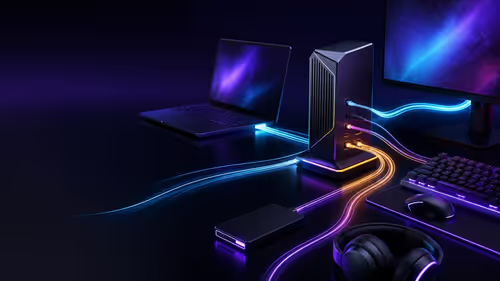
The ROG Flux Charger Dock combines 260W total output, 140W laptop charging and HDMI 2.1. SA buyers should check laptop USB-C limits, display needs and local warranty first.

ASRock's Rock 360 Digital AIO adds a 1.05-inch CPU temperature display, 360mm radiator and simplified wiring. SA builders should check case fit, socket support and local warranty.