


1000W PSU Planning for RTX 5090 Builds in SA
1000W for RTX 5090 needs a full-build check, not a simple yes. Review GPU guidance, CPU draw, transient load, connectors, PSU quality, and upgrade plans before deciding.
Read moreFix washed-out colours by checking output range, display mode, profile and controls in order. The R2,499 UPERFECT provides a 100% sRGB, 1920x1080 IPS reference for repeatable adjustments.

Washed-out colour can enter through the source, a profile, a display control or the room itself. Fixing washed-out colours on an IPS portable monitor is easier when a neutral baseline is restored and each stage is tested with known material.
The panel targets 100% sRGB and consistent NxtLED colour, so washed-out output should first be separated into source range, profile, brightness and connection causes.
Set the R2,499 NxtLED One Plus to native 1920x1080, restore a neutral picture baseline and check source output, colour profiles and application settings in sequence. Its 100% sRGB coverage describes gamut reach, not a guarantee that every configuration displays accurate colour.
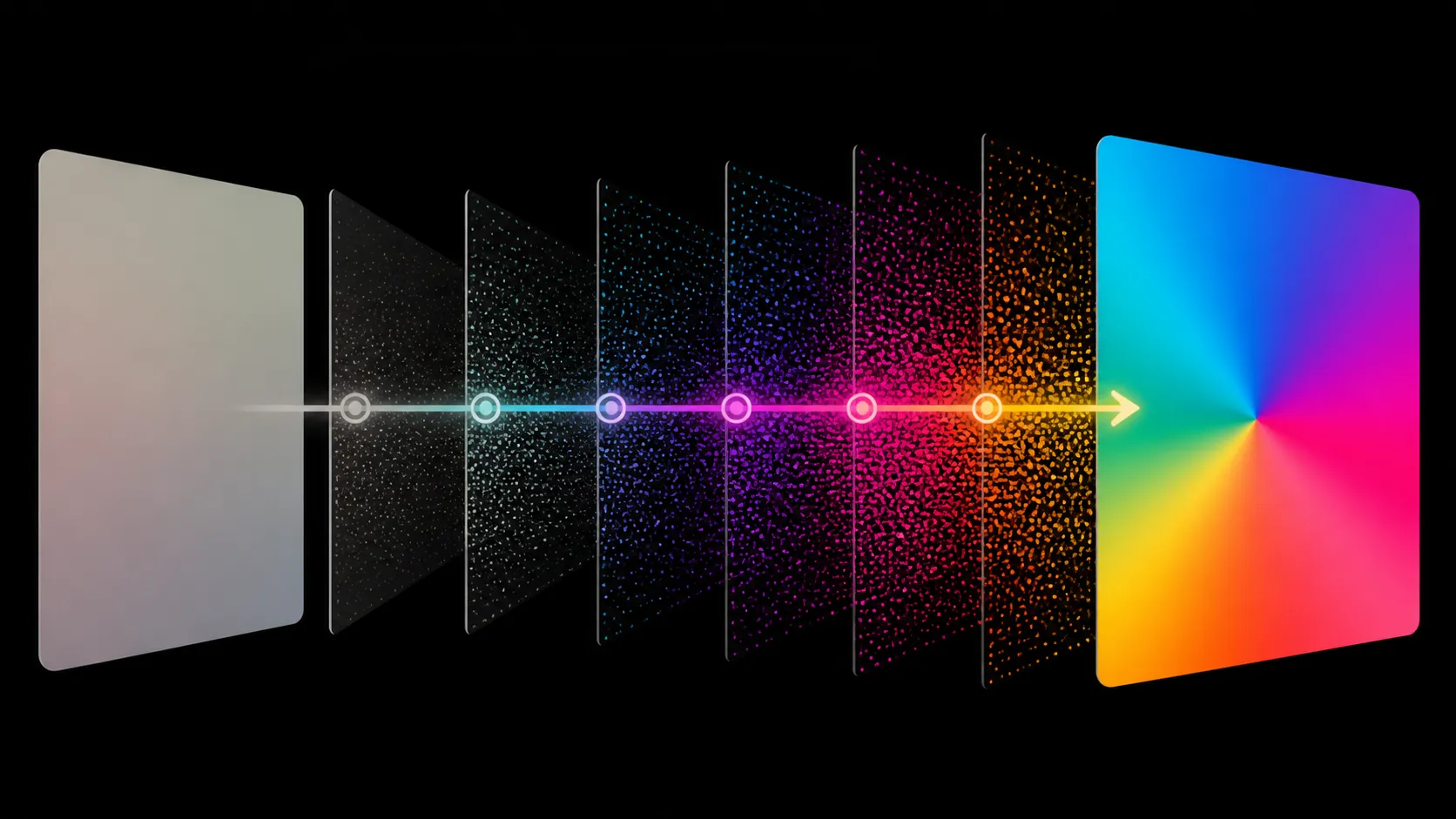
Choose material containing neutral grey, saturated colour, skin tones, dark detail and a smooth gradient. Avoid unfamiliar online images whose editing or compression is unknown.
View the same file in two colour-aware applications if the workflow allows. A difference between them points towards application or profile handling rather than a universal panel problem.
Keep room lighting moderate and stable. Strong reflected light can reduce perceived contrast and make colour appear faded even when the signal remains unchanged.
Compare other colour-oriented candidates through the Evetech portable monitor range.
The 18.5-inch panel uses 1920x1080. Confirm that native output is selected and that the source is not applying an unexpected high dynamic range or range conversion mode.
Record current controls before resetting them. Return colour temperature, saturation, contrast and application adjustments to a neutral starting point, then add only the changes required for the intended workflow.
The monitor covers 100% sRGB. Use that as the target gamut context, while reserving claims about accuracy for an appropriate measuring process.
Check that the operating system associates the correct display profile with the portable screen. Remove duplicated or obviously wrong assignments only through the platform's normal colour-management process.
Then review the application. Editing software, browsers and media players can interpret profiles differently, and a picture exported in another colour space may not match the expected sRGB view.
For measured work, use a suitable calibrator and follow a controlled routine. Visual tuning can improve preference, but it cannot certify numerical accuracy.
The IPS panel has a 178-degree viewing specification. Test from the principal seat first, then note what changes at realistic side positions rather than assuming every angle is identical.
The paper-like screen finish and Omni Visible glare control manage reflections, but they cannot control windows and lamps. Rotate the screen or alter the room before compensating with aggressive colour settings.
Select a necessary stand or cable from the Evetech monitor accessories area after the diagnosis identifies a physical cause. Save the successful source mode, profile, application and room condition as the new reference.
Export a small copy of the reference image using the workflow's intended colour space, then reopen it in the final delivery application. If the edited file changes only at that stage, the problem belongs to export or viewing behaviour rather than the panel controls.
Recheck the neutral baseline after sleep and reconnection. Some sources can change output mode or profile assignment when a portable screen returns, so a repair is complete only when the expected colour survives an ordinary restart sequence.
Keep one untouched reference file outside the editing workflow. It offers a stable comparison when a project-specific export develops another colour problem.
Omni Visible maintains uniform colour and brightness across 178 degrees, helping distinguish a true signal problem from an off-angle impression. Use a known sRGB image, return both source and display to neutral settings, and test one change at a time. Hardware low-blue-light protection is designed to preserve natural colours, so enabling eye comfort should not require an uncontrolled warm or faded picture.
Compare the same reference over Mini HDMI and a proven USB-C route if both are available. Matching results can eliminate the interface before deeper colour diagnosis begins.
Save the neutral result as the colour baseline.
Known neutrals, tones and gradients make it easier to identify whether the new setup differs from an understood result.
No. Coverage and profile correctness are separate; the assigned profile still needs to match the display and workflow.
No. Restore neutral controls and check the signal and colour path first, because extra saturation can hide the cause.
Save the native mode, profile, application state, screen controls and room conditions that produced the acceptable result.
Ready to rebuild colour from a trustworthy reference state? Follow the signal and profile chain, then compare sRGB portable monitors and targeted setup accessories through Evetech.
Known neutrals, tones and gradients make it easier to identify whether the new setup differs from an understood result.
No. Coverage and profile correctness are separate; the assigned profile still needs to match the display and workflow.
No. Restore neutral controls and check the signal and colour path first, because extra saturation can hide the cause.
Save the native mode, profile, application state, screen controls and room conditions that produced the acceptable result.
1000W for RTX 5090 needs a full-build check, not a simple yes. Review GPU guidance, CPU draw, transient load, connectors, PSU quality, and upgrade plans before deciding.
Read more
RTX 5080 Super with a 750W PSU is more comfortable than lower wattage if the unit is quality. SA builders should still confirm GPU guidance, CPU draw, connector type, airflow, and upgrade room.
Read more
How to fix FPS drops after a RX 9070 XT starts with driver cleanup, chipset updates, thermals, and power checks. For SA gaming PCs, confirm PCIe seating, monitor refresh, frame caps, and per-game graphics settings before replacing parts.
Read more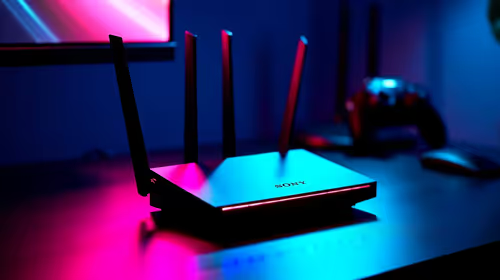
How to fix low FPS Windows 11 Wi-Fi 7 issues starts by checking whether the problem is frame rate or network lag. Test ping, drivers, power settings, Ethernet, and game FPS before adjusting visuals.
Read more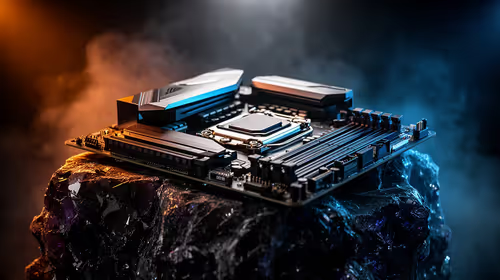
AM5 is smart for SA builders because it supports newer Ryzen CPUs, DDR5 memory, and a longer upgrade path. Compare board cost, cooling, gaming needs, and local part availability before choosing your next PC platform.
Read more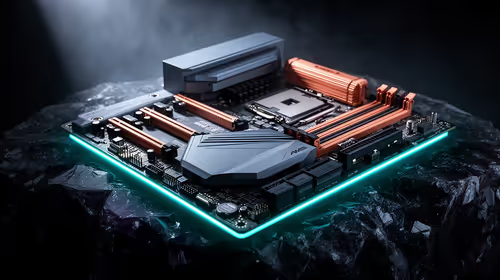
AM5 gives Randburg gaming builders a longer upgrade path. For SA buyers, DDR5 support, newer board features, and future CPU options can justify the platform. Weigh board cost, cooler support, BIOS maturity, and upgrade timing before choosing.
Read more
RTX 5090 on a 550W PSU leaves almost no practical room for OC plans. Treat the setup as constrained, with CPU draw, power spikes, cable quality, thermals, and stability checks more important than chasing extra clocks.

FPS drops on a Ryzen 9 9950X3D build often have a fixable cause. Check settings, drivers, thermals, background tasks, network conditions, and bottlenecks before assuming a part must be replaced.

The difference between PCIe 5.0 and PCIe 4.0 for SA gamers is mostly bandwidth headroom. Compare GPU slot needs, NVMe speed, motherboard support, and upgrade timing before paying extra for a newer platform.

Gaming PC stuck pixel checks in South Africa should confirm the monitor fault first. Use colour tests, screenshot comparison, cable swaps, display menu checks, and clear photos before deciding on support.

AMD's current driver now lists a Radeon RX 9050 4GB, while product coverage details a narrowed memory system. SA buyers should weigh the low VRAM ceiling against current local Radeon options.

Samsung Display has demonstrated a 16-inch 2.5K OLED laptop panel running at 300Hz. SA buyers should wait for a named notebook, full panel specifications and a local price before planning an upgrade.

Microsoft says some Windows 11 game crashes after recent updates are linked to RGB-related drivers. Affected SA gamers should confirm the update and driver before using the published registry workaround.

Thermalright's Fan Frame Vision-1 adds a 640x172 status screen to a standard 120mm fan. SA builders should check clearance, USB routing and local support before treating it as an easy upgrade.
1000W for RTX 5090 needs a full-build check, not a simple yes. Review GPU guidance, CPU draw, transient load, connectors, PSU quality, and upgrade plans before deciding.

Wi-Fi 6E vs Wi-Fi 6 matters for 4K video editing when files move across a network. The real-world difference between Wi-Fi 6E and Wi-Fi 6 for video editing in 4K depends on NAS access, cloud uploads, router range, and SA creator workflows.
RTX 5080 Super with a 750W PSU is more comfortable than lower wattage if the unit is quality. SA builders should still confirm GPU guidance, CPU draw, connector type, airflow, and upgrade room.
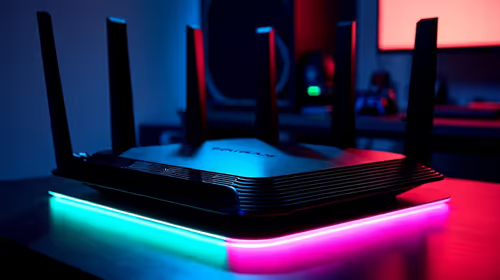
Wi-Fi 6E vs Wi-Fi 6 for Video Editing in 4K comes down to router support, latency, client devices, band support, and home network layout. SA buyers should match the choice to their setup instead of assuming one option always wins.