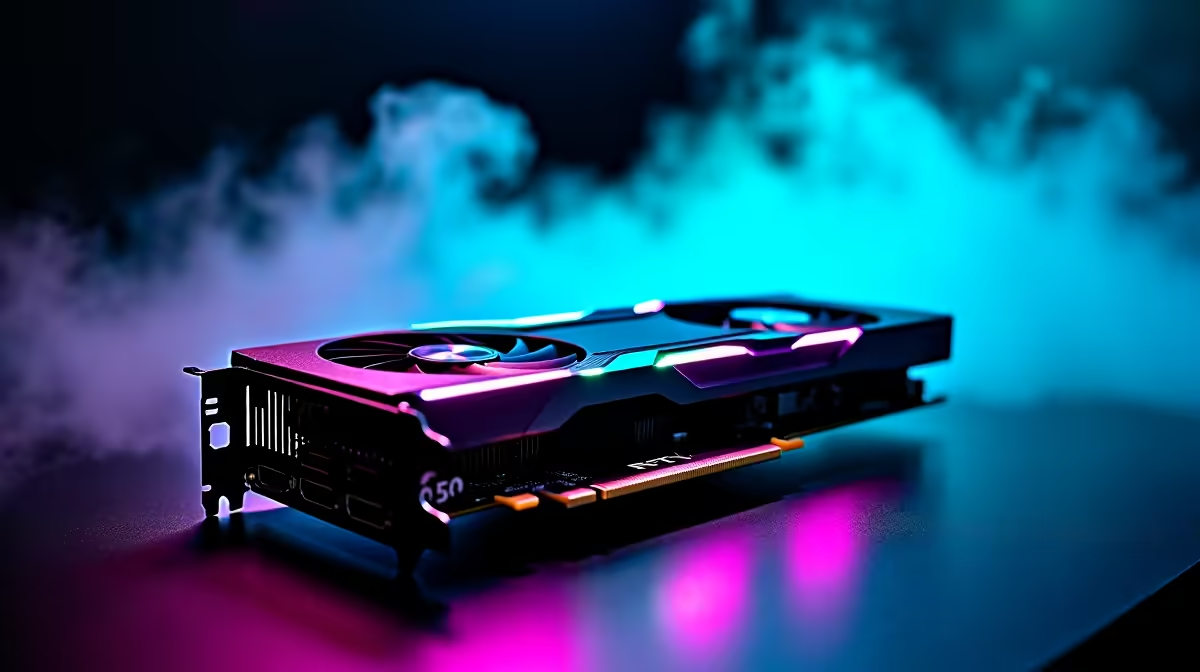
Load shedding is suspended... and your squad is waiting in the Valorant lobby. You just dropped serious ZAR on a new rig. But are you actually getting the maximum frames? Even a beastly GPU needs tweaking to hit that buttery smooth 500 FPS mark. Let us look at exactly how to optimise RTX 5080 for Valorant to give you the ultimate competitive edge on local servers.
Pairing Your GPU for Maximum Frames 🚀
Valorant is notoriously CPU bound. That means your shiny new graphics card cannot do all the heavy lifting alone. If you want to optimise RTX 5080 for Valorant properly, you need a processor that can keep up. Bottlenecks will ruin your 1% low frame rates... which means stuttering during crucial clutch moments.
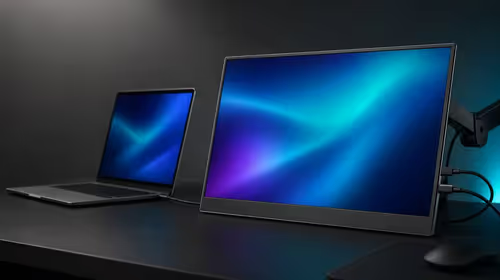
If you are upgrading your current setup, browsing the latest graphics cards for sale is just step one. You need total system balance. Those looking for a complete system overhaul should check out high-end gaming PC deals that pair top-tier processors with the latest 50-series GPUs. You also need a high refresh rate monitor to actually see those extra frames.
Essential Nvidia Control Panel Tweaks 🔧
Do not just plug and play. Right-click your desktop and open the Nvidia Control Panel. Navigate to 'Manage 3D settings'. This is where the real performance magic happens.
Scroll down to 'Power management mode' and set it to 'Prefer maximum performance'. Next, find 'Texture filtering - Quality' and switch it to 'High performance'. This tells your hardware to prioritise raw speed over unnecessary visual fluff.
When you optimise RTX 5080 for Valorant, you are telling the hardware to push frames as fast as humanly possible. Make sure your monitor refresh rate is set to its maximum value in the 'Change resolution' tab too.
Latency Pro Tip ⚡
Always enable Nvidia Reflex Low Latency in your Valorant video settings. Set it to 'On + Boost' to keep your GPU clock speeds high during CPU-bound scenarios. This ensures your mouse clicks register instantly on the Cape Town servers.
Dialling in Your Valorant Video Settings ✨
Now boot up the game. Head over to the video settings tab. You might be tempted to crank everything to ultra... but competitive players know better.
Turn off Bloom, Distortion, and Cast Shadows. Set your Material, Texture, and Detail qualities to Low. Multithreaded Rendering must always be turned on to utilise your CPU properly. Why do we do this? Because visual clarity is far more important than pretty shadows when holding a tight angle on Ascent.
If you prefer a setup that is ready to go out of the box, exploring pre-built PC deals takes the guesswork out of system tuning. Even gamers on the move can achieve insane frame rates nowadays. The latest gaming laptops in South Africa pack enough punch to run competitive shooters flawlessly at 240Hz and beyond.
Always keep an eye out for weekly tech specials to score premium gear without breaking your budget. With your system fully tuned, the only thing left to improve is your aim.
Ready to Find Your Perfect Match?
The quest for maximum frames is complex, but for ultimate power, choice, and value in South Africa, Evetech is hard to beat. Explore our massive range of gaming specials and find the perfect machine to conquer your world.