


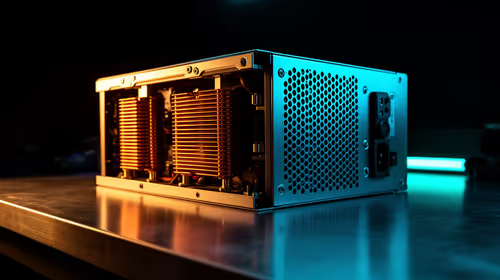
1000W PSU Planning for RTX 5090 Builds in SA
1000W for RTX 5090 needs a full-build check, not a simple yes. Review GPU guidance, CPU draw, transient load, connectors, PSU quality, and upgrade plans before deciding.
Read moreA PCIe 5.0 SSD may miss its headline result when installed in a slower slot, limited by thermals or tested with an unsuitable workload. The X870E Extreme provides PCIe 5.0 and five M.2 positions, making exact slot mapping an essential first check.
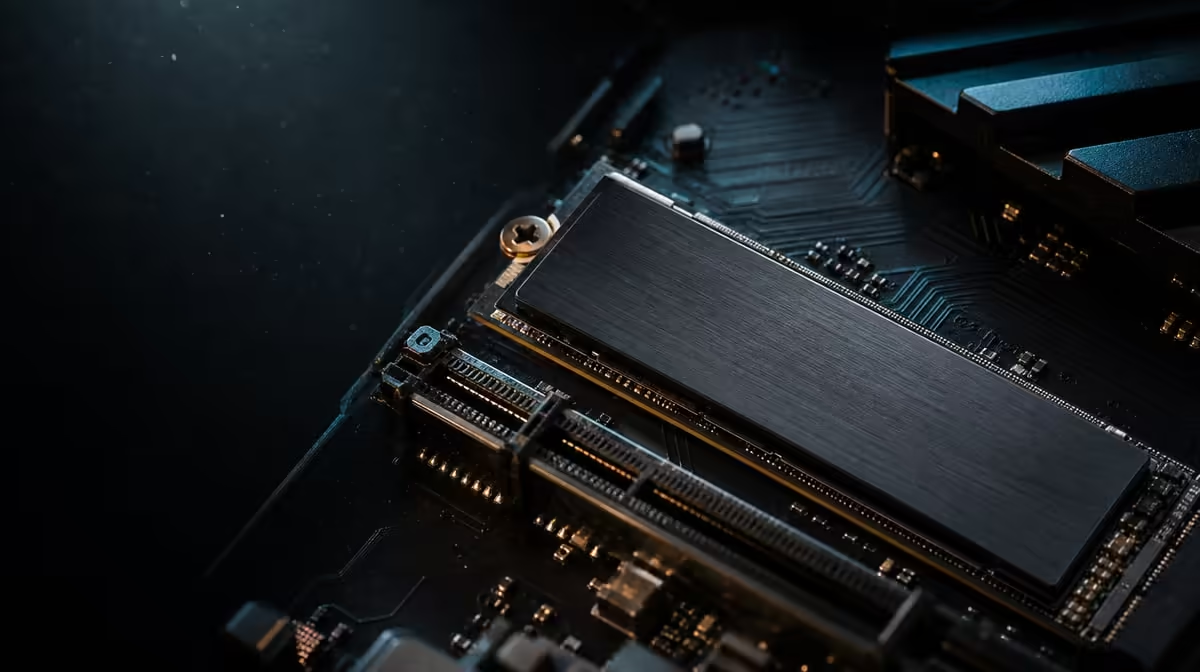
A PCIe 5.0 label describes capability, not a guaranteed benchmark. If a PCIe 5.0 SSD runs below full speed, the cause may be the selected M.2 position, sustained heat, configuration or a test that cannot expose the interface. Diagnosis should preserve one variable at a time.
Confirm that the SSD occupies the intended PCIe 5.0-capable position, is installed with suitable cooling and is tested with a repeatable workload. On this R24,899 motherboard, PCIe 5.0 capability sits within a five-position M.2 layout, making the precise drive map the first diagnostic checkpoint.
Five positions do not prove five identical routes. Identify the physical location, drive model and intended capability using the board's current guidance. Do not move the SSD until that evidence is recorded.
Compare layout options through Evetech's X870 motherboard page, paying attention to the complete expansion plan rather than the total position count.
Fit the relevant thermal parts correctly and test with the case in its normal state. A short burst may look healthy while a long transfer reveals changing behaviour.
Record temperature and throughput across the run. If cooling is adjusted, repeat the same test before changing firmware or moving the drive.
Sequential copies, application launches and game loads stress storage differently. Select a task that represents why the SSD was purchased, and keep the source data and background activity consistent.
The CPU and board must form a sound platform before tuning storage. Evetech's AMD processor selection supports the initial shortlist, followed by exact compatibility checks.
Confirm recognition, slot, cooling and workload in that order. Then adjust one setting or position and retest. Multiple simultaneous changes can hide the cause.
At R24,899, the Extreme includes broader expansion and networking; compare Evetech's AMD motherboard range if the build only needs a narrow storage layout.
A file transfer can be limited by the source or destination drive. Record both devices before deciding that the tested SSD is underperforming.
Record free space and close unnecessary transfer tasks before comparing runs. Indexing, downloads or another drive operation can make an otherwise healthy test inconsistent. Keep normal security protections in place, but note when they are active so the result has context.
Test the application that motivated the SSD purchase after the synthetic check. If the benchmark rises but the useful task does not change, the interface may not be the limiting part of that workflow.
If slot relocation is necessary, photograph the original position, power down correctly and follow the installation sequence. After the move, confirm recognition and cooling before running the same data set again.
A result from different data or a colder starting state is not a fair comparison. Allow equivalent conditions and repeat long enough to observe sustained behaviour.
Keep the original position available until the comparison is complete. Installing another device or altering the broader expansion layout at the same time introduces a new variable. Once the SSD performs consistently, reconnect or rearrange other hardware in controlled stages.
If the useful workload meets its goal despite missing a headline number, decide whether more diagnosis has practical value. Storage performance should serve the work, not turn the machine into a permanent benchmark project.
Compare the measured behaviour with the workload's requirement rather than a single advertised figure. A game or application may already finish its storage work quickly enough that chasing the final benchmark margin changes nothing useful.
For project transfers, time a representative data set from the same source to the same destination. Record both drives, free space and temperature. If the PCIe 5.0 SSD remains consistent and completes the task within the target, the interface may be functioning well even when a synthetic peak differs.
Diagnosis should have a stop rule. Once placement, cooling and configuration are correct and the useful task meets its goal, preserve the stable setup instead of creating new variables for a number that the user never experiences.
Confirm its exact M.2 position and the capability assigned to that location.
It can affect behaviour under a long workload, which is why installation, thermal contact and case airflow should be observed.
No. Repeat the same test and include a task that resembles real use.
The result would not show which change mattered. Controlled steps create useful evidence.
Do not assume so. Use the board's exact layout for every installed drive.
Ready to trace an NVMe bottleneck' Compare Evetech's AMD motherboard layouts, document the drive path and retest one controlled change at a time.
Confirm its exact M.2 position and the capability assigned to that location.
It can affect behaviour under a long workload, which is why installation, thermal contact and case airflow should be observed.
No. Repeat the same test and include a task that resembles real use.
The result would not show which change mattered. Controlled steps create useful evidence.
Do not assume so. Use the board's exact layout for every installed drive.
1000W for RTX 5090 needs a full-build check, not a simple yes. Review GPU guidance, CPU draw, transient load, connectors, PSU quality, and upgrade plans before deciding.
Read more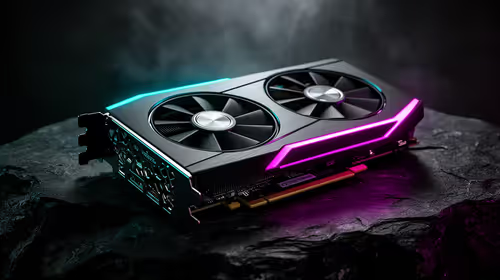
RTX 5080 Super with a 750W PSU is more comfortable than lower wattage if the unit is quality. SA builders should still confirm GPU guidance, CPU draw, connector type, airflow, and upgrade room.
Read more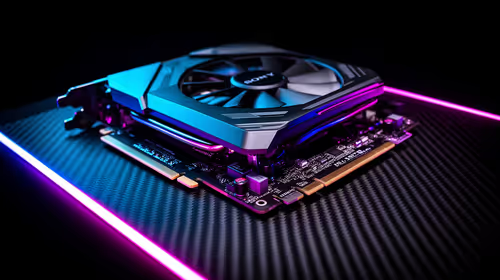
How to fix FPS drops after a RX 9070 XT starts with driver cleanup, chipset updates, thermals, and power checks. For SA gaming PCs, confirm PCIe seating, monitor refresh, frame caps, and per-game graphics settings before replacing parts.
Read more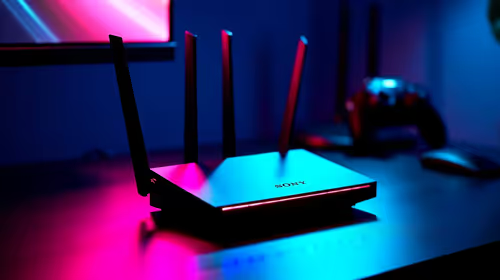
How to fix low FPS Windows 11 Wi-Fi 7 issues starts by checking whether the problem is frame rate or network lag. Test ping, drivers, power settings, Ethernet, and game FPS before adjusting visuals.
Read more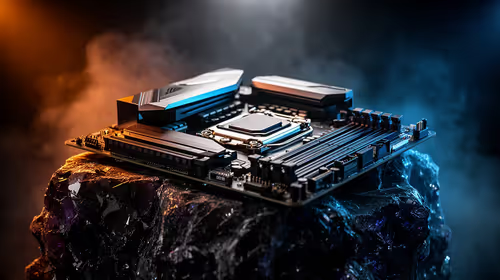
AM5 is smart for SA builders because it supports newer Ryzen CPUs, DDR5 memory, and a longer upgrade path. Compare board cost, cooling, gaming needs, and local part availability before choosing your next PC platform.
Read more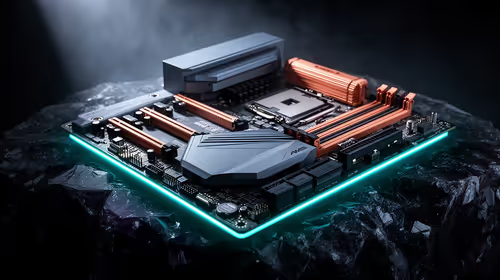
AM5 gives Randburg gaming builders a longer upgrade path. For SA buyers, DDR5 support, newer board features, and future CPU options can justify the platform. Weigh board cost, cooler support, BIOS maturity, and upgrade timing before choosing.
Read more
RTX 5090 on a 550W PSU leaves almost no practical room for OC plans. Treat the setup as constrained, with CPU draw, power spikes, cable quality, thermals, and stability checks more important than chasing extra clocks.

FPS drops on a Ryzen 9 9950X3D build often have a fixable cause. Check settings, drivers, thermals, background tasks, network conditions, and bottlenecks before assuming a part must be replaced.

The difference between PCIe 5.0 and PCIe 4.0 for SA gamers is mostly bandwidth headroom. Compare GPU slot needs, NVMe speed, motherboard support, and upgrade timing before paying extra for a newer platform.

Gaming PC stuck pixel checks in South Africa should confirm the monitor fault first. Use colour tests, screenshot comparison, cable swaps, display menu checks, and clear photos before deciding on support.

AMD's current driver now lists a Radeon RX 9050 4GB, while product coverage details a narrowed memory system. SA buyers should weigh the low VRAM ceiling against current local Radeon options.

Samsung Display has demonstrated a 16-inch 2.5K OLED laptop panel running at 300Hz. SA buyers should wait for a named notebook, full panel specifications and a local price before planning an upgrade.

Microsoft says some Windows 11 game crashes after recent updates are linked to RGB-related drivers. Affected SA gamers should confirm the update and driver before using the published registry workaround.

Thermalright's Fan Frame Vision-1 adds a 640x172 status screen to a standard 120mm fan. SA builders should check clearance, USB routing and local support before treating it as an easy upgrade.
1000W for RTX 5090 needs a full-build check, not a simple yes. Review GPU guidance, CPU draw, transient load, connectors, PSU quality, and upgrade plans before deciding.

Wi-Fi 6E vs Wi-Fi 6 matters for 4K video editing when files move across a network. The real-world difference between Wi-Fi 6E and Wi-Fi 6 for video editing in 4K depends on NAS access, cloud uploads, router range, and SA creator workflows.
RTX 5080 Super with a 750W PSU is more comfortable than lower wattage if the unit is quality. SA builders should still confirm GPU guidance, CPU draw, connector type, airflow, and upgrade room.
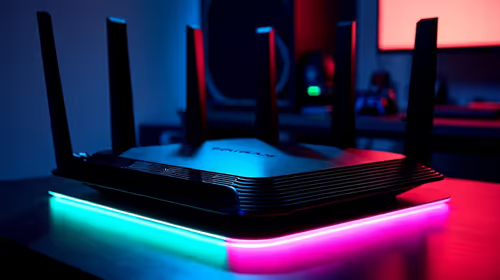
Wi-Fi 6E vs Wi-Fi 6 for Video Editing in 4K comes down to router support, latency, client devices, band support, and home network layout. SA buyers should match the choice to their setup instead of assuming one option always wins.