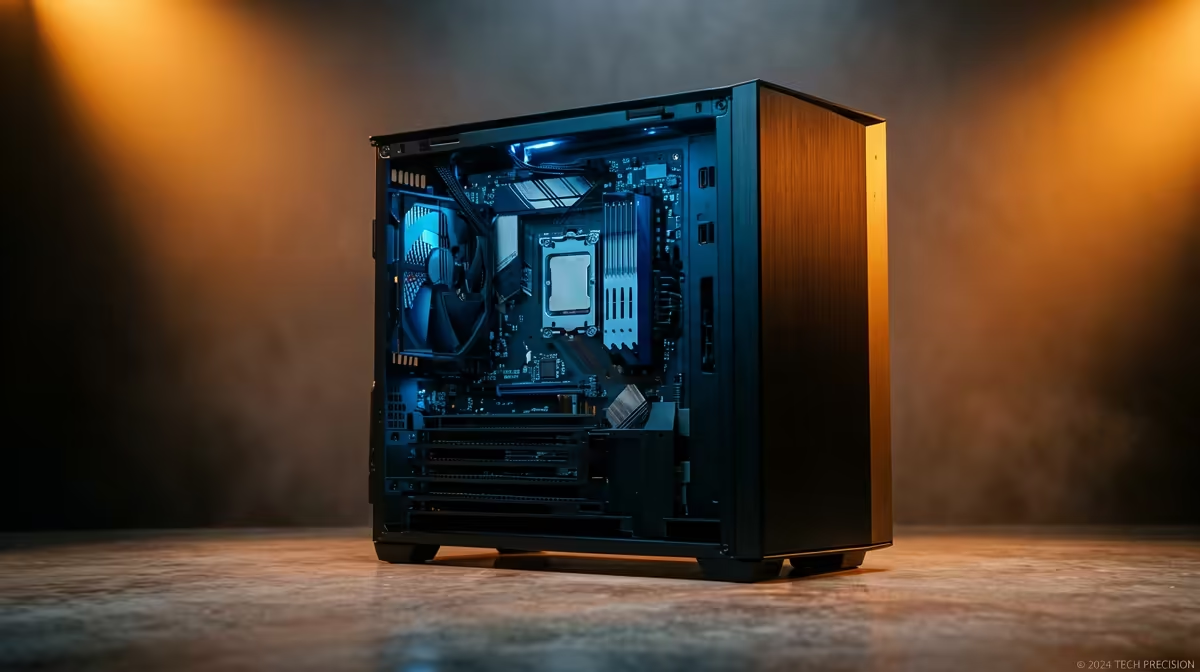
Spending big on a flagship graphics card for a Lightroom machine is one of the most common ways photographers waste money. The truth behind Lightroom and photo editing PC specs is that the program leans hard on single-core CPU speed and plenty of RAM, while leaving most of a powerful GPU idle. A fast, high-clock processor and 32GB or more of memory will do far more for your editing than a top-tier card.
Quick Answer
For Lightroom, prioritise a high-clock CPU and 32GB-plus of RAM over an expensive GPU. Catalog browsing, import, and most Develop module edits run on a few CPU cores at high clock speed, and a generous RAM pool keeps large catalogs responsive. A mid-range graphics card is plenty.
Why clock speed beats core count and GPU here
Many of Lightroom's everyday tasks, including generating previews, applying Develop adjustments and scrolling a catalog, run largely on one or two threads. That means raw per-core clock speed matters more than a high core count. A chip that boosts to a high frequency on a couple of cores feels snappier in Lightroom than a many-core chip that clocks lower per core. When you are choosing a CPU for editing, look at single-core performance and boost clocks first.
RAM is the second pillar
Lightroom is memory-hungry, especially with large catalogs and high-resolution RAW files. 16GB is the floor and will feel tight; 32GB is the comfortable target for serious work, and 64GB helps if you run Photoshop alongside or handle 45-megapixel-plus files. When RAM runs out, the system spills to disk and the whole experience slows to a crawl, no matter how fast your CPU is.
Where the GPU does and does not help
The GPU is not useless in Lightroom, it just is not the bottleneck most people assume. A mid-range card accelerates a handful of features, but Lightroom does not scale meaningfully with a more expensive GPU the way a 3D renderer or video editor does. Spending the difference between a mid-range card and a flagship on more RAM or a faster CPU buys you a noticeably better editing experience. A dedicated workstation card only earns its place if your work also involves heavy 3D, video grading or other GPU-bound applications, in which case the workstation graphics options at Evetech are worth a look.
A fast SSD ties it together
Lightroom reads and writes constantly: previews, the catalog, and the RAW files themselves. An NVMe SSD for your catalog and active photos cuts import and preview times sharply compared with a hard drive. Keep the operating system, Lightroom, the catalog and your working images on fast solid-state storage, and use larger drives for archive.
A sensible Lightroom build priority
- CPU with strong single-core speed and high boost clocks.
- 32GB of RAM, or 64GB for very large files and Photoshop alongside.
- A fast NVMe SSD for the catalog and active library.
- A mid-range GPU, no need to overspend here.
Built in that order, the machine feels fast where Lightroom actually works you. If you would rather buy a balanced system off the shelf than spec one part by part, the most popular desktop PCs at Evetech are a useful starting point for a capable editing rig.
Frequently Asked Questions
Does Lightroom use the GPU much?
Only for a limited set of features. Lightroom leans far more on CPU clock speed and RAM, so it does not benefit from an expensive flagship GPU the way video editors or 3D renderers do. A mid-range card is sufficient.
How much RAM do I need for Lightroom?
32GB is the practical target for serious editing. 16GB is the bare minimum and will feel constrained, while 64GB helps if you work with very high-resolution files or run Photoshop at the same time.
What CPU should I pick for photo editing?
Prioritise high single-core performance and strong boost clocks over a high core count. Many of Lightroom's core tasks run on just a few threads, so per-core speed is what makes the program feel responsive.
Will a faster SSD speed up Lightroom?
Yes. An NVMe SSD holding your catalog and active photos noticeably reduces import and preview times compared with a hard drive, because Lightroom reads and writes to storage constantly.
Is a workstation graphics card worth it for Lightroom?
Only if your work also includes GPU-heavy tasks like 3D or video grading. For Lightroom alone, the money is far better spent on a faster CPU, more RAM, or a quicker SSD.
Building a photo editing PC? Explore the workstation graphics and desktop range at Evetech and put your budget where Lightroom actually uses it, on CPU speed, RAM and fast storage.