Your NAS dashboard has turned amber and the word degraded is sitting next to your storage pool. The good news is your files are still there and still readable. The bad news is the safety net is gone, and a second drive failure before you finish rebuilding means total, unrecoverable loss. This is a replace-now situation, done in the right order.
Quick Answer
A degraded RAID means one drive has failed and the array is running with no redundancy left. Your data is still accessible, but you must replace the failed drive immediately and let the array rebuild, because a second failure during that window destroys everything. Identify the exact failed bay, fit a matching or larger drive, and start the rebuild from the NAS interface.
What Degraded Actually Means
A redundant array (RAID 1, 5, 6 or a vendor pool like Synology SHR) is designed to survive a drive death by reconstructing the missing data from the others. When one drive fails, the array drops into degraded mode: it keeps serving your files, but it is now running without that protection. You are, in effect, on a tightrope with the net removed.
That is why degraded is urgent without being a disaster yet. RAID 5 and single-disk-redundancy setups can tolerate exactly one failure. Lose a second drive before the rebuild completes and the array cannot reconstruct, so the volume is lost. RAID 6 buys you one extra drive of margin, but the principle stands: fix it promptly.
Step One: Identify The Failed Drive Correctly
Do not pull a drive on a guess. Open your NAS interface (Synology DSM, QNAP QTS, TrueNAS or similar) and find the storage or HDD management page. It will name the failed drive by bay number and usually by serial number. Note both. Pulling the wrong, healthy drive from a degraded array is one of the fastest ways to turn a recoverable situation into total data loss.
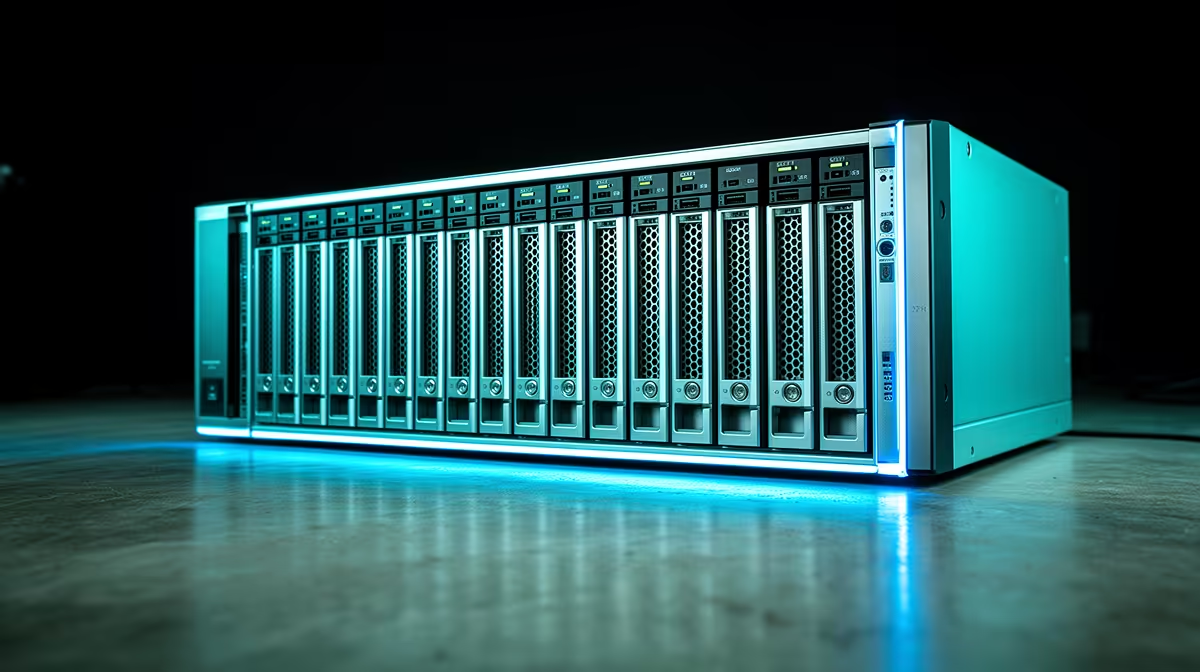
Match the serial number on the screen to the label on the physical drive before you touch anything. If your unit supports drive identification, trigger the blinking LED on the failed bay so you are certain which one to remove.
Step Two: Choose The Right Replacement
The replacement must be the same capacity or larger than the failed drive, never smaller. Just as important, use a proper NAS-rated drive (the WD Red Plus or Pro and Seagate IronWolf families are built for this) rather than a cheap desktop disk. NAS drives include error recovery control and are rated for the constant vibration and 24/7 duty of an array.
Avoid drive-managed SMR (shingled) drives for RAID rebuilds, as they can stall long enough to be dropped mid-rebuild and fail the whole process. If you are buying a fresh disk for the job, a reliable NAS or SSD option from the Evetech storage best sellers takes the guesswork out of getting a compatible unit.
Step Three: Swap And Rebuild Safely
If your NAS is hot-swappable, you can replace the drive with the unit powered on; if not, shut down cleanly first. Remove the failed drive, fit the new one in the same bay, and let the interface detect it. Then start the repair or rebuild from the storage manager, which copies the reconstructed data onto the new disk.
The rebuild can take many hours, sometimes more than a day for large drives, and the array stays degraded and vulnerable until it finishes. Leave the NAS powered, avoid heavy workloads during the rebuild, and if you have a current backup, this is the moment you are glad you kept one.
Frequently Asked Questions
Can I keep using the NAS while it is degraded?
You can access files, but keep activity light. Heavy reads and writes slow the rebuild and add stress to the remaining drives at the worst possible time. Ideally replace the drive and rebuild before resuming normal use.
What if a second drive fails during the rebuild?
On a single-redundancy array (RAID 5, RAID 1, single-disk SHR) a second failure during the rebuild means the volume cannot be reconstructed and the data is lost. This is exactly why replacement is urgent and why a separate backup matters.
Does the replacement drive have to be the same brand?
No, but it must be the same capacity or larger and should be a NAS-rated drive with error recovery control. Mixing brands is fine; mixing in a smaller drive or a desktop SMR drive is what causes trouble.
Is RAID a backup?
No. RAID protects against drive failure and keeps you online, but it does not protect against accidental deletion, ransomware or a controller failure that corrupts the array. Always keep a separate backup of anything you cannot afford to lose.