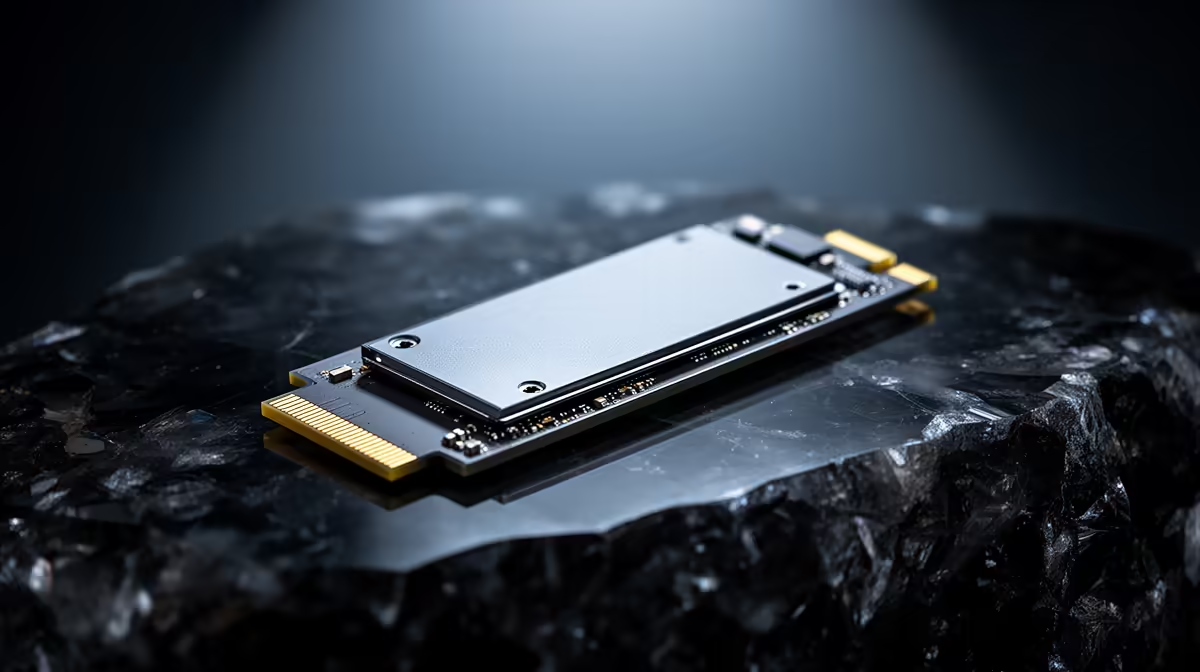
A brand-new NVMe SSD not showing in your mini PC's BIOS is almost never a dead drive. Nine times out of ten it is one of two things: a key mismatch, where you have fitted a SATA M.2 stick into a slot that only speaks NVMe, or a module that is sitting a hair too high in its slot. Both look identical from the outside, both produce a completely empty BIOS, and both are fixable in minutes once you know what to look for.
Quick Answer
The usual cause is a SATA-versus-NVMe key mismatch. Many mini PC M.2 slots accept only NVMe M-key drives and silently ignore a SATA M.2 stick, showing nothing in BIOS. The next most common cause is a half-seated module. Check the drive type and reseat it firmly before assuming it is faulty.
Cause One: The Key Mismatch
M.2 is a slot shape, not a single standard, and that is where people get caught. NVMe drives use an M-key, a single notch on the connector. Many SATA M.2 drives use a B+M key, with a notch in two places. Crucially, most mini PC M.2 slots are wired for NVMe only, so dropping a SATA M.2 stick into them gives you zero detection. The drive is not broken; it is speaking the wrong language to that slot.
Before you buy or blame anything, confirm two things: that your drive is an NVMe M-key drive, printed on its label or its spec sheet, and that your mini PC's slot supports NVMe. If the slot is SATA-only and your drive is NVMe, or the reverse, no amount of fiddling will make it appear. Matching the drive to the slot is the first fix. You will find the right NVMe drives, and the compact machines that take them, in the mini PCs range at Evetech.
Cause Two: A Drive That Is Not Fully Seated
If the drive is the correct type and still does not appear, the physical fit is the next suspect. An M.2 drive that is even slightly proud of its slot fails to enumerate, and because it still looks installed at a glance, this is easy to miss. The drive seats at a slight angle and then presses flat under a small screw or latch.
Power off, remove the drive, check the gold edge connector for dust or fingerprints, and refit it. Push it firmly into the slot at its angle until the contacts are fully home, then press it down and secure the screw so it cannot lift. A surprising number of invisible drives come to life the moment they are reseated properly.
A Few BIOS Settings Worth Checking
If the hardware is correct and seated and the drive is still missing, a handful of BIOS settings can hide an otherwise healthy NVMe SSD. These are worth a look before you conclude the drive is faulty.
First, look for a Compatibility Support Module, often labelled CSM or Launch CSM. Legacy mode can hide NVMe drives entirely, so setting it to disabled forces the pure UEFI mode that NVMe needs. Second, if your mini PC has more than one storage slot, some boards share resources between them, and adding another drive can disable a slot. If you recently added a second drive, try the NVMe SSD on its own to see if a sharing conflict is the cause. Save and reboot after each change so you can tell which one mattered.
Frequently Asked Questions
How do I know if my drive is NVMe or SATA M.2?
Check the label or the product spec. NVMe M.2 drives are listed as NVMe or PCIe and have a single M-key notch. SATA M.2 drives say SATA and usually have two notches. If the spec does not say NVMe, assume it is SATA and may not work in an NVMe-only slot.
My old drive worked in this slot, why not the new one?
The most likely reason is that the old drive matched the slot's protocol and the new one does not, for example swapping an NVMe drive for a SATA M.2 stick. Confirm the new drive is the same type the slot supports.
Could the drive itself be faulty out of the box?
It can happen, but it is the least likely cause. Rule out the key mismatch, reseat the drive, and check the BIOS settings first. Only after all three come up clean is a dead-on-arrival drive a reasonable conclusion.
Why does my second slot stop working when both are filled?
Some mini PC boards share lanes or resources between storage slots, so populating one can disable another. Check your machine's documentation for which slots can run together, and test the NVMe drive alone to confirm.
What if the drive still will not show after all this?
If the drive is the correct type, properly seated and the BIOS settings are right, try it in another machine to confirm whether the fault is the drive or the slot. When it is time to replace the host entirely, the most popular desktops in the PC best sellers at Evetech are a sensible next stop.
Match the drive to the slot and seat it properly and most invisible NVMe SSDs come straight back. If you need a guaranteed-compatible drive or a fresh mini PC, the mini PCs range at Evetech is the place to start.