

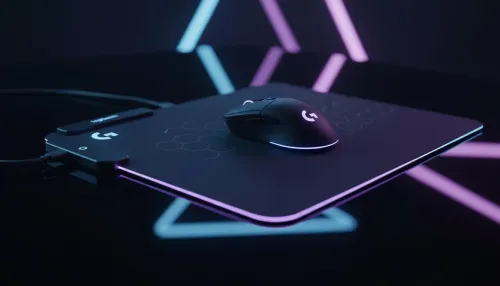
Logitech G PowerPlay 2 Setup in Minutes
Logitech G PowerPlay 2 setup made simple: follow fast, clear steps to enable wireless charging and flawless tracking in minutes 🚀🖱️
Read morepair Logitech G PowerPlay 2 with your LIGHTSPEED wireless mouse in minutes — step-by-step setup, firmware tips, and troubleshooting to maintain continuous charging and low-latency play ⚡🔧
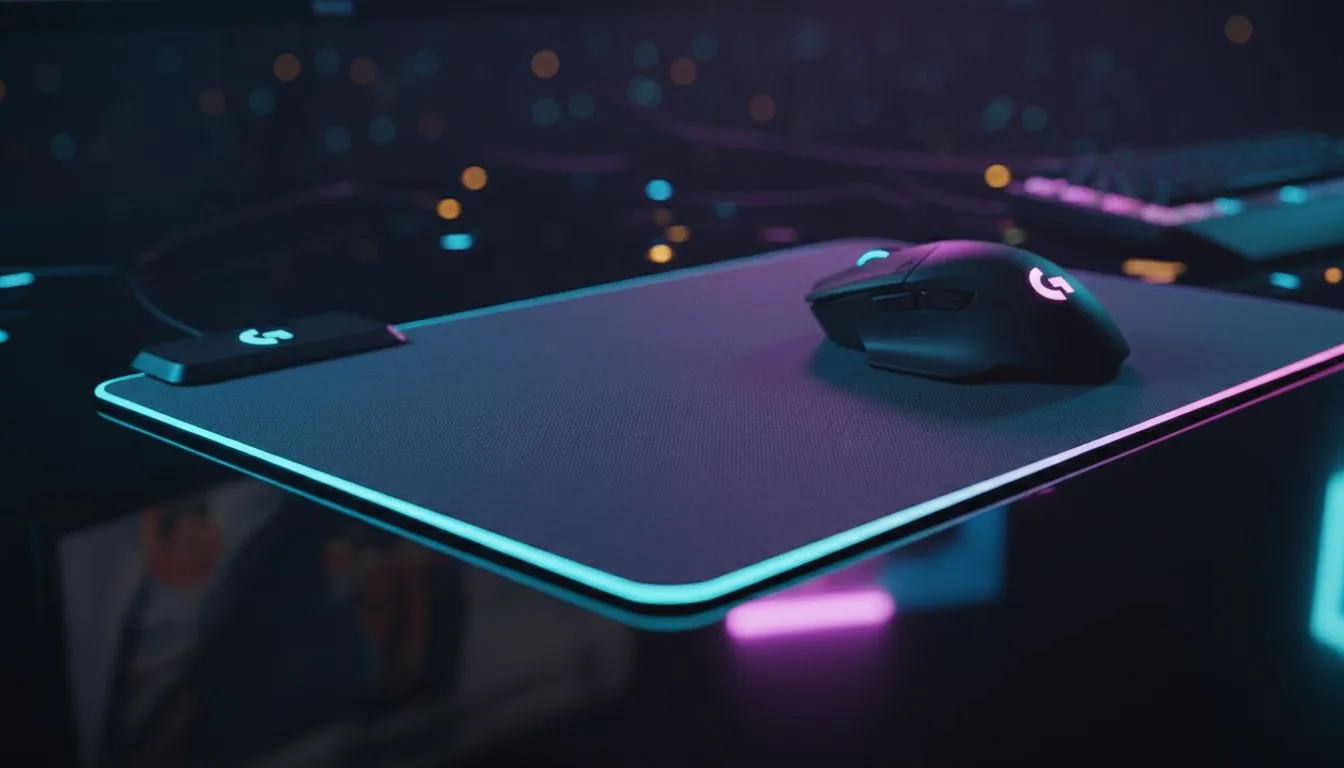
Looking to ditch battery anxiety and keep latency invisible during raids or LANs? Pair Logitech G PowerPlay 2 With Your LIGHTSPEED Wireless Mouse and enjoy uninterrupted play while your mouse charges on the fly. South African gamers and tech buyers, this is the low‑noise upgrade that keeps you focussed on the frag, not the battery bar. ✨
Pairing a POWERPLAY wireless charging mat with a LIGHTSPEED mouse means continuous charging while you play. It’s simple: the mat supplies power through compatible mouse skates and keeps the sensor tracking clean. If you’re choosing a surface, start with a primer on the basics of mats and materials to match your playstyle: Mouse Pads 101.
Want an Evetech‑curated pad? Check the dedicated Evetech options to see how mat textures vary by brand and feel: Evetech Mousepad selection.
Align the PowerPlay’s coil with the mouse’s charging zone. Small offsets can dramatically affect charging efficiency. If you game on an extended desk, centralise the mat under your primary hand to avoid drift.
Your desk space and setup matter. For full desktop coverage, pick XXL or Extended sizes depending on whether you want keyboard and mouse on one surface. See XXL options here: XXL mouse pads and extended desks here: Extended mouse pads.
If RGB matters to mood and room aesthetics, PowerPlay‑compatible pads with lighting can match your rig. If you prefer no lighting, there are clean, non‑lit options too: No lighting effects and RGB lighting pads.
Pairing the mat and mouse is one of those upgrades that quietly improves every session. It’s about convenience, consistent performance, and less micromanagement of battery life. Try a size that matches your desk and pick a surface that suits your aim. Your attention stays where it belongs... on the game.
Ready to Find Your Perfect Match? The Mac vs Windows debate is complex, but for maximum power, choice, and value in South Africa, Windows is hard to beat. Explore our massive range of laptop specials and find the perfect machine to conquer your world.
Place the LIGHTSPEED mouse on the PowerPlay 2 mat, ensure the dongle is in the PC, open G HUB, enable PowerPlay support and follow on-screen pairing instructions.
Most LIGHTSPEED models (G Pro Wireless, G502 LIGHTSPEED, etc.) are compatible. Check Logitech's compatibility list or the PowerPlay 2 setup guide in G HUB.
Yes. Update your mouse and PowerPlay 2 firmware via Logitech G HUB to ensure stable pairing and continuous wireless charging.
Verify G HUB shows PowerPlay active, confirm firmware updates, check USB connection and that the mouse battery contact is clean; then re-pair.
Yes. Pairing via LIGHTSPEED keeps low-latency wireless performance. Use G HUB to set high-performance mode for minimal input lag.
Restart G HUB, reseat the LIGHTSPEED dongle, reboot the PC, update firmware, and re-run the PowerPlay 2 pairing steps if needed.
PowerPlay 2 is designed for LIGHTSPEED protocol mice. Third-party non-LIGHTSPEED mice typically won’t pair or charge reliably.
Logitech G PowerPlay 2 setup made simple: follow fast, clear steps to enable wireless charging and flawless tracking in minutes 🚀🖱️
Read more
Transfer large video files USB-C in seconds: choose the right cable, port, and device setup to slash transfer times. Quick steps, best cables, and pro tips for creators ⚡️🔌
Read more
Backup files before loadshedding 🔋💾 — quick, actionable cloud, external drive and UPS steps to secure photos, documents and work so outages won't cost you data.
Read more
Maximize 480GB storage with practical, step-by-step tips to free space, prioritize apps, compress archives, and use cloud backup. Keep your SSD fast and organized. 🚀🧰
Read more
Party chat not working on Xbox? Get quick, practical fixes for NAT, mic, Xbox Live and local ISP issues in South Africa to restore voice chat fast. 🎮🔧
Read more
Mute mic on Xbox and manage master volume for instant privacy and cleaner audio. Learn controller, headset, and system steps for Series X/S and One consoles 🎧🔇
Read more
Discover webcams that automatically adjust light and color for crystal-clear video calls 🎥✨. Boost your streaming quality today!

Discover webcams that blend into your workflow 🎯 Capture moments while you work, stream, or create. Upgrade your setup with smart, multitasking tech!

Dedicated media keys give streamers one-touch control to mute, switch scenes, clip highlights, and adjust audio — cutting task time and boosting consistency 🎛️⚡

PBT vs ABS keycaps: Clear, local guide for South African gamers—compare feel, sound, durability and where to buy. Find the best material for your budget and playstyle 🎮🇿🇦

- Multi-Function Digital Dial: define benefits - Show gamer setups and macros - Offer buying and setup tips Multi-Function Digital Dial puts programmable control at your fingertips for faster actions and smoother streaming. 🎮⚙️

- Explain benefits; - Show the science; - Compare options; - Recommend picks. Magnetic wrist rest for gaming cuts wrist strain and boosts comfort during long sessions 🕹️✨