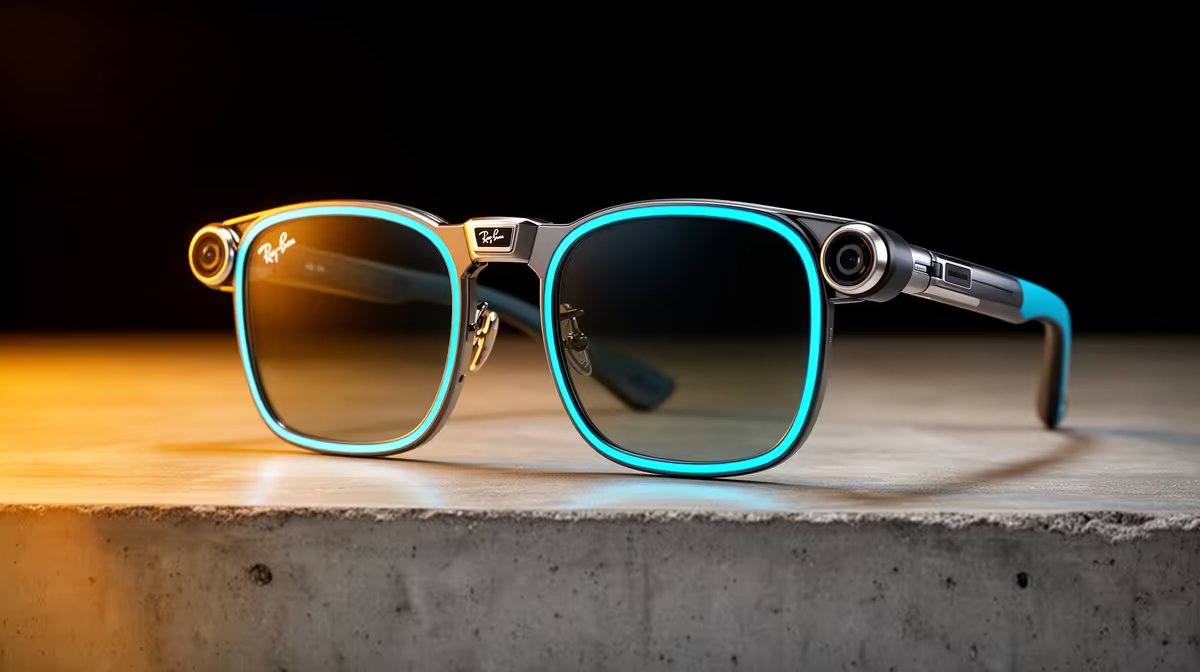
You captured a great clip on your Ray-Ban Meta glasses, opened the app to share it, and the transfer just sat there or never appeared. Frustrating, but rarely broken. Ray-Ban Meta media syncing runs over Wi-Fi, and the import stalls when your phone and glasses are not on the same network or the app is closed in the background. Get both onto one network with the app open and the photos and videos almost always start flowing.
Quick Answer
Ray-Ban Meta glasses transfer photos and videos to the app over Wi-Fi, not Bluetooth. The sync stalls when the phone and glasses are on different networks, the app is closed, or the phone is low on storage. Connect both to the same Wi-Fi, open the app and leave it in the foreground, and the media imports. Most stuck transfers are a network mismatch, nothing more.
Why It Syncs Over Wi-Fi in the First Place
Bluetooth handles the quick stuff between your glasses and phone, like audio and commands, but it is far too slow to shift high-resolution photos and full video clips in any reasonable time. So the glasses lean on Wi-Fi for the heavy media transfer instead. That design choice is the root of nearly every sync complaint: if the Wi-Fi link is not properly established, the media has no fast path to your phone and the import hangs.
The glasses also need Wi-Fi during setup and firmware updates, so if you have skipped or interrupted a network step in the app before, that can leave the media pipeline half-configured too.
The Fix, Step by Step
Work through these in order; most people are sorted by the second one.
- Put your phone and glasses on the same Wi-Fi network. This is the single most common cause. If the phone is on home Wi-Fi but the glasses tried to use a different saved network, the transfer cannot complete.
- Open the app and keep it in the foreground. Media often syncs only while the app is actively open, so swiping it away or letting the screen lock can pause the import mid-transfer.
- Check your phone has free storage. A nearly full phone has nowhere to put the incoming files, and the sync will quietly stall rather than warn you loudly.
- Restart both devices. Power the glasses off and back on, restart the phone, then reopen the app. This clears a stale connection more often than it has any right to.
- On Android, clear the app cache (or reinstall) if it still hangs. In your phone's app settings, find the Meta companion app and clear its cache, then try the sync again.
Confirm the app has permission to use Wi-Fi, Bluetooth and your photo storage while you are in there. A revoked permission silently blocks the very transfer you are trying to run. If you are still shopping or comparing wearables, the smart glasses range at Evetech lays out the current options.
When It Is Genuinely a Bug
If you have matched networks, freed storage, restarted everything and cleared the cache and media still will not move, you may be on outdated firmware or app software. Update the companion app to the latest version, let any pending glasses firmware update finish over Wi-Fi, and try once more. Beyond that, it is worth contacting Meta support rather than guessing further. Accessories and storage to keep your phone ready for big transfers sit in the accessories best sellers at Evetech.
Frequently Asked Questions
Why won't my Ray-Ban Meta photos sync to the app?
Almost always a Wi-Fi mismatch. The glasses transfer media over Wi-Fi, so if your phone and glasses are on different networks, or the app is closed, the import stalls. Put both on one network with the app open.
Do the glasses sync over Bluetooth or Wi-Fi?
Wi-Fi for photos and videos. Bluetooth is too slow for high-resolution media, so the glasses use a Wi-Fi link for the actual transfer. That is why a network problem, not a Bluetooth one, usually causes a stuck sync.
Does the app need to be open for media to transfer?
Yes, typically. Media often imports only while the companion app is open and in the foreground. Swiping it away or locking the phone can pause the transfer partway through.
Could low phone storage stop the sync?
It can. If your phone is nearly full there is nowhere to save the incoming files, and the transfer stalls without an obvious warning. Free up space and retry.
Clearing the app cache did not help. What now?
Update both the app and the glasses firmware to the latest versions over Wi-Fi, then retry. If it still fails after that, contact Meta support, as the issue is likely beyond a standard settings fix.
Thinking about smart glasses or adding to your setup? Explore the wearables in the smart glasses range at Evetech and pick a pair that fits how you capture and share.