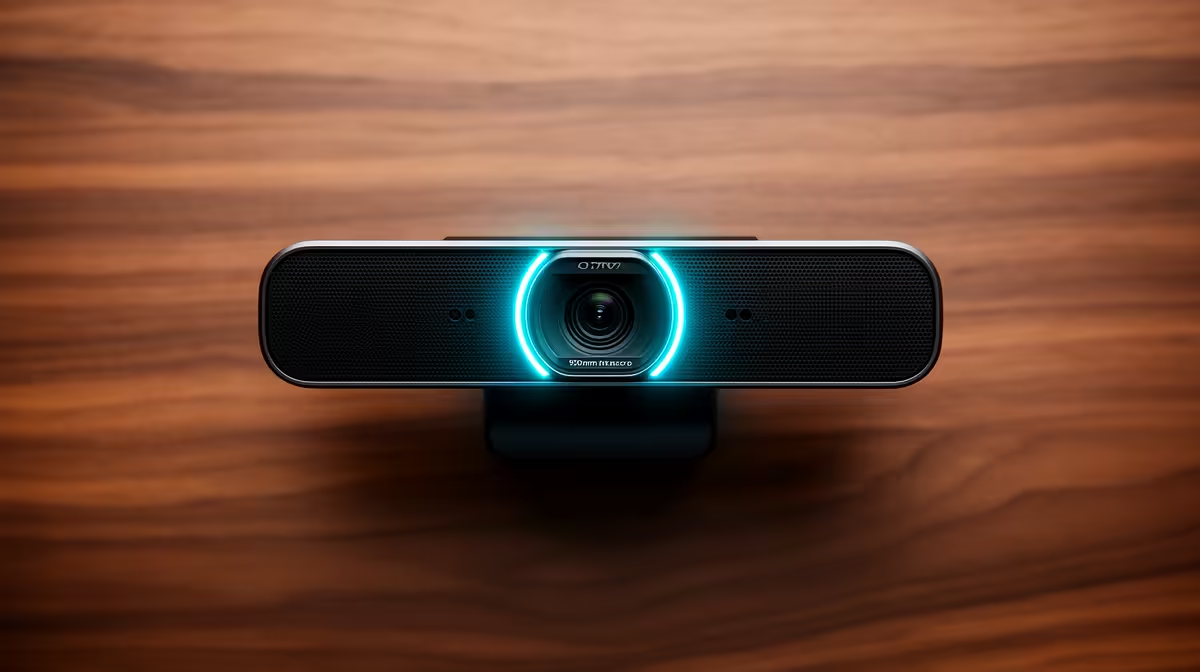
Most webcam sensors reward you for simply pointing them at a well-lit subject and letting the automatic settings handle the rest. A Sony STARVIS sensor changes that calculation. STARVIS is a back-illuminated design that is far more sensitive to light than conventional CMOS sensors, which means its automatic settings have far more latitude to make bad decisions with the extra signal it collects. A few manual adjustments lock in clean 4K, and none of them require post-processing software.
Quick Answer
Keep gain near minimum, lock white balance to a fixed colour temperature matching your key light, and set exposure manually so the image is bright without clipping highlights. A STARVIS sensor collects enough photons in dim conditions that high gain is almost never necessary, and noise stays low when gain stays down.
🔧 Gain: The Control That Determines Noise in 4K
Gain on a camera sensor is analogous to volume on a speaker. It amplifies the electrical signal the sensor produces in response to light. At low light levels, automatic gain control responds by turning this up, making the dim signal louder. The problem is that the sensor also produces a small random electrical noise signal, and gain amplifies that equally. At high gain, this noise becomes visible as the grain and colour speckle that ruins otherwise clean footage.
STARVIS uses a back-illuminated architecture, routing the wiring layer behind the pixels so each photosite faces incoming light directly. This captures more signal per photon than a conventional front-illuminated chip, meaning less amplification is needed for the same brightness. Set gain to minimum and add a key light; the footage stays clean where high-gain auto-exposure would introduce visible grain.
🎨 Locking White Balance for Consistent 4K Colour
Auto white balance updates continuously, and any ambient light shift mid-session produces a visible warming or cooling of the image. At 4K resolution that shift is clearly visible because the colour data is captured at full fidelity. Locking white balance removes the variable entirely.
Set the light source first, then match the camera to it: around 3200K for warm LED or tungsten-style desk lights, 5600K for daylight or cool white lamps. Apply the lock in the companion app under white balance or colour temperature settings. Every frame from that point records with the same colour baseline.
⚡ Exposure Settings That Complement a STARVIS Sensor
Automatic exposure in a dim room tends to open up aggressively, which can overexpose highlights the moment a brighter element enters the frame. Locking exposure manually keeps the image stable from the first second to the last.
The practical target is exposure that places your face at around 60 to 75 percent of maximum brightness. That headroom handles sudden highlights while keeping the signal well above the noise floor. A soft key light at roughly 400 lux, 50 to 80cm to your side and slightly above eye level, gives the sensor enough controlled input to hold low gain and stable exposure together.
Frequently Asked Questions
What makes a STARVIS sensor more light-efficient than a conventional webcam chip?
Routing the signal-processing wiring behind the photodiode layer rather than alongside it clears the full pixel surface for incoming photons. Each pixel gathers more light per frame, producing a stronger raw signal that needs less electrical amplification to reach a usable exposure level. Less amplification means the noise floor stays low and the image stays clean.
What gain setting should I actually use on a STARVIS webcam?
The lowest available setting that still produces a bright enough image with your current lighting. For most setups with a dedicated key light, this is minimum or near-minimum gain. Use the companion app's histogram or exposure indicator if available, and increase gain only as far as needed to bring the image to the correct brightness. Do not rely on gain to compensate for absent lighting.
Does the white balance setting affect sharpness on a STARVIS sensor?
Not directly. White balance affects colour rendering, not focus or resolution. However, a mismatched white balance creates an orange or blue cast that the eye reads as muddy or unnatural, which reduces the perceived quality of the footage even when the technical sharpness is high. A correctly locked white balance makes the sensor's 4K resolution appear at its full quality.
My STARVIS footage still looks grainy at 4K. What is wrong?
Gain is almost certainly set too high, either manually or through automatic exposure control responding to low ambient light. The fix is more light, not a camera setting. Adding a key light reduces the automatic gain the camera applies to lift the exposure, and the noise drops with it. Reduce the light source distance or increase its output before adjusting camera settings.
Ready to get clean, cinematic 4K footage from your streaming webcam?
Browse the 4K streaming webcams and key lights at Evetech to build a setup where the sensor and the lighting work together from the first session.