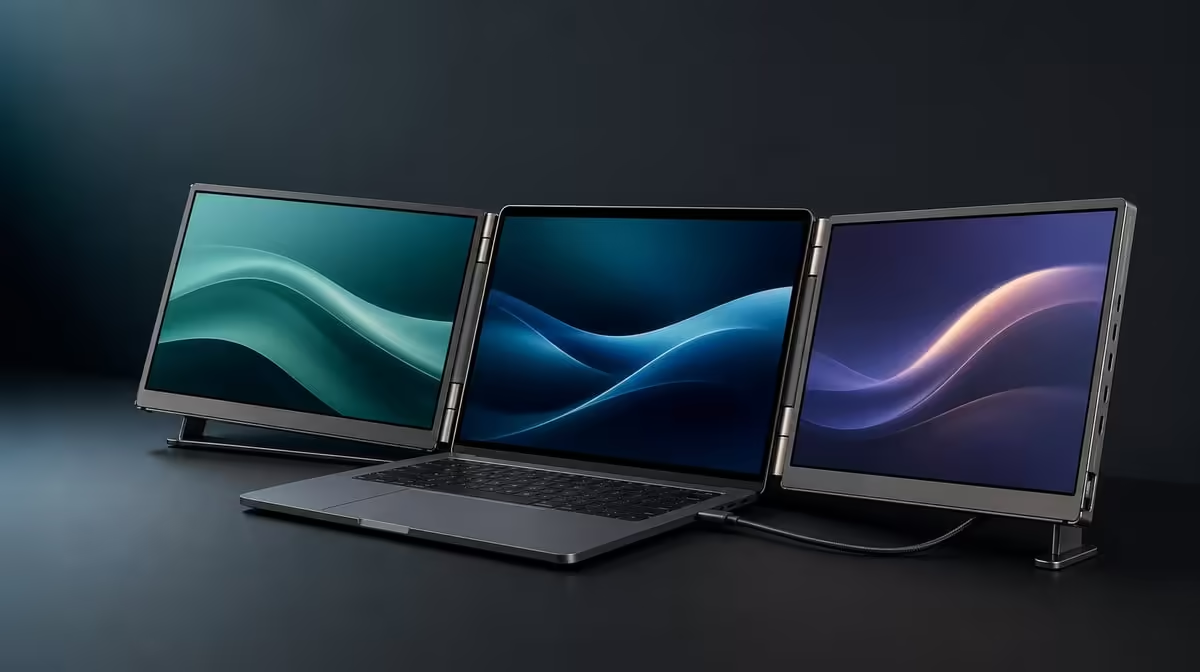
A QHD touchscreen purchase depends on the laptop, software and working surface as much as the panel specification. This SA QHD touch monitor checklist starts with source compatibility, then checks picture, input, colour, motion and physical fit before serious work begins.
Quick Answer
Confirm that the laptop can run both 2560 x 1600 screens and detect touch, then test the intended applications on each panel. At R11,999, the Delta Pro Touch adds pressure-sensitive 10-point control, 100% sRGB, auto-rotation and ergonomic support, so every feature carrying the decision should pass in the buyer's workflow.
💻 Prove the laptop-and-screen map
Connect the Delta in the intended arrangement and identify both 16-inch displays. Set native QHD output, match the desktop rectangles to the hardware and choose readable scale. Move a labelled window across every screen boundary.
Open applications in stages and watch source performance. Retain the built-in screen only for a clearly defined job.
Evetech's portable-monitor range lets South African buyers compare mobile options through the same laptop and project.
👆 Test software and direct input
Tap the centre, corners and edges of one panel, then repeat on the second. Add multi-finger actions only in software that supports them. Ten-point capacity does not guarantee that every program uses ten contacts.
For pressure, choose a compatible tool and pressure-aware control. Verify what comes in the current package, then test response in the intended application.
Move the application between panels and repeat. A visible image does not prove that touch follows the correct screen.
🎨 Check colour and motion separately
Use full sRGB coverage when the output targets that gamut. Open familiar material on both panels and complete the normal export. Calibration evidence remains a separate requirement.
Test the stated 25ms response with representative scrolling, video or timeline motion. Evetech's PC-monitor category offers fixed-display context when mobility and direct input are secondary.
Keep brightness appropriate to the room and controls readable. An sRGB figure is not an eye-comfort feature.
🔄 Inspect orientation, stand and recovery
Rotate one panel through the position the work will use, allow gravity sensing to settle and verify touch mapping. Apply ordinary input near the corners and confirm the ergonomic support remains stable.
Try the full monitor-and-laptop setup on the narrowest desk used regularly, including every required connection. Measure folded size, weight and bag compatibility for the complete kit directly.
Restart, then relocate and rebuild the screen arrangement. The monitor best-seller page provides current comparison context for the R11,999 Delta. Check live availability when ready to buy.
Preserve a first-work checklist
Record native resolution, display order, successful touch points, target application, compatible pressure tool where relevant and the stable stand position. Add the accepted colour reference or motion sample.
Repeat the short list before important work after travel or software changes. It gives the buyer a known starting state and avoids several simultaneous setting changes.
Decide through a real task
Complete one representative project across both panels and compare it with the current setup. Count window switches, input corrections and recovery time.
Buy when the exact R11,999 feature mix improves that work. Choose a simpler screen when passive extra viewing is the only recurring need.
Build a compatibility matrix
Create rows for dual-image output, touch on each panel, supported gestures, pressure behaviour, sRGB workflow, rotation and stand stability. Mark pass, fail or unknown for the exact laptop and applications.
Do not let several optional passes hide one essential failure. The buying decision should protect the source-and-software path used every week.
Repeat the first 30 minutes
Disconnect, move to another normal desk and time the return to productive work. Restore native resolution, screen order and input mapping before opening a demanding project.
Compare the second setup with the first. A portable monitor earns value when its useful state can be recovered reliably, not only when a careful initial configuration succeeds.
Frequently Asked Questions
What laptop capability should be checked first?
Confirm that the source can detect and drive both QHD panels in the intended arrangement.
Why must software be part of the decision?
Applications decide which touch gestures and pressure behaviours they support.
How should colour needs be assessed?
Match 100% sRGB coverage to the delivery target without treating it as calibration proof.
What orientation habits affect value?
Portrait, landscape and presentation use matter only when the full workspace recovers after movement.
Why inspect the stand during first setup?
Touch applies force, so the panels must remain stable at a comfortable angle.
What limitation should motion-sensitive buyers note?
The monitor states a 25ms response.
Ready to run every QHD touch check before serious work begins?
Compare Evetech's portable monitors with your laptop, applications, colour target and desk already prepared.