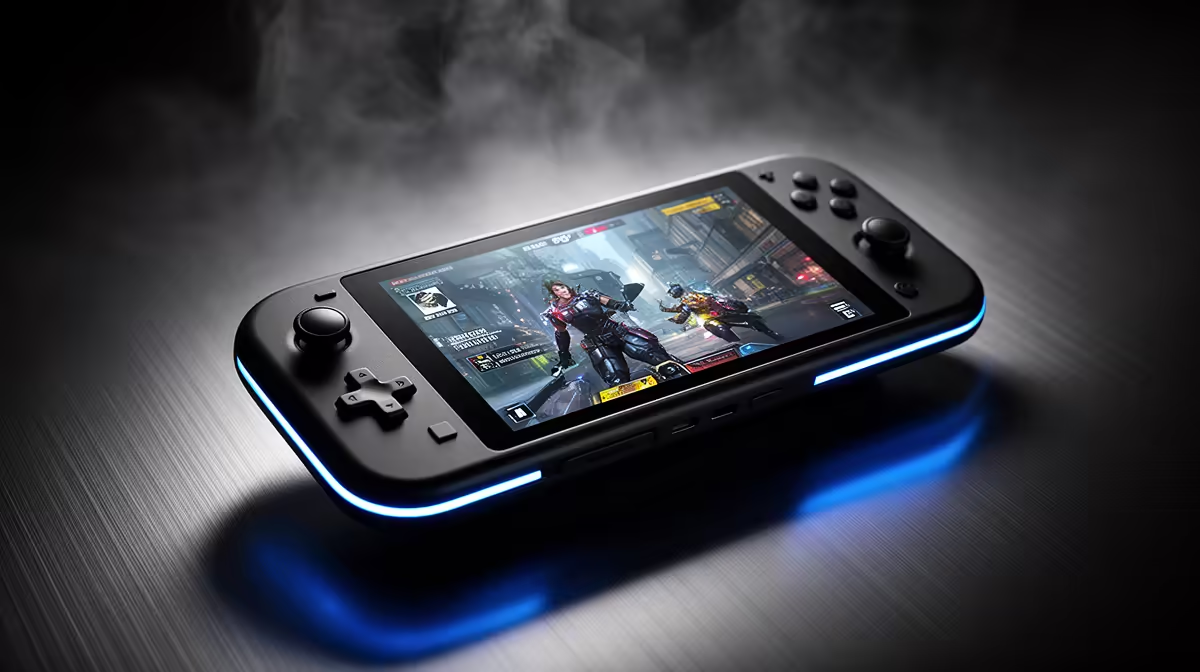
Upscaling can be a smart handheld trade because the screen is small and the performance budget is tight. FSR renders below the output resolution and reconstructs the image, freeing GPU time for a steadier frame rate. Fine detail, moving foliage and interface text still expose artefacts, so the compact panel does not make every preset look good.
Quick Answer
At an 800p output, start with the highest FSR quality mode available and compare it with native resolution in motion. Step down only when the extra performance fixes a frame-rate problem. Keep the game interface at native output where supported, add restrained sharpening and judge faces, thin wires and disocclusion around moving objects.
Evetech's handheld console line-up lets you compare display size and native resolution, both of which affect this choice. The popular PC selection shows where the same title can use a higher render resolution on a larger screen.
Understand the Trade
FSR quality modes lower the internal resolution by different amounts. At 800p, aggressive modes begin with few pixels, so small geometry and distant detail can shimmer. A seven-inch screen makes some softness harder to see at normal distance, but temporal instability remains visible during movement.
Use native 800p as the reference. Stand in one demanding scene and pan past foliage, fences, hair and signs. Then enable the highest-quality FSR mode. If the frame-time gain solves a real problem and the image holds together, keep it.
Avoid comparing screenshots alone. Temporal upscalers use information from earlier frames, and their strengths and faults appear while the camera moves.
Pick the Preset From the Target
If native resolution already holds your cap, FSR may offer little beyond power headroom. You can try reducing TDP after enabling it, but confirm that battery draw falls across a warm test.
When native misses the target by a small amount, a quality-oriented preset is the first choice. Balanced modes suit a larger shortfall when the game remains legible. Performance modes at 800p are a rescue option for demanding titles, with a visible image cost.
Some games expose a render-scale slider instead of FSR. Use small changes and keep the output resolution at the panel's native value. Lowering the whole display resolution can make menus and overlays softer.
Control Sharpening
Upscaling often includes a sharpening slider. Too little looks hazy; too much draws bright edges and makes grass sparkle. Start low, compare character faces and move a single step.
Do not combine strong in-game sharpening with a second driver or display filter. Stacked filters can make a reconstructed image look gritty without restoring detail.
Motion blur, film grain and chromatic effects also change your judgement. Disable them for the comparison, then restore the effects you enjoy after the upscale mode is chosen.
Watch the Interface
A well-integrated upscaler renders the HUD after reconstruction, keeping text and icons clean. Poor implementations can feed interface elements through the upscale pass, producing trails or softness.
Check subtitles, map labels and fine reticles. If the HUD degrades, try a higher quality mode or native rendering. Readability matters more than a few extra frames on a handheld.
FAQ
Does FSR always look good on an 800p handheld?
No. The small screen hides some softness, while shimmer, ghosting and damaged fine detail can remain visible in motion.
Which FSR preset should I try first?
Start with the highest-quality mode and step down only when the extra performance helps the chosen frame target.
Can upscaling improve battery runtime?
It can create room for a lower power setting or frame cap. Measure device draw because the screen, CPU and other components still consume energy.
Compare native 800p with the highest FSR quality mode in motion, then spend image quality only where it buys a stable frame target.