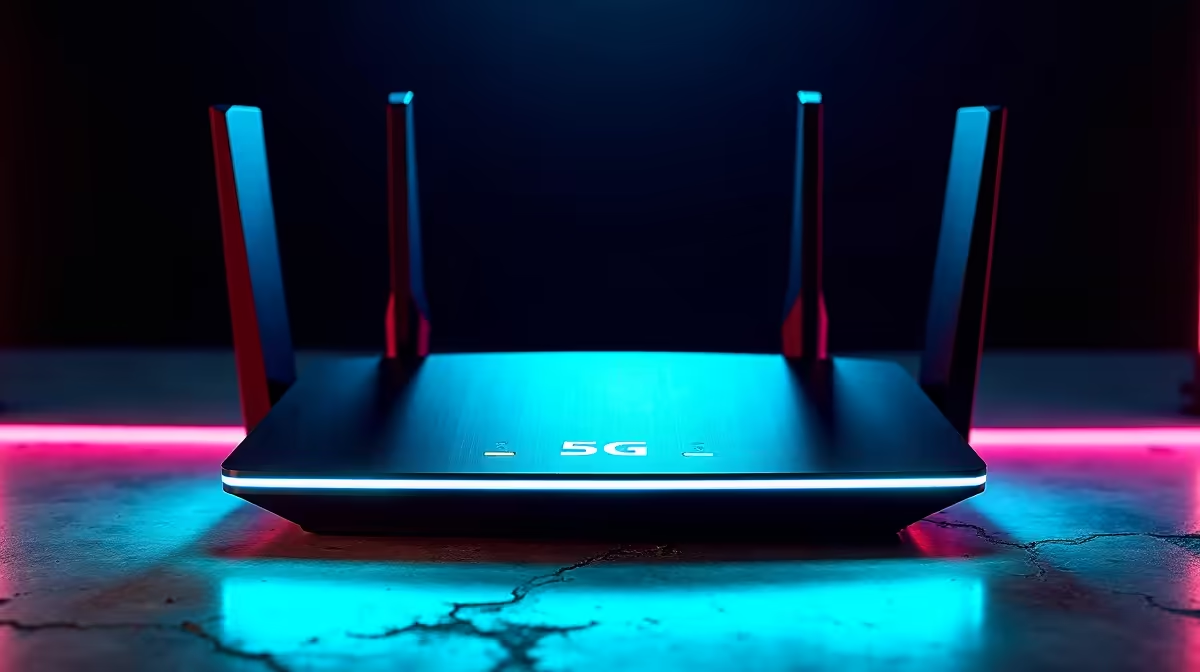
Your 5G router shows full signal yet your speeds are stuck at 4G numbers, and the cause is often that the router keeps hopping between frequency bands and settling on a slow one. Band locking is the fix. It forces the router to hold a specific frequency band instead of roaming automatically, and for South African users on a fixed-wireless connection it can be the difference between dropping to LTE and holding a strong sub-6GHz 5G signal.
Quick Answer
Band locking pins your 5G router to one chosen frequency band rather than letting it switch automatically. SA users apply it to lock onto a stronger sub-6GHz 5G band when the router keeps falling back to slower 4G. You set it in the router's network settings by switching band selection from Auto to a specific band, but you should never lock out 4G entirely.
What band locking does
A 5G router constantly evaluates the bands available from nearby towers and connects to whichever it judges best. That automatic choice is usually fine, but not always. The router can latch onto a band that has a strong raw signal but poor throughput, or bounce between bands in a way that drops you to 4G when a perfectly good 5G band is sitting right there.
Band locking overrides that judgement. You tell the router to use only the band, or bands, you have chosen, and it stops roaming. Done correctly, it holds you on the faster, more stable connection instead of wandering off it.
If your current router cannot lock bands at all, that capability lives in the modem firmware, and the networking range at Evetech is where to compare routers and CPE units that expose those controls.
Why your router drops to 4G in the first place
Here is the part that catches people out. Most 5G networks today run in Non-Standalone mode, which means the 5G layer leans on the existing 4G LTE network underneath it. The 4G connection is not a fallback failure, it is part of how 5G NSA carries your data. A meaningful share of your bandwidth still rides on LTE bands even when you are connected to 5G.
That matters for two reasons. First, seeing 4G activity is often normal, not a fault. Second, and critically, you must never lock the router to 5G only and disable 4G. On an NSA network that leaves the device unable to connect to anything, since it needs the LTE anchor to establish the 5G link. Locking a 5G band is fine, locking out 4G is not.
How to lock a band safely
The exact menu differs by brand, but the pattern is consistent.
- Log into the router's admin interface from a browser using its gateway address.
- Find the band selection setting. It may sit under a Band Select Type dropdown, or under Network, then Interfaces, then the mobile interface's Advanced Settings.
- Change the selection from Auto to Specify, or its equivalent, which reveals a checklist of available bands.
- Tick only the 5G band you want to hold, leave the 4G bands enabled, then submit and apply.
- The modem restarts and reconnects on your chosen band. Give it a minute, then run a speed test to confirm the improvement.
Find out which bands your area uses first
Locking to a band your local tower does not broadcast will simply kill your connection. Before you lock anything, check which bands your carrier serves at your location. Some routers report the current band and signal details in their status page, and engineering menus or AT commands on the modem can list what the serving towers actually broadcast. Lock to a band you have confirmed is present, not one you are guessing at.
If locking breaks your connection
If connectivity drops after you apply a lock, power-cycle the router first. Unplug it, wait about 30 seconds, and plug it back in. If it still will not connect, your chosen band is likely unavailable or unsupported at your location, so return the setting to Auto and try a different confirmed band. Band locking is reversible, so there is no harm in experimenting carefully as long as you keep 4G enabled throughout.
Frequently Asked Questions
Will band locking always make my router faster?
Not always. It helps when the router keeps choosing a weak or congested band, but if your best available band is already the one it picks automatically, locking changes nothing. Test before and after to see whether it genuinely helps at your location.
Can I lock my router to 5G only?
You should not. Most 5G networks run in Non-Standalone mode and need the 4G LTE anchor to connect, so disabling 4G entirely usually leaves the router unable to connect at all. Lock the 5G band you want but leave 4G enabled.
How do I know which band to lock to?
Check which bands your carrier broadcasts at your location first, using the router's status page or its diagnostic tools. Lock only to a band you have confirmed is available, since locking to an absent band will drop your connection.
Does every 5G router support band locking?
No. The feature depends on the router's firmware and how much access it gives you to the modem settings. Some consumer units hide it entirely, while CPE units aimed at fixed-wireless use more often expose band controls.
What do I do if my connection dies after locking a band?
Power-cycle the router for about 30 seconds. If it still will not connect, the band is probably unavailable in your area, so set band selection back to Auto and either leave it or try a different confirmed band.