


How to Fix FPS Drops on an RTX 5090 Build
FPS drops on an RTX 5090 build often have a fixable cause. Check settings, drivers, thermals, background tasks, network conditions, and bottlenecks before assuming a part must be replaced.
Read morePen not feeling like paper? Stylus lag and skipping usually trace to old drivers, dirty nibs, or display refresh mismatches, not the pen itself. Covers pressure curve tuning, tilt thresholds, nib swap timing, and SA pricing brackets.
Stylus pen lag is caused by processing delays between the pen's sensor, the tablet's digitiser, and the drawing or note-taking software. The fix usually involves updating the tablet driver, closing background apps, enabling hardware acceleration in your drawing software, and using a USB connection instead of Bluetooth where possible. Most lag issues reduce to under 10 ms with the right settings.
Lag in a stylus system comes from three compounding delays. First, the pen-to-tablet signal time: a 2.4 GHz or EMR pen communicates with the tablet surface at up to 200 Hz; Bluetooth pens communicate at lower rates and introduce 4 to 10 ms of extra delay. Second, driver processing time: an outdated or poorly optimised driver adds processing overhead between the hardware signal and the software input event. Third, software rendering lag: the drawing app must receive the pen event, calculate the stroke, and render pixels on screen. GPU-accelerated apps do this in under 5 ms; apps running in CPU-only mode can add 20 to 40 ms of render delay on a loaded system.
Start with the driver: uninstall the current driver completely, restart, and install the latest version from the manufacturer's website (Wacom, Huion, or XP-Pen all update drivers several times a year). Next, check GPU acceleration: in Clip Studio Paint go to File > Preferences > Canvas > Use GPU for canvas rendering and enable it. In Krita, go to Settings > Configure Krita > Display and ensure OpenGL is active. Close all background applications consuming GPU or RAM; on a system with 16 GB RAM or less, multiple browser tabs alone can add measurable software lag. If using a Bluetooth stylus, switch to the USB receiver or cable connection mode if available. On Windows 11, disable Enhance pointer precision under Mouse settings, as this Windows Ink smoothing filter adds latency.
If you have updated drivers, enabled GPU acceleration, and reduced system load but lag persists above 20 ms, the hardware is likely the bottleneck. Entry-level tablets reporting at 133 Hz digitiser polling feel noticeably laggier than mid-range tablets at 200 Hz or premium tablets at 266 Hz. For SA students and remote workers using basic Windows touchscreen laptops with built-in digitisers, the digitiser polling rate is often fixed at 120 Hz, which sets a floor on achievable latency. Upgrading to a dedicated drawing tablet in the R1,200 to R3,000 range that reports at 200 Hz or higher removes this hardware ceiling.
Windows Ink Workspace adds a processing layer between your stylus input and the drawing app. In Wacom and Huion drivers, there is a Use Windows Ink toggle in the driver settings. Disabling it routes pen input directly through the tablet driver, reducing latency by 3 to 8 ms in many configurations. Re-enable it only if your app specifically requires Windows Ink support.
Not inherently, but driver conflicts introduced by Windows updates and accumulated background software can increase effective latency over time. A clean driver reinstall often restores original performance on older hardware.
Yes, particularly for software rendering lag. A laptop with a modern Ryzen 7 or Core Ultra CPU handles drawing app rendering faster than an entry-level N-series processor, reducing the software component of total lag by 10 to 30 percent.
Yes. On a 60 Hz display, a 10 ms lag is visible since the screen updates every 16 ms. On a 120 Hz display, the 8 ms update interval makes pen input feel far more responsive, even with identical driver latency.
Experiencing lag and ready to upgrade to a more responsive drawing setup? Evetech stocks drawing tablets with 200 Hz digitiser polling and optimised drivers, giving SA artists and students the responsive pen experience they need.
FPS drops on an RTX 5090 build often have a fixable cause. Check settings, drivers, thermals, background tasks, network conditions, and bottlenecks before assuming a part must be replaced.
Read more
How to fix low FPS on 240Hz monitor starts with refresh rate, GPU load, and game caps. In South Africa, also check power mode, thermals, and display cable quality before assuming your PC cannot keep up.
Read more
31.5-inch 4K OLED gives SA gamers sharp work space and rich contrast for play. It suits buyers who want one high-end display for study, streaming, or editing by day, then immersive gaming after hours. Check desk depth and panel care first.
Read more
All-in-One PCs are niche in SA because they package the display and desktop into one tidy unit. That helps with space and setup, but SA buyers should weigh repair access, upgrade limits, monitor choice, and gaming expectations.
Read more
All-in-One PCs are niche in SA because the neat design comes with upgrade, repair, and performance trade-offs. They appeal to tidy desks and shared spaces, but buyers often compare them against laptops, towers, and separate monitors.
Read more
ARGB Cases In Mid-Tier SA Builds can change budget, compatibility or upgrade plans. SA PC builders should compare fit, warranty, platform needs and real workload value before committing.
Read more
Pre-Black Friday AIO cooler needs practical checks before buyers act. Build the shortlist around specs, warranty, fit, and real discount checks before campaign prices or ranges change. Keep it guide-safe for South African readers.
Used parts can lower the build cost, while buying new gives the SA warranty angle named in the title.

Choosing the right USB-C hub is essential for a clean, efficient desk setup. 🖥️ Discover exactly how many ports you need to replace your bulky desktop docking station without sacrificing performance or connectivity. ⚡
Black Friday Gaming PC Wait can help if your PC need is flexible. On a R5,000 SA budget, compare deal risk, component balance, warranty, and timing before waiting.
A recovery drive and system restore points turn a failed driver or BIOS update on a gaming pc from a full reinstall into a five-minute fix. Setting both up takes about 15 minutes, and Evetech recommends doing it the week you unbox a new build, before tweaking drivers.
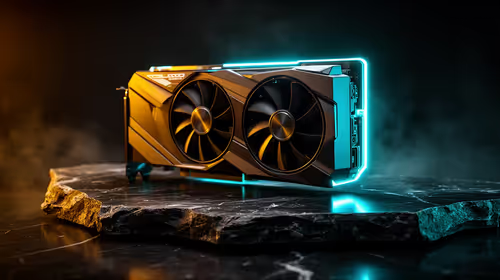
RTX 5090 with a 1000W PSU is a strong compatibility target for high-end builds. SA buyers should still match the exact PSU quality, connector support, CPU choice, case airflow, and upgrade needs to the final system.
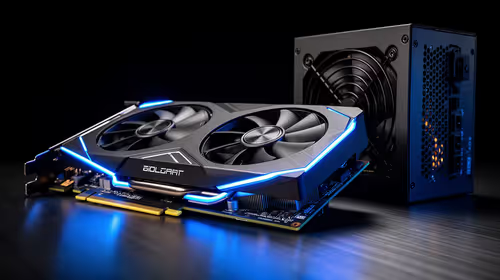
RTX 5090 on a 1000W PSU offers the best headroom in this PSU tier set. SA builders can plan more confidently for top-tier CPUs, cooling, and cautious OC, while still checking cable support and total system load.
A 550W PSU is a risky fit for an RTX 5080 Super system in SA unless guidance and demand support it. Check CPU draw, cabling, PSU age, cooling, and upgrade margin before deciding whether the setup is safe enough.
FPS drops on an RTX 5090 build often have a fixable cause. Check settings, drivers, thermals, background tasks, network conditions, and bottlenecks before assuming a part must be replaced.
The real world difference between PCIe 5.0 and PCIe 4.0 in competitive esports is rarely raw FPS. SA esports players should compare GPU lane needs, CPU limits, latency goals, and NVMe loading before upgrading.
How to fix low FPS on 240Hz monitor starts with refresh rate, GPU load, and game caps. In South Africa, also check power mode, thermals, and display cable quality before assuming your PC cannot keep up.
PCIe 5.0 vs PCIe 4.0 for aAA single-player gaming buyers - what changes is mostly about compatibility, budget, upgrade path, and setup fit. SA buyers should check device support and real needs before expecting a clear win from either option.