A panel that quietly drops to a lower resolution or refresh rate is usually limited by the cable or the input chosen, not by the machine driving it. Checking the active setting in Displays separates a cable fault from a simple setting in seconds.
Quick Answer
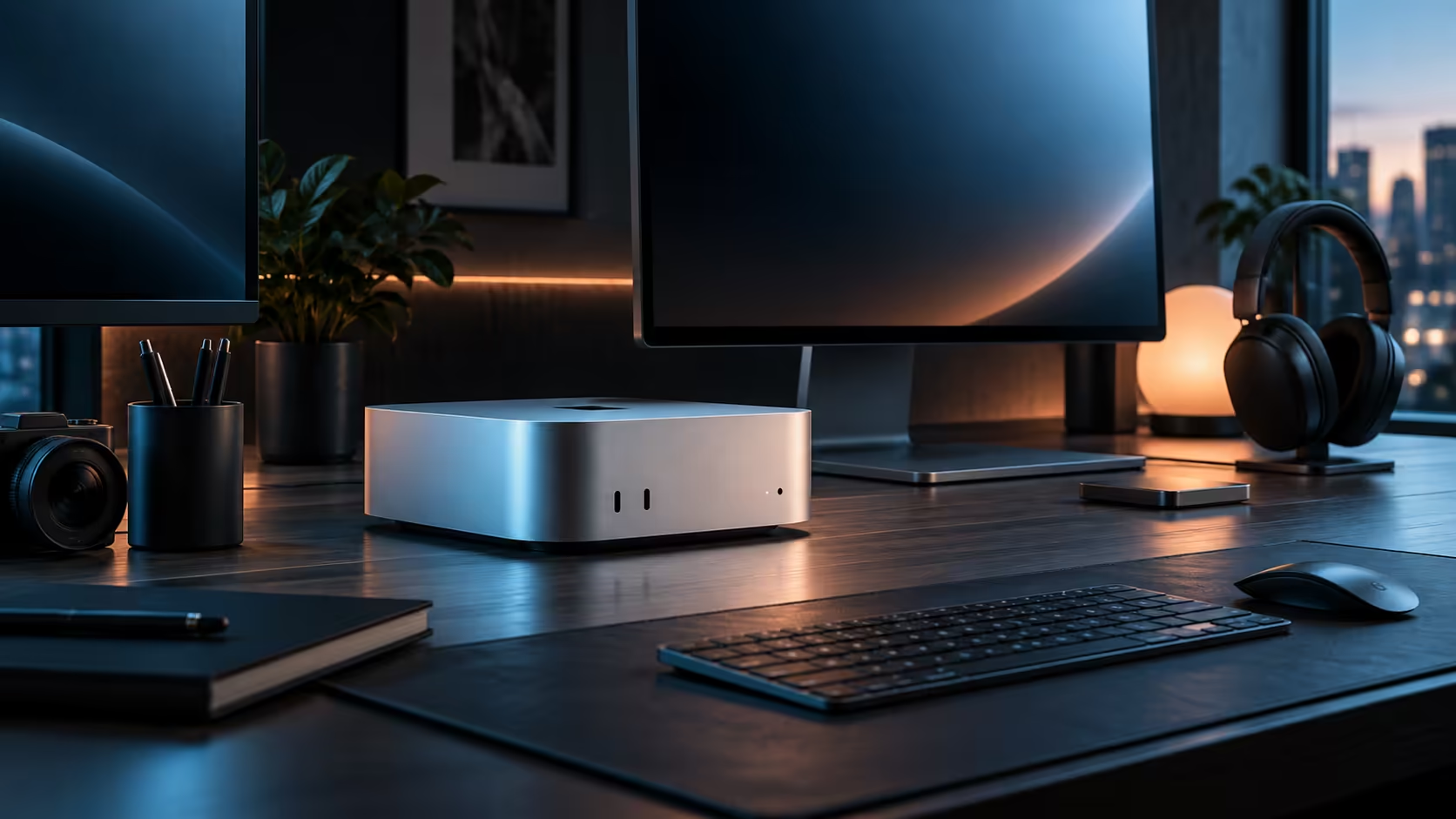
Check the active resolution and refresh rate in System Settings, under Displays, before assuming the machine cannot drive the panel properly. A R21,699 compact desktop can usually drive more than a bundled cable allows, so the cable is the first thing worth replacing with one rated for the full specification.
🔍 Check the setting before blaming the hardware
Open Displays and confirm whether the resolution reads 3840x2160 or drops to something lower, since macOS sometimes defaults to a conservative setting on first connection rather than the panel's true maximum. Setting it manually often solves the problem outright with no hardware changes at all.
🧵 The cable is the most common real cause
A cable not rated for the resolution and refresh rate you want will silently cap the connection at a lower setting rather than failing outright, which is exactly why it goes unnoticed. Check the current cable range for one properly rated for your panel's full specification before assuming the machine itself is the limit.
🖥️ Confirm what the monitor itself actually supports
Some monitors only reach 120Hz or 144Hz over one specific port and quietly cap at 60Hz on another, so check the panel's own manual rather than assuming every input behaves identically.
🔁 A short checklist that isolates the fault in minutes
Work through it in order across roughly 5 minutes: confirm the setting in Displays first, since that alone fixes a surprising number of cases with zero cost. Swap the cable second, testing with one you know is properly rated if you have one on hand. Only after both of those come up clean is it worth suspecting the monitor's own port or the machine itself, and even then, testing the same cable and setting on a different device first narrows it down further before any hardware ever gets blamed unfairly for a simple cable fault.
Frequently Asked Questions
Does the machine ever limit the resolution a monitor can reach?
Rarely; the cable or the active setting in Displays is the far more common cause of a panel running below its true maximum.
Why does my monitor default to 60Hz instead of a higher refresh rate?
macOS sometimes chooses a conservative default on first connection; setting the refresh rate manually in Displays usually fixes it.
Can a cheap cable really limit refresh rate specifically?
Yes, an unrated cable often passes a lower refresh rate cleanly and only fails once a higher one is requested.
Does this same troubleshooting order apply to any compact desktop, not just this one?
Yes, checking Displays before blaming the cable, and the cable before blaming the port, holds across the wider mini PC range as well.
Ready to get your external display running at its actual best setting?
Check the active resolution in Displays, then confirm your cable is properly rated.