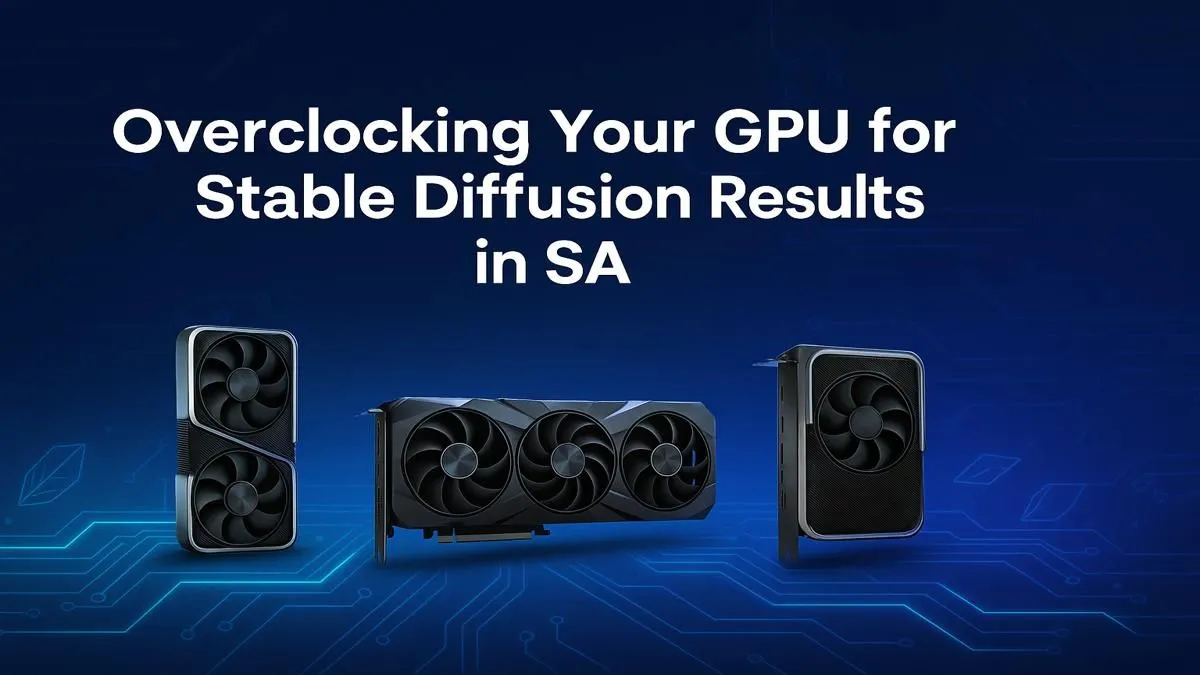
Staring at that progress bar while Stable Diffusion generates your next masterpiece? What if you could speed it up... for free? Learning how to safely overclock your GPU for Stable Diffusion can slash your image generation times. This guide is built for South African creators, showing you how to unlock that hidden performance without risking your precious hardware. Let's get those creative juices flowing... faster! 🚀
Why Overclock Your GPU for AI Image Generation?
When you’re deep in a creative session, speed is everything. Faster image generation means more iterations, more experiments, and a better final result. The core of Stable Diffusion's performance lies in your graphics card's processing power. By pushing its core and memory clocks slightly beyond factory settings, you directly increase the number of calculations it can perform per second.
This isn't about chasing leaderboard scores; it's a practical step. A successful GPU overclock for Stable Diffusion can shave precious seconds or even minutes off each render, which adds up to hours saved over a project. Think of it as a free performance upgrade hiding inside the hardware you already own.
The Essential Pre-Flight Checklist 🔧
Before you begin, you need the right software. The process is surprisingly straightforward, and you don't need to be a hardware guru.
- MSI Afterburner: This is the gold standard for GPU overclocking, regardless of your card's brand. It’s free, reliable, and gives you control over the core clock, memory clock, and fan speeds.
- A Benchmarking Tool: The best benchmark is Stable Diffusion itself. Prepare a consistent prompt with a fixed seed and number of steps (e.g., 50 steps) that you can run before and after each adjustment to measure the real-world performance gain in iterations per second (it/s).
- Latest Graphics Drivers: Ensure you have the latest drivers installed for your card. This is crucial for stability, whether you're running one of the latest models or a trusted older card from our wide range of NVIDIA and ATI graphics cards.
A Safe Guide to Overclocking Your GPU for Stable Diffusion
Patience is key here. We’re looking for stable, incremental gains, not trying to break world records. This method prioritises safety for your hardware.
Step 1: Establish Your Baseline
First, run your standard Stable Diffusion prompt with your GPU at its default settings. Make a note of the temperature, power draw, and, most importantly, the iterations per second (it/s) or total time taken. This is the number we want to improve.
Step 2: Nudge the Core Clock
In MSI Afterburner, start by increasing the Core Clock slider in small increments... think +25MHz at a time. Click apply, and then run your benchmark prompt again. Did the generation complete without crashing? Did the performance improve? If yes, repeat the process. Most modern NVIDIA GeForce graphics cards have excellent cooling and power delivery, allowing for decent headroom.
Step 3: Boost the Memory Clock
Once you find a stable core overclock (or it starts crashing), return it to the last stable setting. Now, do the same for the Memory Clock. Increase it in +50MHz increments, applying and testing after each change. Sometimes, AI workloads benefit more from memory speed than core speed, so you might see big gains here.
VRAM is King 👑
Stable Diffusion loves VRAM. While overclocking boosts speed, it can't add more memory. If you're constantly hitting VRAM limits, it might be time for an upgrade. A card with 12GB or more of VRAM will make a massive difference to your creative workflow and allow for higher-resolution outputs without errors.
Step 4: Combine, Stress Test, and Save
Now, try applying your stable core and memory overclocks together. Run your benchmark. If it's stable, run it five more times to be sure. If it crashes, reduce the core or memory clock slightly until it's rock-solid.
Once you find that sweet spot, save the settings to a profile in MSI Afterburner so you can apply it with one click whenever you start a Stable Diffusion session. ✨
Is Your Current Card Ready for the AI Future?
This guide to overclocking a GPU for Stable Diffusion works wonders, but hardware has its limits. While not always the top pick for AI due to software optimisation, many AMD Radeon graphics cards can also see significant gains from this process.
However, if you're a professional generating thousands of images or working with complex models, the raw power and VRAM of dedicated hardware can't be beaten. For these serious workloads, even high-end workstation graphics cards can be fine-tuned for maximum efficiency, turning your PC into an AI powerhouse. If your current card is struggling with heat or VRAM limitations, an upgrade might be the most effective performance boost of all.
Ready to Unleash AI Power? Overclocking can breathe new life into your hardware, but sometimes a fresh start is the best way forward. If your current card is holding your creativity back, we've got the solution. Explore our massive range of graphics cards and find the perfect GPU to conquer your AI ambitions.